
Microsoft is simplifying the events scheduling experience in the Teams Events app with a new “Optimize for large audience” setting. The setting automatically applies to events with more than 1,000 attendees (up to 100,000), primarily for Town hall events.
After the update, users no longer need to choose which event template to use; they simply indicate whether the event has a large audience. This improvement should also reduce the need to reschedule events.
The new “Optimize for large audience” setting respects existing Teams Events policies. If town halls are disabled by policy, users cannot schedule large audience events, though not in the way you might expect.
Timeline
The rollout should be completed in July 2026.
How does this affect your organization?
A few weeks ago, while testing the new Teams Events app, users had to choose between two event types.
- Broadcast (for Town Hall events with 3’000 to 100’000 interactive attendees, or 10’000 view-only attendees)
- Collaborative (for Meetings and Webinars with up to 1’000 interactive attendees; view-only attendees are not supported)
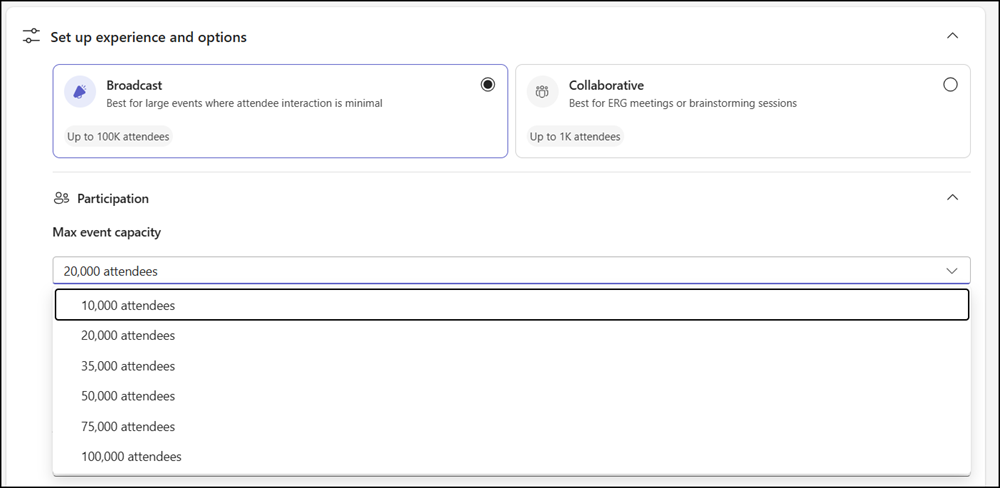
Microsoft is replacing these two event types with a new “Optimize for large audience” setting.
Any event configured for more than 1,000 attendees will have large audience automatically turned on and locked, since events at that scale require the large-audience delivery model.
Don’t forget:
An organizer cannot change the large audience setting after the event has been saved, even when it’s still a draft. The event must be recreated to update the large audience setting. The organizer can later update the attendee capacity for large audience events. As a reminder, the attendee capacity is a hard limit for the scheduled event.
The large-audience delivery model includes:
- Mic and camera are disabled by default for all attendees (presenters and organizers are excluded).
- Attendees can pause and rewind live content.
- For an interactive event, an organizer or presenter can later enable the mic and camera for all attendees or just specific attendees, such as those who raised their hand.
- Users with a Teams Enterprise license or service plan use Microsoft eCDN by default.
Users with a Teams Enterprise license or service plan can schedule large audience events with up to 3,000 interactive attendees or 10,000 view-only attendees.
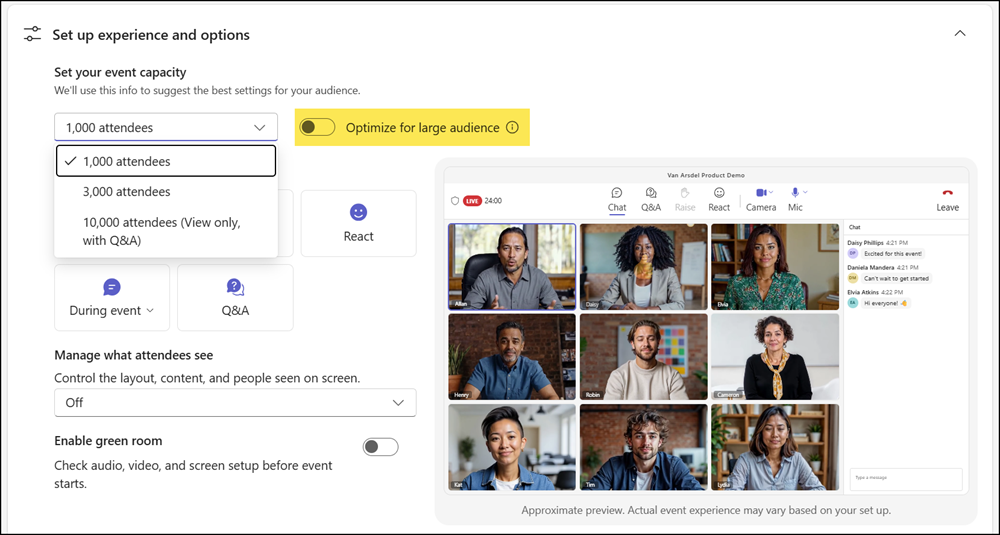
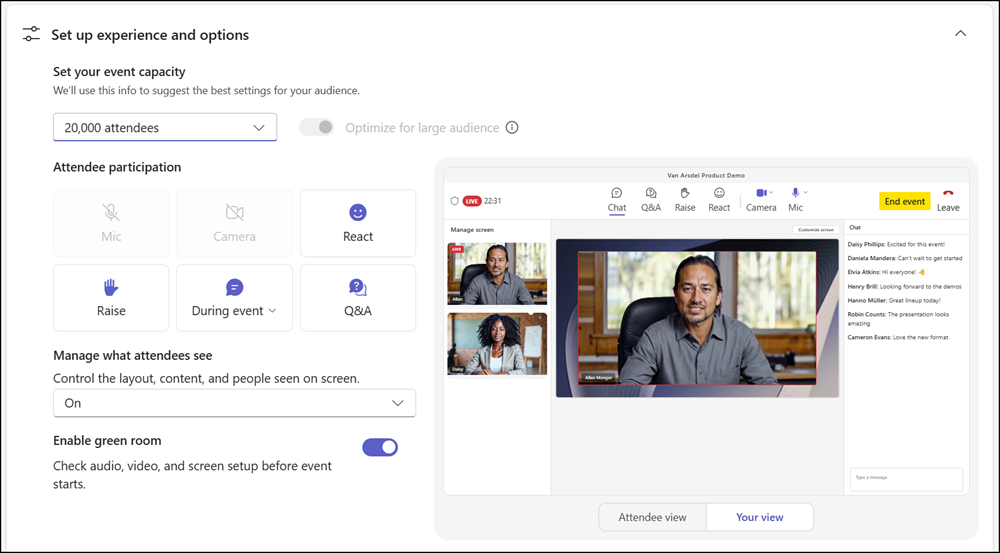
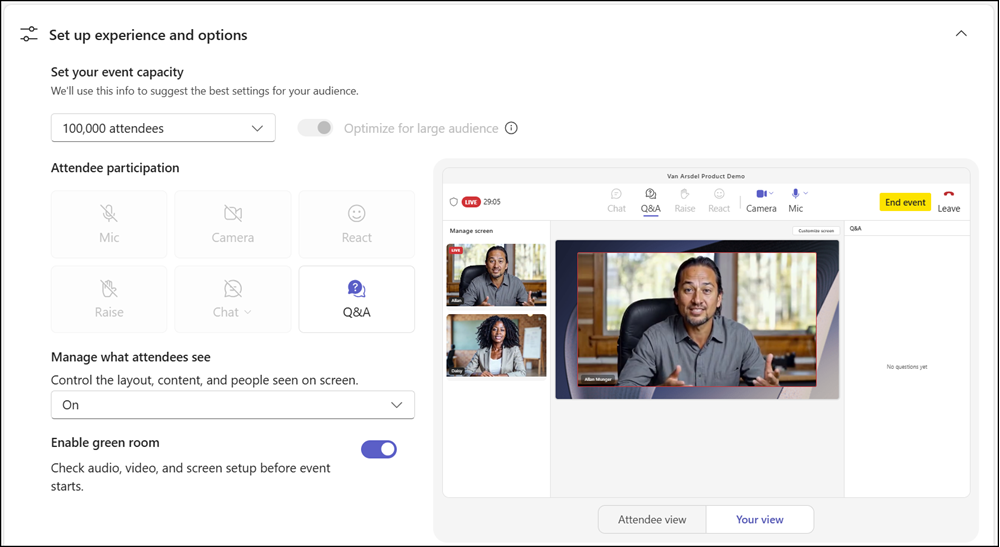
Users with an attendee capacity pack or a Teams Premium Legacy license can schedule large audience events with up to 100,000 interactive attendees. Enabling the large audience setting causes Teams to adapt the preview and the available Teams event options.
An event with up to 20,000 attendees is an interactive event and supports reactions, raising hands, an optional event chat for attendees, and Q&A.
An event with more than 20,000 attendees is a view-only event and supports Q&A.
How does a Teams policy affect a large audience setting?
- If Optimize for large audience is On
Teams will use the settings in the Teams Events policy, including AllowTownhalls, TownhallEventAttendeeAccess, AllowedTownhallTypesForRecordingPublish, TownhallChatExperience, RecordingForTownhall, TranscriptionForTownhall, TownhallMaxResolution, HighBitrateForTownhall, BroadcastPremiumApps, and UseMicrosoftECDN.
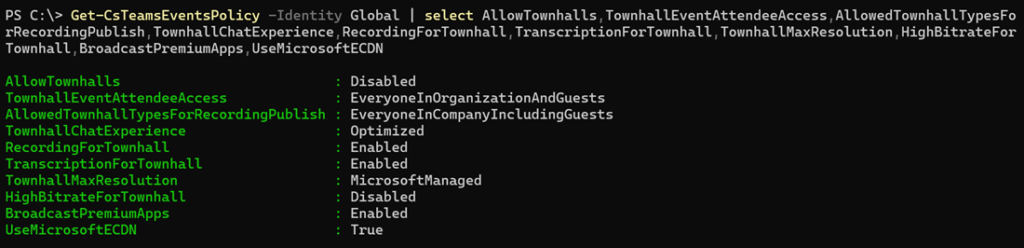
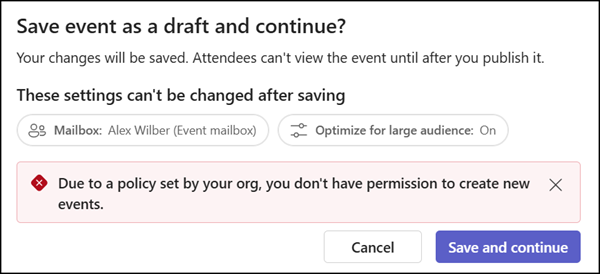
Users cannot schedule large audience events if AllowTownhalls is disabled.
Unfortunately, Microsoft does not offer a way to disable the large audience setting. Users can still plan such events, but they cannot save or publish them. 🤷♂️🤦♂️
- If Optimize for large audience is Off
The event is governed by webinar policy settings, including AllowedWebinarTypesForRecordingPublish, RecordingForWebinar, and TranscriptionForWebinar, but excluding AllowWebinars. I found no difference in the Events app when AllowWebinars was disabled.

All other policy settings not specific to town halls or webinars, for example Registration, continue to apply to all events regardless of how the large audience setting is configured.
