
Microsoft is changing how event registration is managed in Teams.
Currently, Microsoft is rolling out the unified Teams Events experience in the Meet app, postponed to June 2026.
This Events experience introduces a new Registration setting in the Teams Events policy. The Registration setting is enabled by default. The AllowWebinars setting is important to note in the context of this change.

As a reminder, Microsoft retired the registration option for Teams Meetings in June 2024. A Webinar was required whenever registration was needed.
Also noted in the documentation.
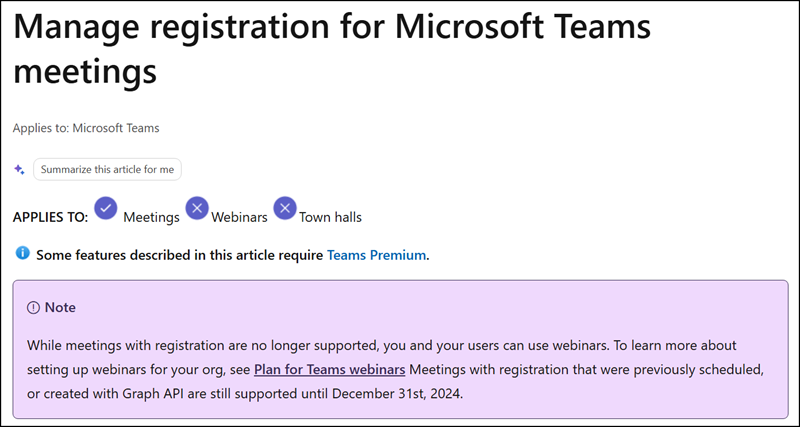
The new Registration setting in the Events policy brings registration back across all event types.
With the unified Teams Events experience, organizers will no longer create classic Meetings, Webinars, or Town hall events.
Only two event types will remain:
- Broadcast (for Town Hall events with 3’000 to 100’000 interactive attendees, or 10’000 view-only attendees)
- Collaborative (for Meetings and Webinars with up to 1’000 interactive attendees; view-only attendees are not supported)
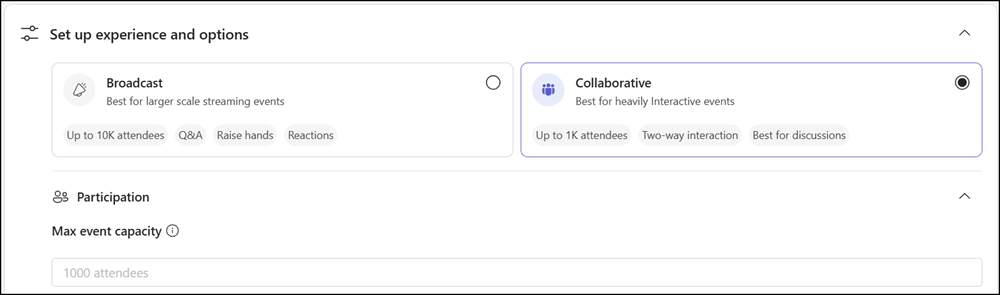
Both event types support the new registration capability. Manual approval is not supported for Broadcast events.
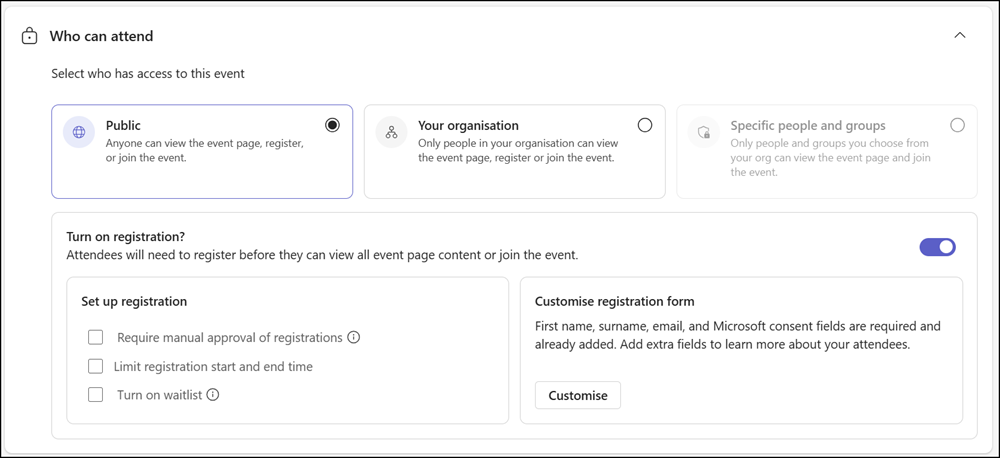
The new Registration setting in the Events policy controls whether organizers can schedule events that require registration, in both the Meet app and the Teams Calendar app. Depending on the configuration, organizers may or may not be able to schedule new Webinars through the Teams Calendar app, which may affect your internal decisions.
- The existing AllowWebinars setting in the Teams Events policy controls whether an organizer can create a webinar through the Teams Calendar app and continues to work as before. The new Registration setting sits alongside it and applies more broadly to any event that requires registration.
- The new Registration setting in the Teams Events policy is enabled by default, meaning organizers can add registration to events without a configuration change.
- If the Registration setting is disabled, organizers will no longer be able to enable registration for any event. Webinar creation through the Teams Calendar app will also be blocked.
Set-CsTeamsEventsPolicy -Identity Global -Registration Disabled- If AllowWebinars is disabled but the Registration setting is enabled, organizers can still schedule events with registration through the Meet app, though Webinar creation via the Teams Calendar app will remain restricted.
Set-CsTeamsEventsPolicy -Identity Global -Registration Enabled -AllowWebinars Disabled
I prepared a matrix showing how the settings affect events scheduled via the Meet and Teams Calendar apps.
| Registration | AllowWebinars | New Events with registration in the Meet app | New Webinars in the Teams Calendar |
|---|---|---|---|
| Enabled | Enabled | Available | Available |
| Enabled | Disabled | Available | Not available |
| Disabled | N/A (ignored) | Not available | Not available |
