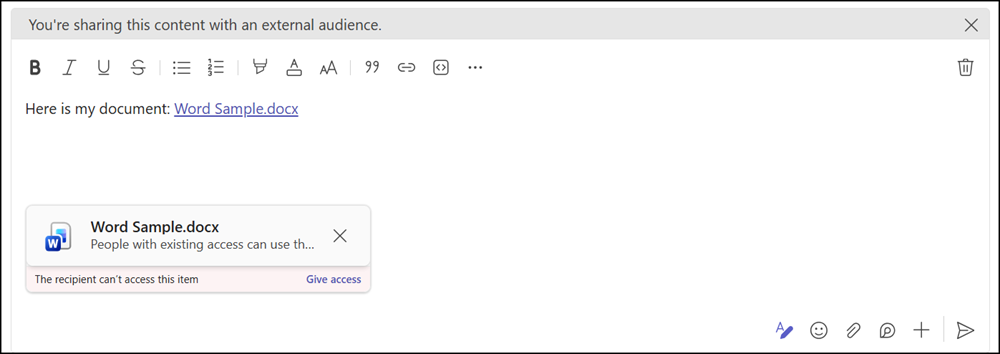
Microsoft will make the Attach file (the paperclip icon) and Drag & Drop experiences available by default in Teams chats with guests, including 1:1 chats, group chats with guests, and meeting chats with external participants. This change applies only to tenants that have never configured or updated the existing policy controlling file attachments in external chats.
Timeline
The rollout should be completed by late November 2026.
How does this affect your organization?
In July 2025, Microsoft introduced the option to directly attach files in 1:1 chats, external group chats, and meeting chats with guests. Previously, internal users could not attach files directly when composing messages with external users. The only option was to copy and paste existing file links into the chat.
The setting FileSharingInChatswithExternalUsers is currently disabled by default.
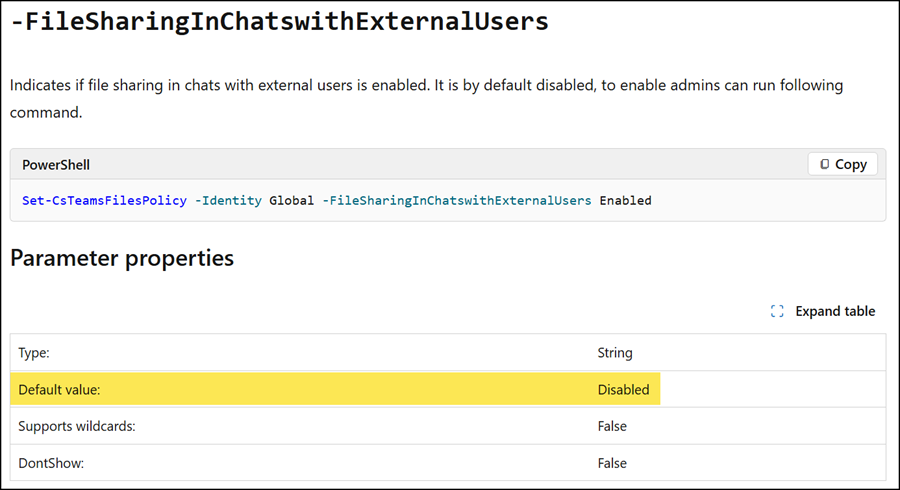
Get-CsTeamsFilesPolicy -Identity Global | select FileSharingInChatswithExternalUsers | fl
- If FileSharingInChatswithExternalUsers is disabled (the current default value), users can already share files in external chats by pasting a link, provided the OneDrive and SharePoint policies allow it.
This rollout will change the default value to Enabled, but only if a Teams administrator has never updated the setting since July 2025. Tenants are not affected by this rollout if an admin explicitly disabled the setting. - If FileSharingInChatswithExternalUsers is enabled (the new default value), users can also attach files with the paperclip icon or by drag and drop.
- Files uploaded from the user’s device are stored in the sender’s OneDrive.
- Files that already exist in the cloud stay in their current location.
- Files are shared as hyperlinks after sending.
- Sharing to external users is still restricted if your organization has defined the OneDrive/SharePoint sharing option “Only people in your organization“.
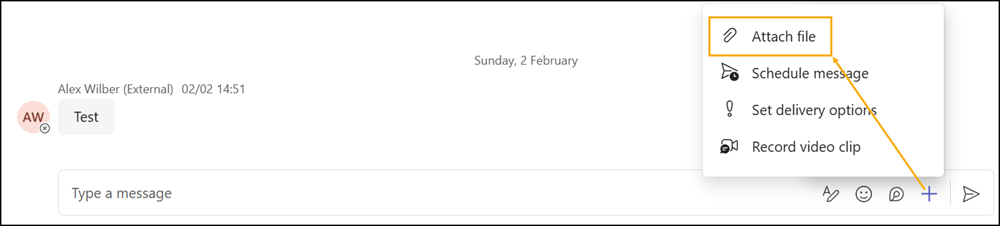
As Microsoft mentions, a Teams administrator can proactively set the FileSharingInChatswithExternalUsers setting to Disabled to prevent this change.
Set-CsTeamsFilesPolicy -Identity Global -FileSharingInChatsWithExternalUsers Disabled
Verifying automatic permission assignment
You should also verify a second policy setting: Automatic permission assignment for attached files in external chats
Automatic permission assignment is controlled by the messaging policy setting AutoShareFilesInExternalChats, introduced in November 2025. The setting is enabled by default.
Get-CsTeamsMessagingPolicy -Identity Global | select AutoShareFilesInExternalChats | fl
Teams assigns permissions to the chat participants for files shared through the paperclip icon or drag and drop when automatic permission assignment is enabled. Automatic permission assignment does not apply to sharing links pasted into the chat. This setting is also subject to the existing OneDrive and SharePoint sharing policies. Senders can review, modify, or remove access before sending. They can also change or revoke access after the file has been shared.
Set-CsTeamsMessagingPolicy -Identity Global -AutoShareFilesInExternalChats <Enabled | Disabled>
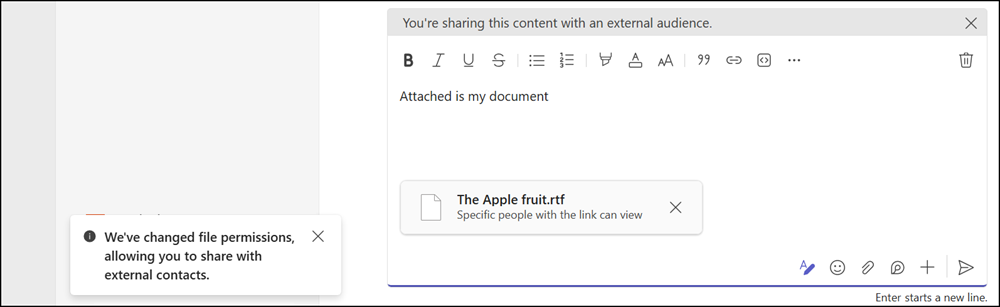
In comparison, sharing permissions are not updated automatically for a sharing link pasted into the chat.