
Microsoft is now rolling out the redesigned meeting controls in Teams, changing the meeting controls and the share panel. This redesign should prevent misclicks between high-impact actions such as Share, Leave, and Raise hand, and reduce accidental sharing of unintended content.
- This update currently affects Teams for Windows, Mac, and Web only.
- Not in scope for the rollout: Teams (consumer), iOS, Android, Teams Rooms, Linux.
- Internal IT staff should inform their users about the change, as Microsoft will automatically move them to the new experience 20 days after a user first sees the information. Teams administrators have no policy control over the new experience.
Timeline
The rollout is scheduled between late July and December 2026.
How does this affect your organization?
The redesigned meeting experience moves controls to a center-aligned layout, with the microphone, camera, and share controls grouped together. The Leave button is separated from the rest of the bar to reduce accidental exits. Less-used actions move into a reorganized More menu.
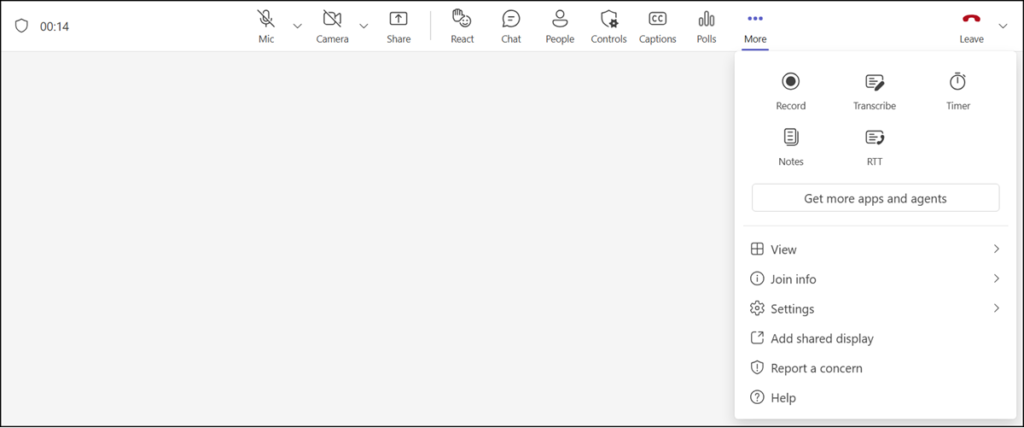
Users can personalize their meeting controls by pinning, unpinning, and rearranging controls through drag and drop. These preferences persist across meetings on the same client. Cross-device sync is planned for a future release.
The share panel is also being redesigned. It may include:
- Live previews: shows previews of screens and windows before sharing.
- Tabbed layout: organizes share options into separate tabs.
- Two-step share confirmation: requires users to confirm what they are about to share, to reduce accidental sharing.
For Teams admins
Existing meeting app pinning policies continue to be honored. New meeting app pinning policies support up to two apps pinned to the main meeting controls, with additional apps available in the More menu.
User information for opting in to the redesigned meeting controls
After users end a meeting, they may now see a prompt to try the redesigned meeting controls with the next meeting.
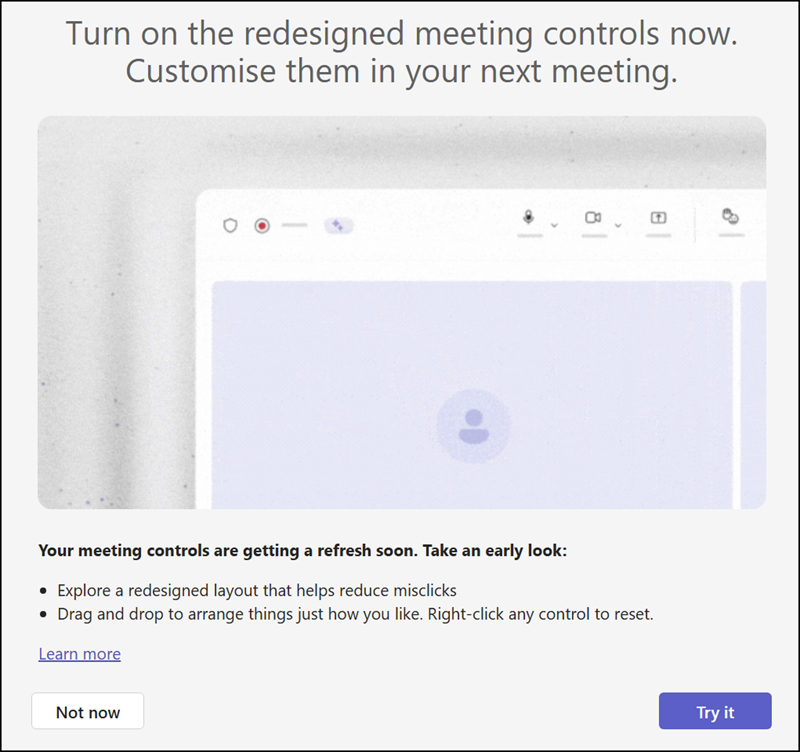
The timing of the prompt is important, as the opt-in timer for the redesigned meeting controls starts with the first information.
According to Microsoft:
- Users may see an end-of-meeting prompt twice over a 10-day period, giving them the option to try the redesigned meeting controls.
- If they choose Turn on, they’ll see the redesigned meeting controls the next time they join a meeting.
- If they choose Not now, they’ll continue using the current meeting controls with no changes.
- On day 20, users who have not already turned on the redesigned meeting controls will be automatically moved to the new experience.
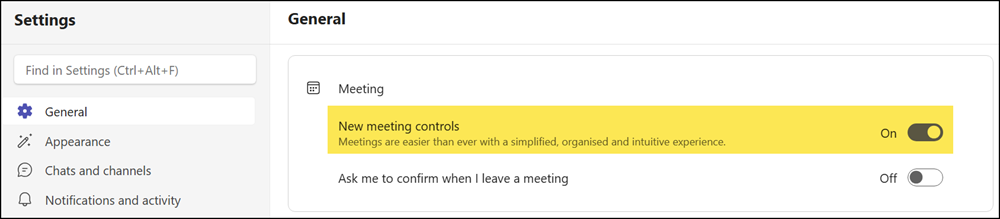
- After migration, users can temporarily switch back by going to Teams settings > General and turning off redesigned meeting controls. This option is available for a limited time. All users will eventually move to the new meeting controls experience.
Here is the temporary switch-back option, which is not recommended.
Microsoft has prepared a page about the redesigned meeting experience, including PowerPoint presentations for end users and a second version for internal IT staff and trainers.
Teams administrators and IT trainers should read the slides to prepare their internal users. A Teams administrator cannot postpone or disable the rollout at the tenant level.
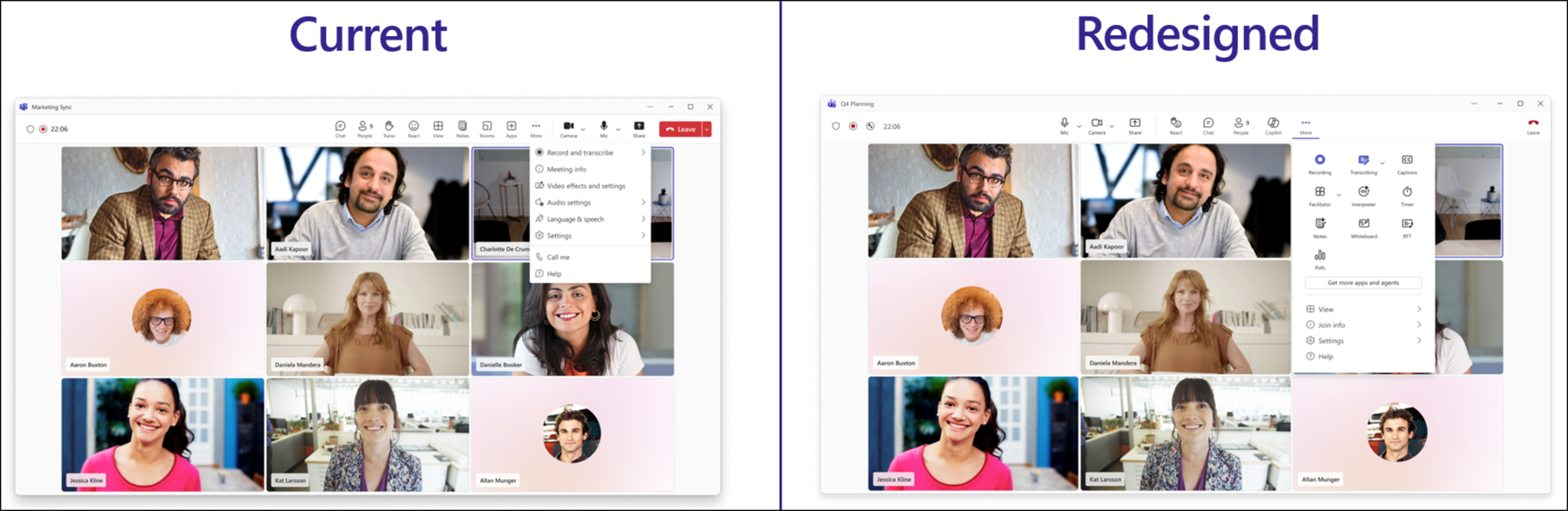
Microsoft Teams: The redesigned meeting controls experience
