
Microsoft is rolling out the updated Meet app in Teams, delivering a unified Events experience, as announced in February.
The update modernizes how users create, discover, and manage events, bringing webinars, town halls, and custom events into a single workflow.
***************
Updated 9 June 2026:
The Meet app is no longer available. The app has been replaced with an updated Events app.
***************
This change applies to Teams for Windows, Teams for Mac, and Teams for the web, and is also related to the upcoming changes for Teams Events and Teams Premium licensing.
A unified Teams Events experience
Timeline
The rollout should be completed in April 2026. Some users may see the updated Meet app earlier than others.
Updated 31 March 2026:
The rollout has been postponed to June 2026. Some users may see the updated Meet app earlier than others.
Updated 15 July 2026:
The rollout should be completed in July 2026. Some users may see the updated Meet app earlier than others.
What is changing?
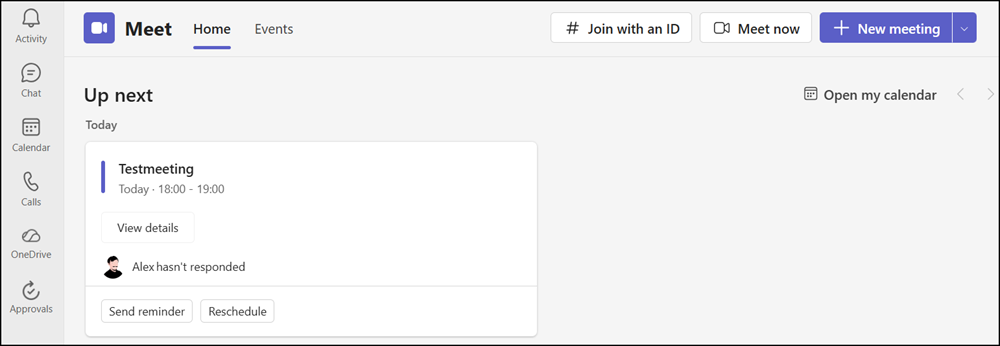
The current Meet app in Teams gets an update. Previously, users found the Home and Events tabs.
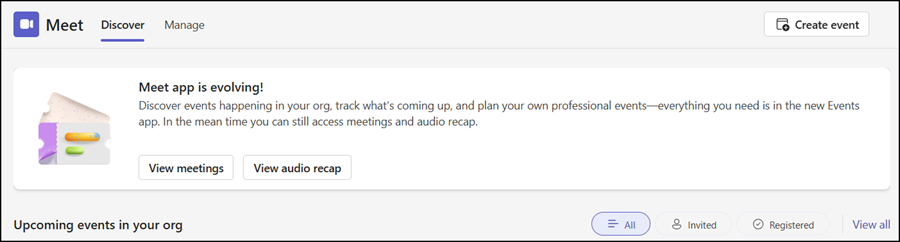
After the update, the Meet app includes a Discover and Manage tab. As Microsoft explains, the new unified Meet app is intended to serve as a centralized Events hub for creating, editing, and tracking events across stages.
The Discover tab (formerly Home) is where organizers, presenters, and attendees can find and track events without relying solely on calendar invitations. Users can view events they’re registered for, find and register for new events, and catch up on past event recordings.
The Discover tab should give users a single place to stay connected to their events. Events now also include an event landing page with integrated Q&A and Polls for engagement before and after the event.
The Manage tab (formerly Events) simplifies scheduling for custom events, webinars, and Town halls by using templates (provided by the organization or prepared by users with a Teams Premium license). It respects Teams policies and allows users to create new events from scratch, Town halls for broadcast-style events, and webinars for collaborative events.
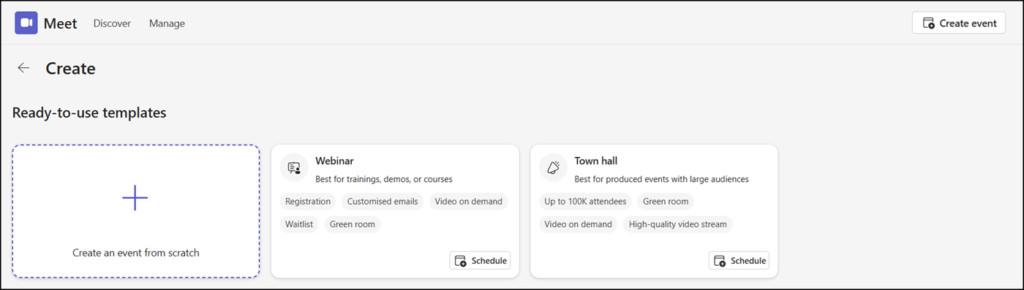
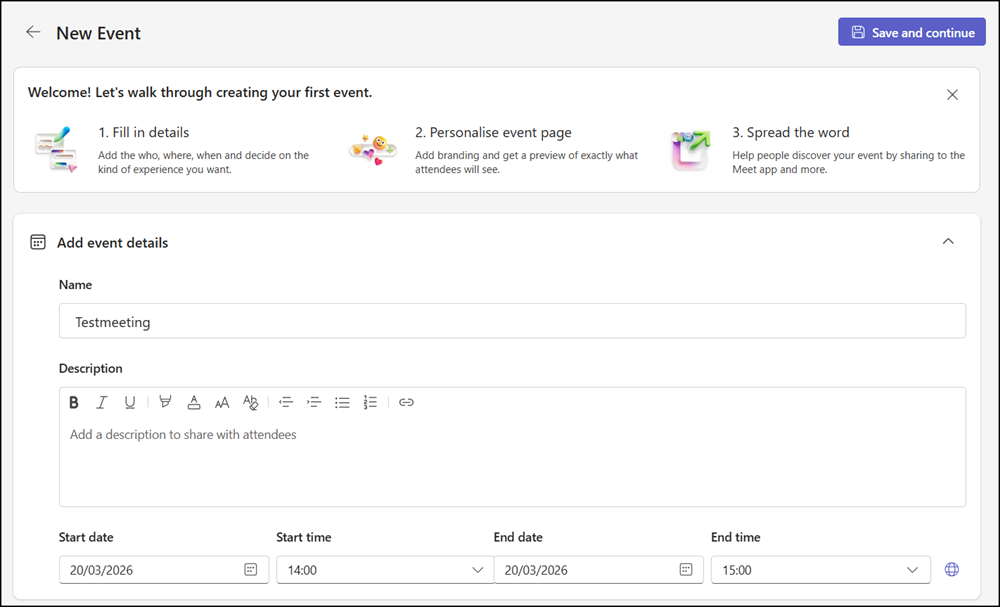
Creating an event from scratch.
Selecting the audience.
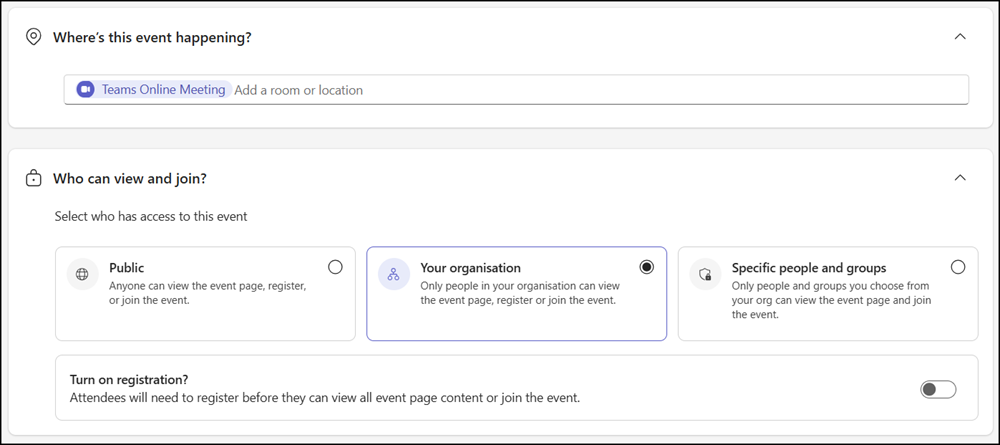
Configuring the event type.
Keep in mind:
Starting 1 April, users can schedule events with up to 3,000 interactive attendees. Higher attendee limits (up to 100,000) require either a new attendee capacity pack or a legacy Teams Premium license under the old terms (until the subscription is renewed).
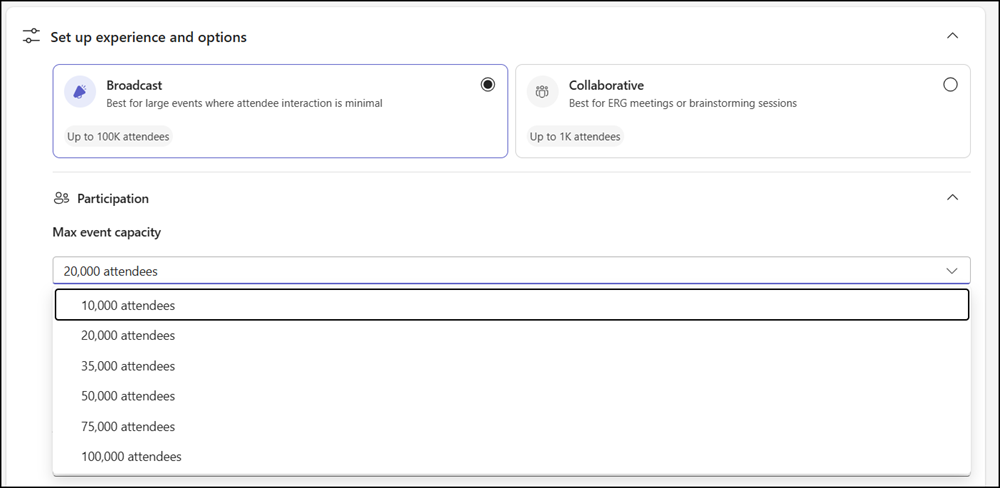
Selecting additional event options.
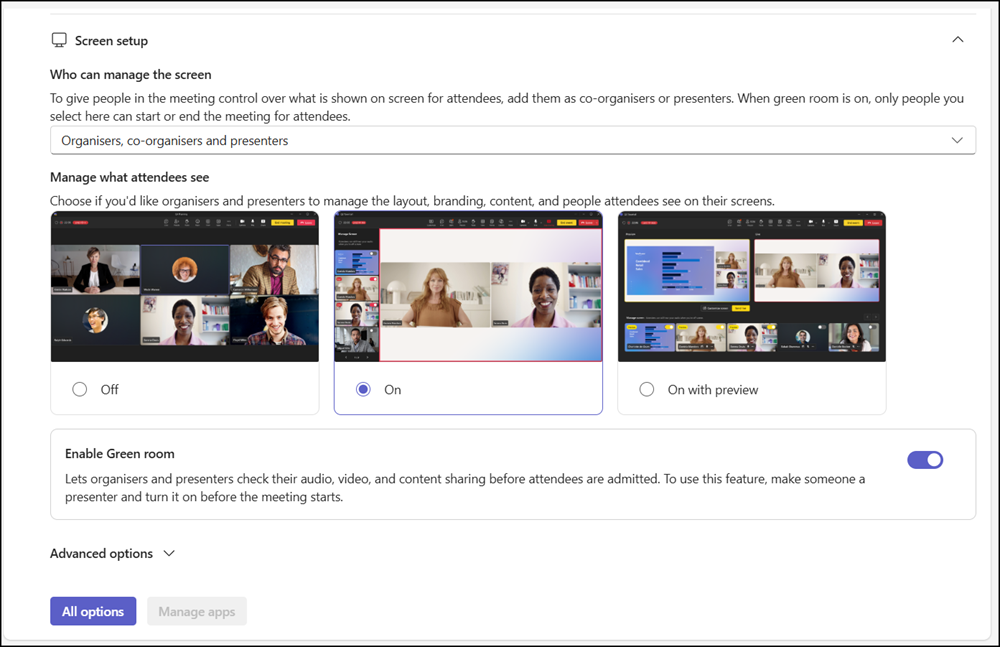
All events must be saved as drafts first, allowing organizers and co-organizers to collaborate on them. Organizers can also add Teams apps, such as the Polls app, and prepare a welcome message for attendees.
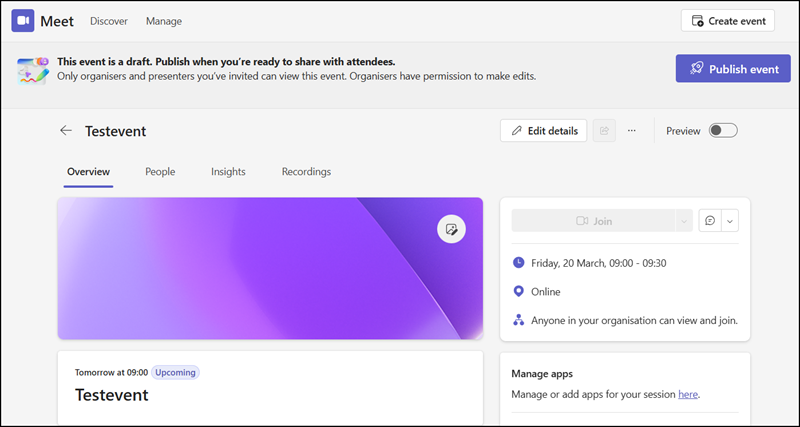
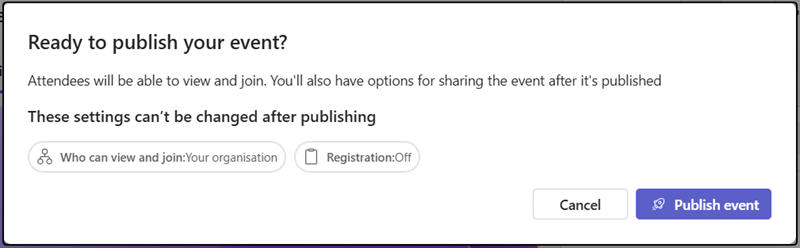
Reviewing and confirming settings that cannot be changed after publishing.
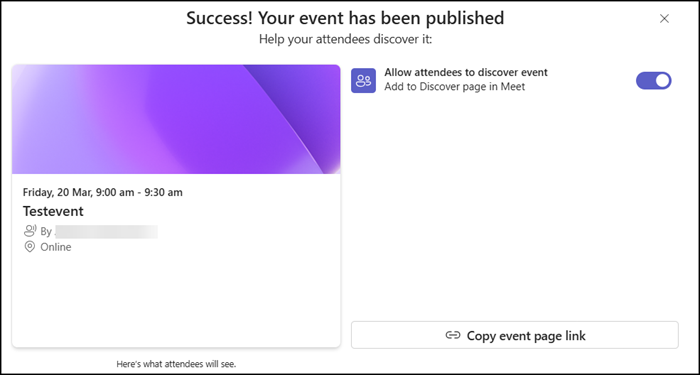
Changing the event’s discoverability, which controls whether it appears on the Meet app start page.
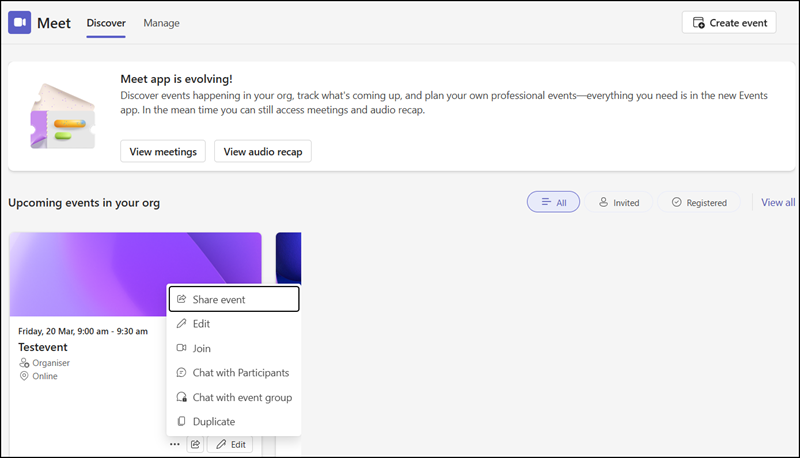
Organizers, presenters, and attendees can now find the event on the Discover page.
What is also new?
- Teams events should now support scheduling using shared and delegated mailboxes.
- Users have a seamless upgrade path for existing webinars and Town halls, but switching between a view-only event and an interactive event is not supported. Those events must be replanned.
- Meetings and Audio recaps remain accessible for users with a Teams Premium license (for meeting recaps) or a Microsoft 365 Copilot license (for meeting and audio recaps).
Read the introduction post from Microsoft for more details.
