
Microsoft has rolled out new admin controls that let organizations customize consent notifications displayed when recording or transcription is used in Teams meetings. These notifications appear either as a banner (implicit consent) or as a dialog (explicit consent) and can include organization-defined custom text, a custom privacy policy link, and predefined Teams text.
Timeline
The rollout should be completed for Teams Meetings on desktop and web. Support for Teams Calling and mobile apps is planned.
How does this affect your organization?
Teams administrators can assign customized consent notifications to specific users or to all users through meeting policies. These policies allow administrators to define custom strings per scenario (implicit banner or explicit consent dialog) and per language, as well as a custom privacy policy URL.
According to Microsoft, this feature requires a Teams Enterprise license. I am unable to test the feature with a Business license.
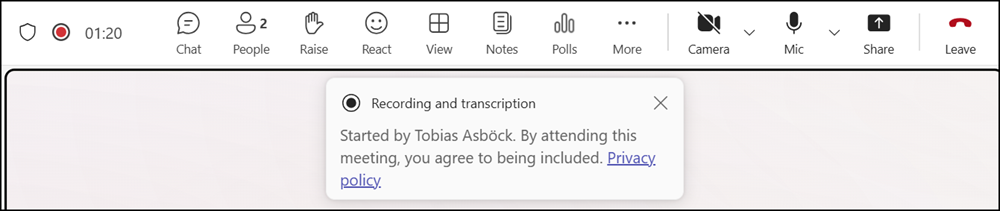
Below is an example of the default notification.
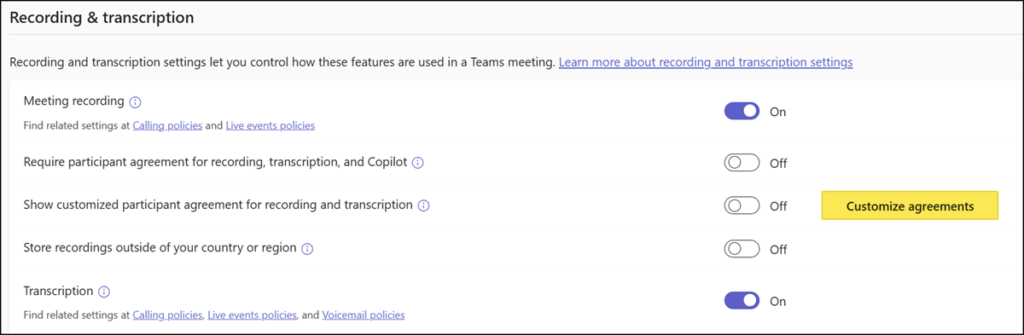
A Teams administrator can customize parts of this notification via Teams meeting policies. Scroll down to Recording & transcription to configure customized agreements.
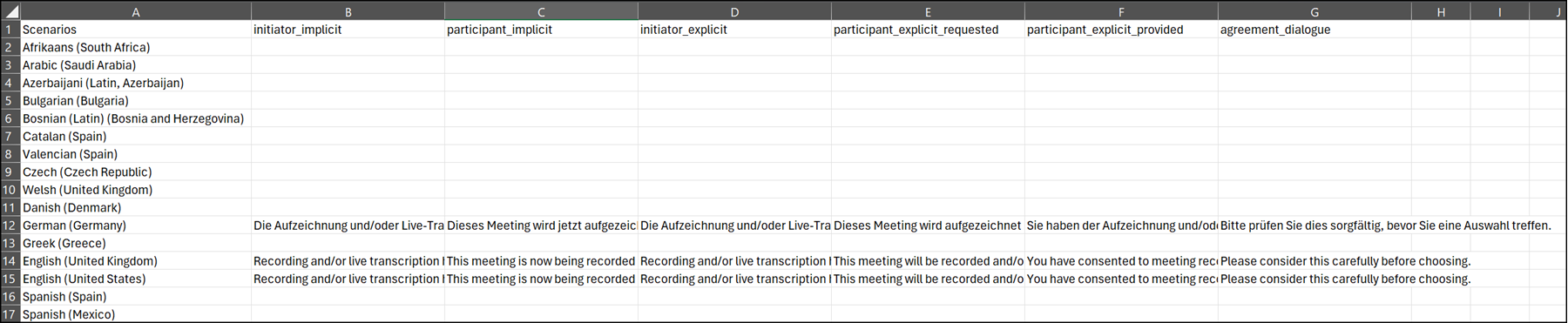
You must download a CSV template to define customized text for the following notification scenarios:
- initiator_implicit
- participant_implicit
- initiator_explicit
- participant_explicit_requested
- participant_explicit_provided
- agreement_dialogue
Each custom string is limited to 200 characters per language and scenario.
Custom strings for explicit consent are displayed only when the explicit consent policy is enabled, which is disabled by default. For explicit consent, the custom text is appended to the default notification.
Any cell in the CSV can be left empty to retain the default text. Teams will also fall back to the default text when a participant’s client language lacks a custom string for a scenario.
I prepared a sample CSV for testing in English and German.
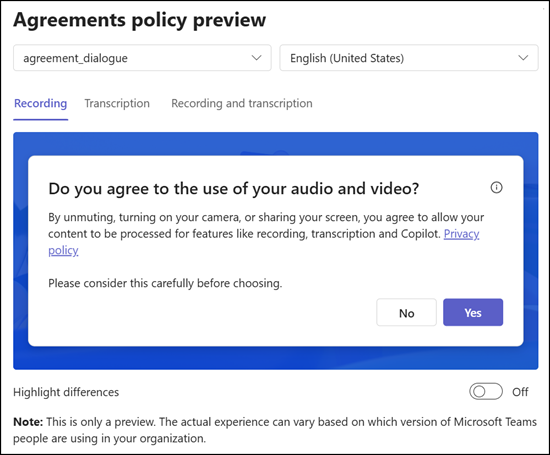
A preview shows how your customized text will appear. This is a useful preparation step.
I would have liked to see additional notification scenarios, as Microsoft currently treats recording and transcription as a combined scenario that cannot be customized separately.
My sample shows explicit agreement, with the custom text appended to the default notification.
After saving the customization, you must enable the setting in the Teams meeting policy.
The custom notifications are linked to the meeting organizer. Participants in meetings governed by a policy with this setting enabled will see the organizer’s custom notification and privacy policy link alongside fixed Teams text, such as the initiator’s name and the default privacy link.
In my test, I started the recording and received the customized notification defined in my CSV import.

A colleague changed their Teams language to German and received the customized German notification.

Note:
Although defined for German (Germany), Teams also uses translated notifications for other regions, including German (Switzerland) and German (Austria), for example.

Hi Tobias,
Thanks for this guide. I’m sturggling with editing the csv template. Once I upload it, I either get “*cell* is not in acceptable language” error or “*cell* is not in acceptable scenario”.
Have you encountered similar issues? I’d appreciate any tips on how to make it work.
Thanks!
Hi Wiktor, I didn’t see this error in my case. Microsoft documents that you can insert for a specific language or scenario if you don’t want to display any message (except the fixed information). Have you tried that?
Another option is to customize the notifications with PowerShell. I described this approach as well, see “How to customize Teams recording and transcription consent notifications with PowerShell“. From my experience it’s easier than using the CSV upload.