
Microsoft 365 Backup now includes a configuration for critical action approval. Critical action approval should protect your backups from hard-to-reverse actions on your backup data, such as shortening the offboarding grace period for a backup, which accelerates permanent deletion.
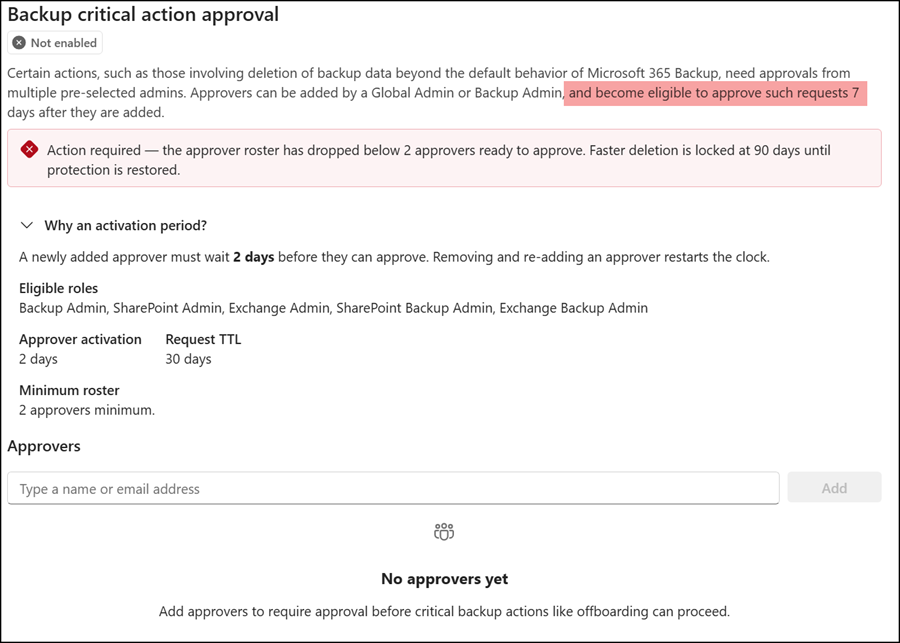
- A critical action approval configuration needs at least two approvers.
- A newly added approver must wait two days before they can approve.
The screenshot below shows two different values: seven days and two days. The documentation states two days is correct. The development team mixed up the seven-day wording with the minimum offboarding grace period.
From the Items being permanently deleted view, you can also request a faster deletion that shortens the grace period for selected items to seven days. A faster deletion requires approval from a second admin.
- A critical action can’t proceed until at least two independent approvers approve the specific request.
- You must have the Backup Administrator or Global Administrator role assigned to add new approvers. Plus, as an admin with one of those roles, you can’t add your own account.
- Users must have the eligible backup admin roles assigned. Otherwise, they don’t appear as selectable approvers. If you recently assigned the role, it may take a few hours for the configuration to list the account.
An issue with the eligible admin roles:
Either there’s an issue with these roles or the rollout isn’t complete yet.
Over the past seven days, I tried to test this feature, but the system doesn’t list accounts with the eligible backup admin roles. I assigned the admin role as both eligible and active to different test accounts and waited 48 hours, but the approvers list still includes only accounts with the Global Administrator role. Accounts with the Backup Administrator role are also not listed. You can’t define eligible approvers yet. Only the Global Administrator role works.
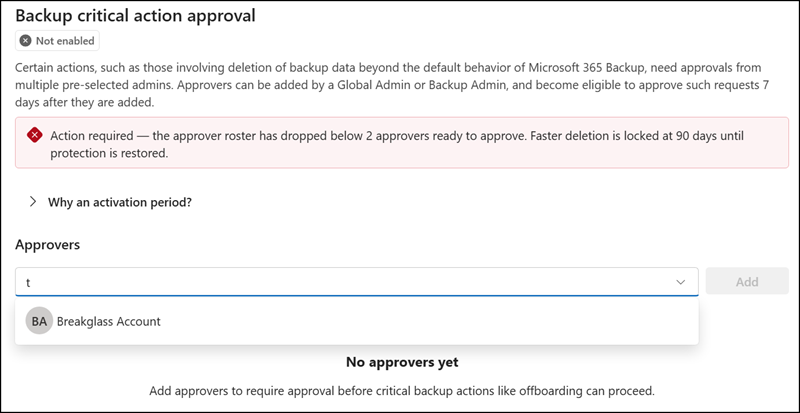
To configure Backup critical action approval, open the Microsoft 365 admin center > Settings > Microsoft 365 Backup, and either click the “Set up deletion approval” banner or select Settings at the top right and then “Backup critical action approval”. The configuration is unavailable if Microsoft 365 Backup is disabled in your tenant.
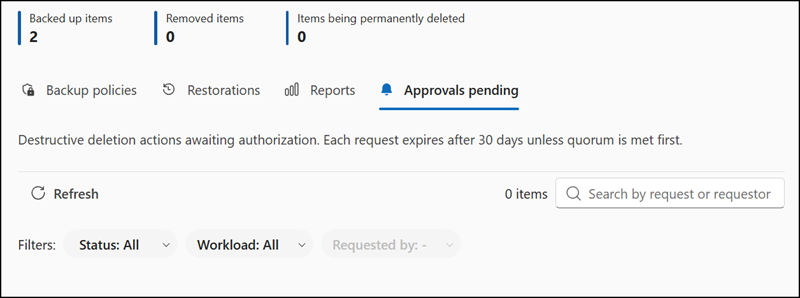
Once configured, approvers find their requests in the “Approvals pending” tab. Each request expires after 30 days.
As Microsoft describes:
In this release, Backup critical action approval gates one action: shortening the offboarding grace period for specific items from 90 days to seven days. An admin requests the shorter grace period for items that are already in the offboarding grace window, and the reduction applies only after the request reaches approval quorum.
