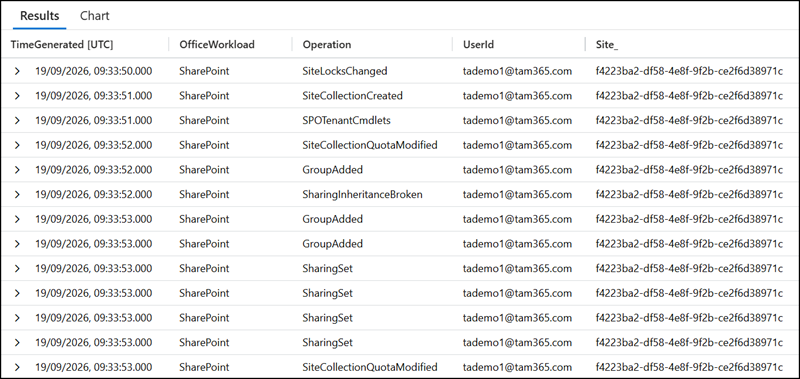
Since Microsoft introduced the SharePoint Embedded (SPE) containers, there is a PrincipalOwner setting. This PrincipalOwner defines (1) who initially created the container and (2) who is the primary owner. It’s primarily relevant for user-owned containers. From a SharePoint perspective, this is a site collection administrator. The user-owned SharePoint Embedded container is a hidden SharePoint site collection in the tenant, using your SharePoint tenant storage.
I simulated this with a new test user and my Sentinel logs.

In September 2025, Microsoft announced that SharePoint Embedded Administrators should be able to change the PrincipalOwner. Trying this today still results in an error because the feature is experimental. Since September 2025, I have tried this every few weeks.
Changing the PrincipalOwner for a user-owned container can be important for departing employees, as the container will be deleted if the PrincipalOwner account is deleted.

Now I noticed the process updated the PrincipalOwner, even with the error.

After this update:
- The previous PrincipalOwner no longer has access to the container and content. The owner receives a message the permissions were removed.
- The new PrincipalOwner must first access the container via the ContainerRedirectUrl. Microsoft introduced this redirect URL in July 2026; see my remark at the end.

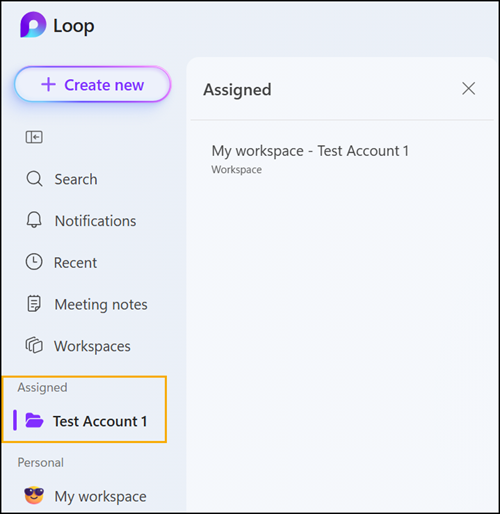
The container is an assigned container. The new owner has full permission on this Loop Workspace.
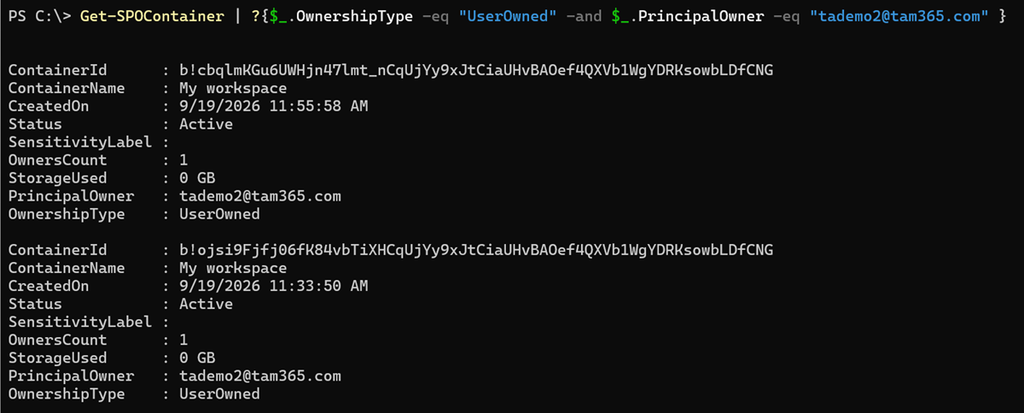
The new user is now PrincipalOwner for two user-owned containers. Deleting this account deletes both containers.
Also updated in the SharePoint admin center.
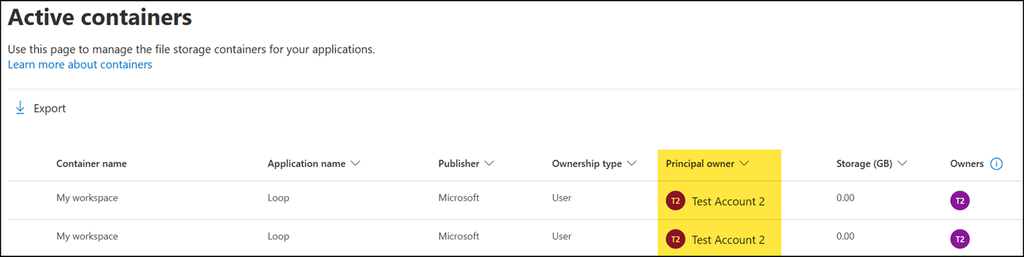
The SharePoint admin center now also provides the option for SharePoint Embedded admins to update the PrincipalOwner in user-owned SPE containers.
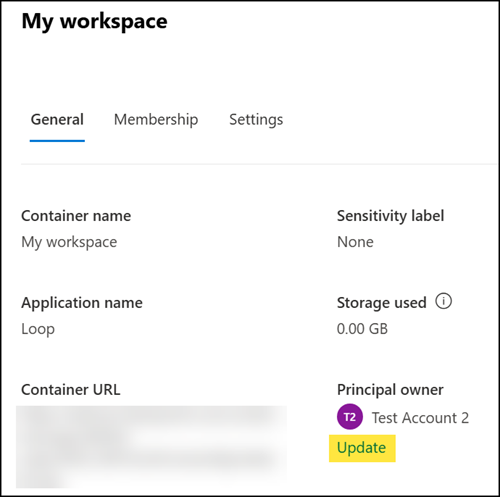
To complete this post, there is another important part.
Read my post about granting access to user-owned Loop Workspace containers for departing employees from July. This method is closely related to changing the PrincipalOwner, but it’s not the same.
- Granting access to user-owned containers does not change the PrincipalOwner. The SPE container is still deleted if the PrincipalOwner account is deleted.

- Changing the PrincipalOwner account transfers the complete ownership, preventing deletion of the user-owned SPE container if the previous owner account is deleted.
- The auto-deletion affects only user-owned containers, not other container types. It’s similar to a OneDrive site collection.
Just in case you want to get more insights into these containers:
From my experience with Outlook Newsletters (they use an SPE container too), I know the Purview Audit Logs reveal activity inside these SharePoint Embedded containers. Normally, there is no view inside these containers. Filter for the app ID a187e399-0c36-4b98-8f04-1edc167a0996 as an actor. This is the Loop application ID.
OfficeActivity
| where TimeGenerated > ago(4h)
| where OfficeWorkload == "SharePoint"
| where AppAccessContext.PFTTokenAppId == "a187e399-0c36-4b98-8f04-1edc167a0996"
| order by TimeGenerated asc
| project TimeGenerated,OfficeWorkload,Operation,UserId,Site_
Note:
Depending on the operation, the logs may contain more details about what happened, such as when the system uploads a file or changes the file structure in the container. Adjust the query based on the operation to see what is happening inside these containers.