
Outlook on the web and the new Outlook for Windows get an optional “Classic Outlook” style. When users turn it on, Outlook adjusts the look and feel to more closely resemble classic Outlook.
Open Outlook settings > General > Appearance to enable or disable the Classic Outlook style.
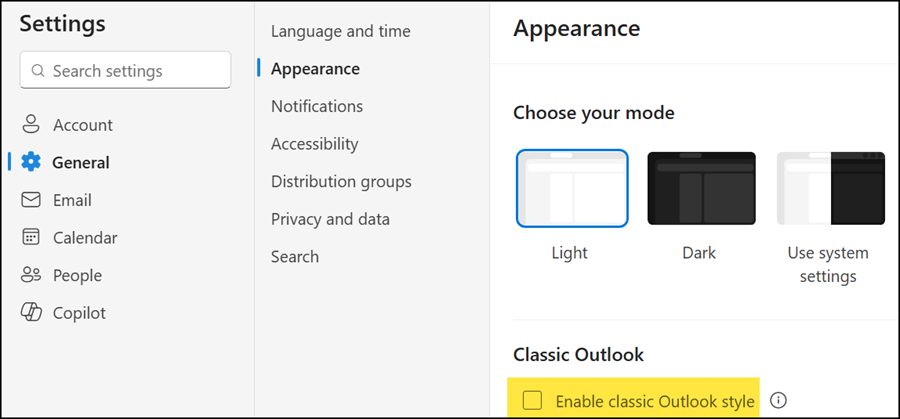
The new setting applies changes across the experience, including visual styling, layout, typography, icons, and selected interactions. It is designed to help users moving from Classic Outlook by offering a more familiar starting point, while keeping all the capabilities of the new Outlook. Some settings aren’t available with the Classic Outlook style.
If you are already familiar with the new Outlook, the classic style may be confusing. I changed the style for my test. It took me a while to find the settings menu again to change it back.
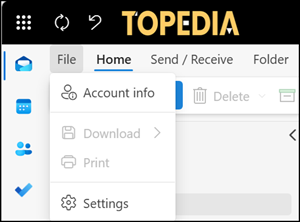
The setting is available to all users of Outlook on the web and the new Outlook for Windows. They can turn it on or off at any time.
- For most users, it will be off by default, so they will continue to see the standard new Outlook experience unless they choose otherwise.
- As part of a phased rollout, some users moving from classic Outlook to the new Outlook may find the setting already turned on to make the transition feel more familiar. They can change it at any time.
The setting only changes how Outlook looks and feels for the individual user who chooses it. It does not change mailbox data, permissions, or existing Outlook features, and it does not affect classic Outlook for Windows. The new setting also does not automatically move users from classic Outlook to the new Outlook.
The rollout of the Classic Outlook appearance setting should be completed by October 2026.
