
Microsoft is ending the transition from Azure-backed Whiteboards to OneDrive-backed Whiteboards. Enterprise users must migrate any remaining legacy Whiteboards before Microsoft retires the Whiteboard migration tool. Users with personal Microsoft accounts must export any content they want to keep before permanent deletion.
This retirement affects…
- Users from organizations with non-migrated Whiteboards (created before January 2022).
- Users with personal Microsoft accounts who use Microsoft Whiteboard. The new OneDrive-backed Whiteboard is not available to personal accounts.
- Users who use the standalone Whiteboard app on Windows and Mobile.
Whiteboards already migrated to OneDrive-backed storage are not affected by this retirement and deletion process.
Content
Timeline
************
Updated 30 August 2026:
Microsoft has updated/postponed the timeline.
Updated 10 September 2026:
Microsoft has updated the timeline.
************
- The Whiteboard migration tool will be retired on 25 September 2026 (previously 22 August).
- All non-migrated Whiteboards will be permanently deleted on 16 October 2026 with no recovery option (previously 5 September).
- The standalone Whiteboard apps (Windows and Mobile) will be deprecated on 16 October 2026. Enterprise users should access Whiteboard through the web or the Whiteboard Teams app instead.
- 30 November 2026: The legacy Azure Whiteboard service shuts down.
How does this affect your users?
Since January 2022, all new Whiteboards are stored in OneDrive. Previously created Whiteboards were stored in Azure. Microsoft has been informing organizations since 2022 to migrate their Whiteboards. You should read the page about Whiteboard migration.
The migration process is simple:
The user has to open Microsoft Whiteboard at whiteboard.cloud.microsoft, via the Whiteboard Teams app, or the Windows desktop app. If the user is not migrated, the migration starts and takes a few minutes.
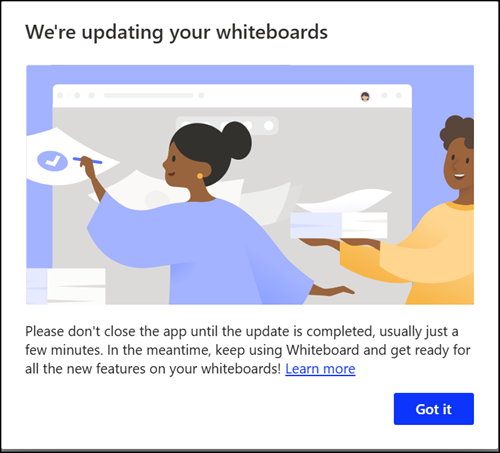
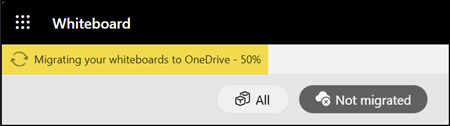
Users should wait until the migration is completed. There is a migration status bar.
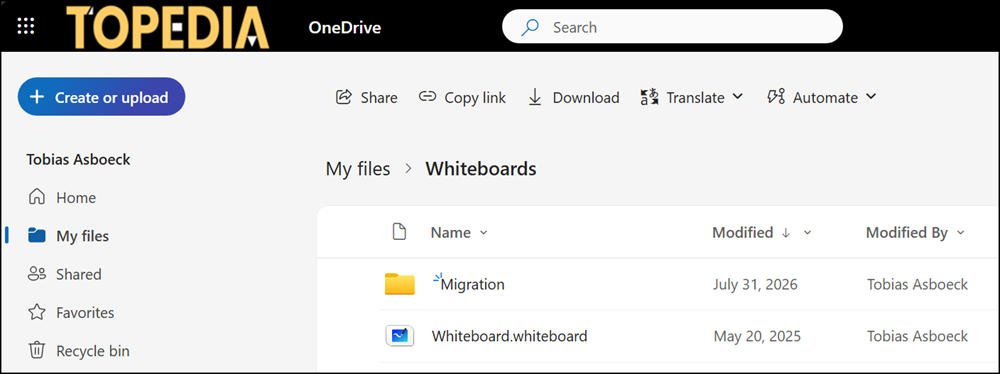
That’s it. Whiteboard will redirect the user to the OneDrive folder when the migration is finished. Migrated Azure-backed Whiteboards are in the new folder “Migration”.
The catch?
Users MUST actively open Whiteboard to start the migration. The migration tool has no start trigger if a user has not opened any supported Whiteboard app since January 2022. The legacy Whiteboards remain in Azure. Microsoft will delete these Whiteboards on 16 October 2026.
Important:
The migration tool for Azure-backed Whiteboards will be retired on 25 September 2026. You can no longer migrate any remaining legacy Whiteboards after that date. On the same date, users with personal Microsoft accounts lose the ability to create or edit Whiteboards.
How to find non-migrated Azure-backed Whiteboards?
Microsoft does not directly provide a migration tool for admins, but Microsoft has a Whiteboard PowerShell module that SharePoint administrators can use to report missing users.
In general, you should check whether Whiteboards are still stored in Azure. The Whiteboard migration tool deletes migrated Whiteboards from Azure once the migration to OneDrive is complete. If you don’t find Whiteboards in Azure, all users are migrated, and your task is done.
- Your account needs the SharePoint Administrator role for the first step.
- For step two, I am using an Azure app with Microsoft Graph – User.Read.All (application permissions) to report the user details.
- I recommend running the samples in a local migration folder. The cmdlets will download data and store it in this directory.
Step 1 – Export all Azure-backed Whiteboards
Export all Whiteboards stored in Azure with Get-WhiteboardsForTenant. This gives you a list of Azure-backed Whiteboards and who created them (the owner). The owner has to start the migration process.
- Depending on the number of Azure-backed Whiteboards, this export can take a few minutes.
- You already know that you still have a lot of Azure-backed Whiteboards if this process takes a long time. 😔
Note 1:
You can select Europe, Australia, or Worldwide as the geographical region. You should run this for each region (my sample does it).
Until 2020, Microsoft stored new Whiteboards in the US, even for organizations with tenants in the EU region. Therefore, you should check whether you have legacy Whiteboards stored in the US.
# Prepare the environment for the Whiteboard migration report
$LocalFolderPath = "C:\Temp\WhiteboardMigration" # Change this to your preferred local folder path for storing whiteboard migration data.
$TenantId = "<Your Tenant ID>" # this is required for step 2
$ClientId = "<Your Client ID>" # this is required for step 2
$CertThumbprint = "<Your Certificate Thumbprint>" # this is required for step 2

# Step 1: Retrieve non-migrated whiteboards from different geographies and store them in local files.
$NonMigratedWhiteboardsFilePath_EU = "$LocalFolderPath\Whiteboards-NonMigrated-EU.txt"
$NonMigratedRunName_EU = [IO.Path]::GetFileNameWithoutExtension($NonMigratedWhiteboardsFilePath_EU) -replace '^Whiteboards-'

$NonMigratedWhiteboardsFilePath_WW = "$LocalFolderPath\Whiteboards-NonMigrated-WW.txt"
$NonMigratedRunName_WW = [IO.Path]::GetFileNameWithoutExtension($NonMigratedWhiteboardsFilePath_WW) -replace '^Whiteboards-'

$NonMigratedWhiteboardsFilePath_AU = "$LocalFolderPath\Whiteboards-NonMigrated-AU.txt"
$NonMigratedRunName_AU = [IO.Path]::GetFileNameWithoutExtension($NonMigratedWhiteboardsFilePath_AU) -replace '^Whiteboards-'


# Get the list of non-migrated whiteboards for all geographies. Force an authentication prompt for the first request.
# The account needs at least the SharePoint Administrator role to access the whiteboard data.
if (-not (Test-Path -Path $LocalFolderPath)) {
    New-Item -Path $LocalFolderPath -ItemType Directory | Out-Null
}
Set-Location -Path $LocalFolderPath
Get-WhiteboardsForTenant -Geography Europe -IncrementalRunName $NonMigratedRunName_EU -ForceAuthPrompt
Get-WhiteboardsForTenant -Geography Worldwide -IncrementalRunName $NonMigratedRunName_WW
Get-WhiteboardsForTenant -Geography Australia -IncrementalRunName $NonMigratedRunName_AU


# Combine the non-migrated whiteboard data from all geographies into a single collection for further processing.
$FileContentNonMigrated_All = Get-Content -Path $NonMigratedWhiteboardsFilePath_EU, $NonMigratedWhiteboardsFilePath_WW, $NonMigratedWhiteboardsFilePath_AU | ForEach-Object {
    $_ | ConvertFrom-Json
}

if(@($FileContentNonMigrated_All).Count -eq 0) {
    Write-Host "No non-migrated Whiteboards found." -foregroundcolor Green
}
Note 2:
If the results are empty: Congratulations, you have no legacy Whiteboards in your tenant. The work is done for you. 🎉
Azure returns a result like this for each non-migrated Whiteboard.
Some values are redacted for personal reasons.
baseApi                  : eu.whiteboard.microsoft.com
id                       : 50eed9f1-eb2a-4cb2-9e60-f3cdea5e720a
userId                   : 00000000-0000-0000-0000-000000000000
folioId                  : 9e1f6272-9473-4842-a8ad-3cfeee24a829
title                    : Demo Whiteboard
createdBy                : 00000000-0000-0000-0000-000000000000
ownerId                  : 00000000-0000-0000-0000-000000000000
ownerTenantId            : 00000000-0000-0000-0000-000000000000
previousOwnerId          :
isShared                 : True
createdTime              : 14.03.2021 15:29:16
invitedTime              :
personalLastModifiedTime : 03.12.2025 20:49:42
lastModifiedTime         : 03.12.2025 20:49:42
globalLastViewedTime     : 03.12.2025 20:39:29
lastViewedTime           : 03.12.2025 20:39:29
meetingId                :
eTag                     : W/"datetime'2025-12-03T20%3A49%3A42.8567239Z'"
fluidFileId              :
fluidShareLink           :
fluidMigrationTime       :
fluidEncryptionVersion   :
fluidVersion             :
fluidClientVersion       :
fluidRecoveryTime        :
Step 2 – Report non-migrated user accounts
You can now report which users have non-migrated Whiteboards in Azure. These Whiteboards will be deleted on 16 October 2026.
In my report, I combined the Azure export with user information provided via the ownerId property using an app registration with Microsoft Graph: User.Read.All (application permissions).
My report returns the following information:
- Whiteboard ID
- Whiteboard title; in some cases, this title is empty. I don’t miss these Whiteboards, and they also aren’t on the web. It seems Azure sometimes creates empty Whiteboards or never deletes them, but I don’t know why they have no title.
- When the Whiteboard was created
- Whether the Whiteboard was shared with someone
- When someone in the organization last viewed the Whiteboard. This includes the owner and coworkers.
- The Whiteboard region, provided by the API endpoint.
- Who is the owner > it is the object ID of the Entra ID account
- The owner state > whether the owner is available in Entra ID, not available, or the Whiteboard has no owner.
If a Whiteboard has no owner, you can transfer it to a new owner with Set-WhiteboardOwner (for a single Whiteboard), or with Invoke-TransferAllWhiteboards (for all Whiteboards).
The result looks like this. It should help you find non-migrated users.
And don’t forget, the owner must start the migration before 25 September 2026. Microsoft does not yet provide a cmdlet to start the migration as an admin.

You can find the Whiteboard sample in my GitHub Repo, if you want to extend or update it.
# Step 2: Connect to Microsoft Graph and resolve the owners of the non-migrated whiteboards to a readable identity (Display Name, UPN, Account Enabled status).
# Connect to Microsoft Graph using the provided client ID, certificate thumbprint, and tenant ID for authentication.
Connect-MgGraph -ClientId $ClientId -CertificateThumbprint $CertThumbprint -TenantId $TenantId -NoWelcome

# Resolve owner IDs to a readable identity via Microsoft Graph, caching lookups since many boards share the same owner.
# Also flags owners who no longer exist in Entra (orphaned whiteboards) and whether their account is enabled.

$OwnerAccountInfo = @{}
function Resolve-WhiteboardOwner {
    param([string]$OwnerId)

    # If the owner ID is null or empty, return a custom object indicating that the whiteboard is orphaned.
    if (-not $OwnerId) {
        return [PSCustomObject]@{
            DisplayName       = $null
            UserPrincipalName = $null
            AccountEnabled    = $null
            Status            = "No owner (orphaned Whiteboard)"
        }
    }
    if (-not $OwnerAccountInfo.ContainsKey($OwnerId)) {
        try {
            # Attempt to retrieve the user information from Microsoft Graph using the provided owner ID.
            $user = Invoke-MgGraphRequest -Method GET -Uri "https://graph.microsoft.com/v1.0/users/$OwnerId`?`$select=displayName,userPrincipalName,accountEnabled" -ErrorAction Stop
            $OwnerAccountInfo[$OwnerId] = [PSCustomObject]@{
                DisplayName       = $user.displayName
                UserPrincipalName = $user.userPrincipalName
                AccountEnabled    = $user.accountEnabled
                Status            = "Found in Entra ID"
            }
        } catch {
            # If the user is not found, cache the result as "Not found in Entra ID" with null values for display name and UPN.
            $OwnerAccountInfo[$OwnerId] = [PSCustomObject]@{
                DisplayName       = $null
                UserPrincipalName = $null
                AccountEnabled    = $null
                Status            = "Not found in Entra ID"
            }
        }
    }
    return $OwnerAccountInfo[$OwnerId]
}

# Report the whiteboards from Azure, with the owner resolved to a readable identity
$Count = 1
$AzureWhiteboardResults = foreach ($Board in $FileContentNonMigrated_All) {

    $boardTitle = if ([string]::IsNullOrWhiteSpace($Board.title)) { "No title" } else { $Board.title }
    Write-host ("Board $Count of $($FileContentNonMigrated_All.Count) - $($Board.id) ($boardTitle)")
    $owner = Resolve-WhiteboardOwner -OwnerId $Board.ownerId

    [PSCustomObject]@{
        WhiteboardId         = $Board.id
        Title                = $Board.title
        Created              = $Board.createdTime
        isShared             = $Board.isShared
        GlobalLastViewedTime = $Board.globalLastViewedTime
        APIEndpoint          = $Board.baseApi
        OwnerId              = $Board.ownerId
        OwnerUPN             = $owner.UserPrincipalName
        OwnerDisplayName     = $owner.DisplayName
        OwnerAccountEnabled  = $owner.AccountEnabled
        OwnerStatus          = $owner.Status
    }
    $Count++
}

# Export the whiteboard results to a CSV file
$Date = Get-Date -Format "dd-MM-yyyy"
$ExportPath = "$LocalFolderPath\WhiteboardMigrationStatus-$Date.csv"
$AzureWhiteboardResults | Sort-Object Created | Export-Csv -Path $ExportPath -NoTypeInformation -Force
Write-Host "ExportPath: $ExportPath"
