Microsoft is changing how file uploads interact with Teams messaging.
Previously, users couldn’t send Teams messages while a file upload was in progress, which interrupted real-time collaboration. With this update, file uploads run asynchronously in the background, so the message input box stays available throughout the upload.
This update affects all users who send files in Teams chats or channels, across Windows, Mac, Web, and Mobile.
Timeline
The rollout should be completed in August 2026.
Updated 3 September 2026:
The rollout should be completed in September 2026.
How does this affect your users?
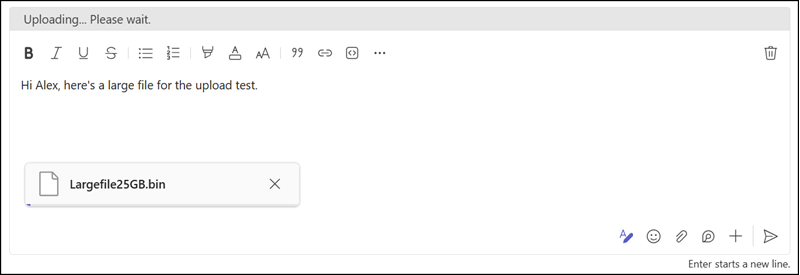
Previously, starting a file upload locked the message compose box until the upload finished. The user saw a message about the upload process. The screenshot below is from late June.
After this update, users can continue typing and sending messages while a file uploads in the background. The upload itself is unaffected, as files are stored and shared exactly as before.
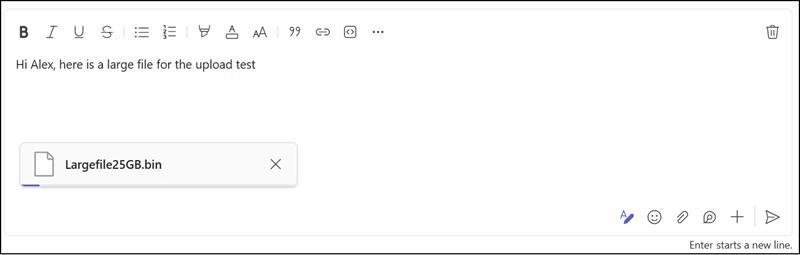
Asynchronous file upload uploads the file in the background instead of blocking the compose box. Users can send new messages while a file is still uploading.
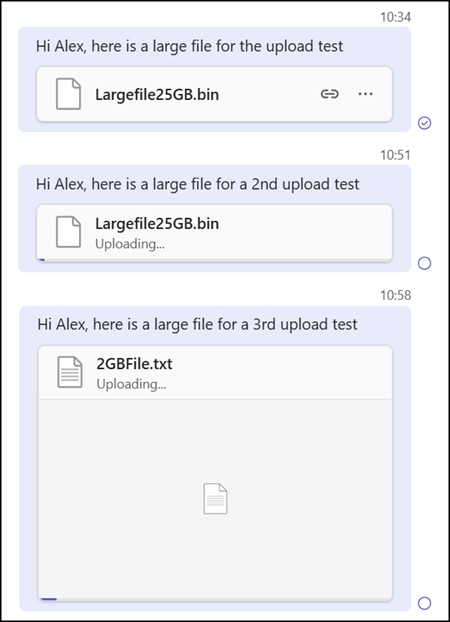
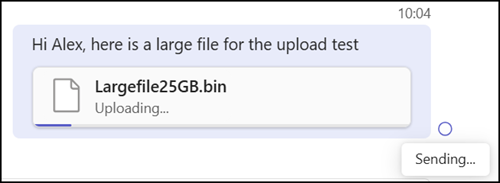
Nevertheless, users should not close the Teams client, as the upload requires the client to remain open. Users will see the upload is in progress and in a “Sending” state. The message will send once the upload is complete. Users should also keep in mind that a message with a large attachment may arrive later than messages without one, particularly when the timing matters for context.
If the Teams client is closed, Teams does not resume the upload when the client is restarted. The message remains in an ongoing upload state with no progress. The message is just blocked and cannot be edited or deleted. Users have to resend the message.