
Microsoft has added an Efficiency Mode to the Teams desktop clients, designed to improve app performance on devices with limited hardware resources, such as lower CPU power or memory. Efficiency Mode should help make Teams feel more responsive and improve meeting quality by automatically adjusting how the app uses a device’s resources based on the device’s capabilities. For users on hardware-constrained computers, this should mean smoother meetings and a snappier overall experience.
- Efficiency Mode is automatically enabled for users on eligible devices, and when it is active, an indicator appears in the Teams app title bar so users can tell it is enabled.
- For users on virtual desktop setups, the previous “Optimized” indicator in the title bar is being replaced with the new Efficiency Mode icon, as part of a more consistent way of showing these indicators across the app.
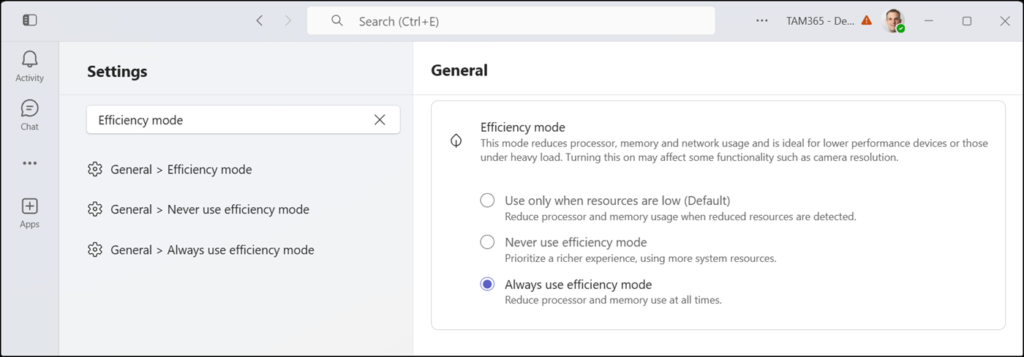
- Users who would rather not use this mode can turn it off themselves by going to Settings, then General, and selecting the option to never use efficiency mode.
- Users who always want to use this mode can enable it themselves by going to Settings> General and selecting the option to always use efficiency mode. I did this last week, and nothing happened. No efficiency mode icon, nothing.
But on Thursday, the efficiency mode icon appeared in the top-left corner.
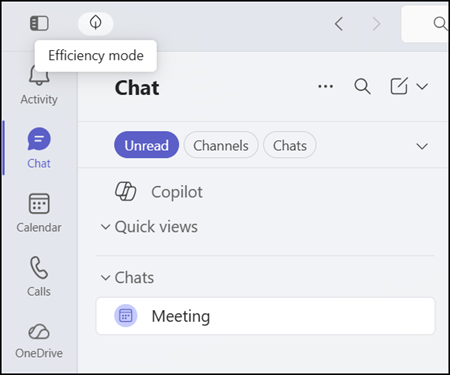
With Efficiency Mode running, the video resolution sent from a user’s camera during meetings is adjusted dynamically to help maintain performance, and the app opens without a chat automatically selected, showing a simple static image in the message pane instead.
The Teams client setting should be available, but it may take a bit longer for the mode to be enabled on the device.
Updated 8 July 2026:
The rollout should be completed by the end of July 2026.
