
Microsoft Planner now supports custom templates, giving users a faster way to set up new plans based on work they have already organized. Instead of building a plan from scratch each time, users can turn an existing plan into a reusable template.
The update can be useful for teams that run recurring projects or repeatable processes, as it reduces the time spent recreating the same plan layout and helps keep related projects consistent.
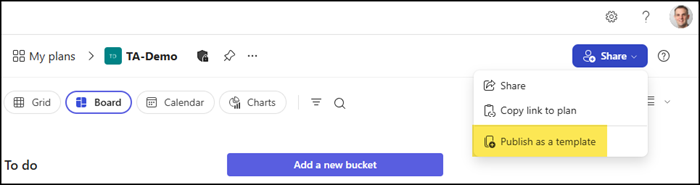
Select Share in the Planner plan and “Publish as a template”.
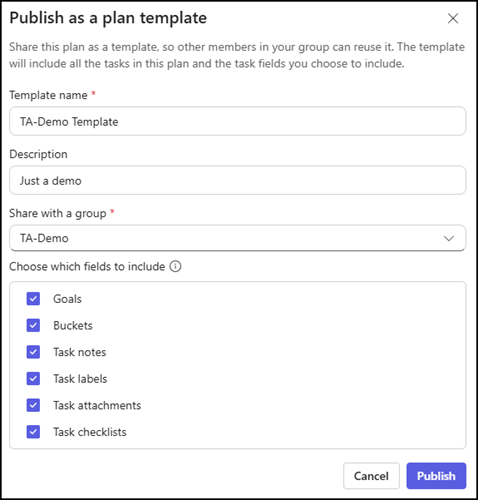
Define a template name, description, and Microsoft 365 group where the template should be stored.
The Microsoft 365 group is mandatory. Because a Microsoft 365 group is mandatory, these templates have limited use for Lightweight plans. A Lightweight plan is created via a Loop task list and has no connected group object. A template can be published from a Lightweight plan, but you must select a group to store the template.
Planner templates can store existing tasks, buckets, labels, goals, notes, checklists, and attachment links, so the structure of a familiar workflow can be reused whenever a similar project comes up. If a template is updated later, those changes do not carry over to plans already created from it. Each plan remains independent once it has been set up.
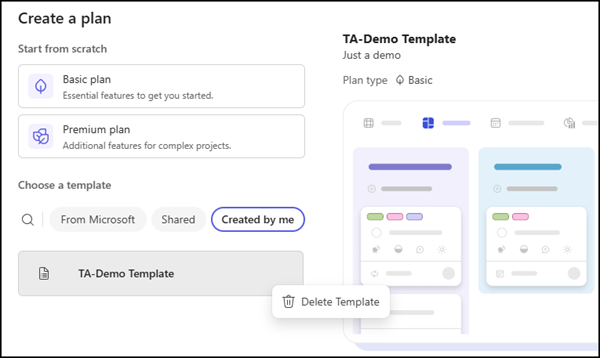
Once a template has been published, it becomes available to members of the same Microsoft 365 group through the Shared and Created by me template galleries when creating a new plan, making it easy to find and start a new plan in just a few clicks. You can also delete the template there. Any member of the Microsoft 365 group can create and delete a Planner template.
Note:
I was unable to find the template in Planner on the web. The template is available when I create a new plan in Planner in Teams. Probably a bug or an incomplete rollout.
Unfortunately, the template does not include which Microsoft 365 group is the source. If a group is deleted, the template is also deleted. You can select another group when creating a plan from the template.
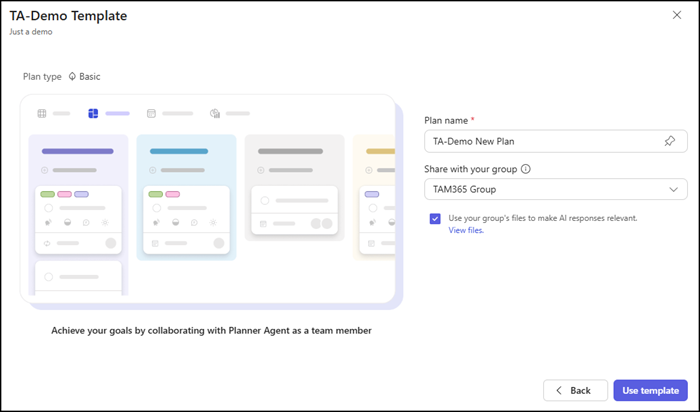
When a new plan is created from a template, task progress and status are reset. Every new plan starts fresh even though its structure is already in place.
The Planner template feature should be available to all users with access to Microsoft Planner in July 2026.
