
Microsoft Teams Phone is adding support for multi-line users, allowing Phone administrators to assign up to 10 telephone numbers to a single Teams Phone user within one Teams account. Users can make and receive calls from any of these numbers across Teams desktop, Teams Mobile, and Teams devices, without switching accounts or hardware. Teams Mobile and Teams devices currently have limited capabilities to receive multi-line calls.
- Users need a Teams Phone or Teams Phone with Calling Plan license.
- Users must have a primary line assigned from their usage location before an alternate line can be assigned.
- A user can have a maximum of 11 numbers assigned: 1 primary, 1 private, and 9 alternate.
- This update is available for Teams on Windows, Mac, and the web.
- Users can receive calls to a multi-line number on Teams Mobile and Teams desk phones, but cannot yet select it for outbound calls. An update should follow.
- Multi-line support is off by default and must be configured by an administrator before users can access it.
Timeline
The rollout should be completed in May 2026.
How does this affect your Teams administrators?
Teams Phone administrators can now assign up to 10 telephone numbers to a single Teams Phone user (1 private and 9 alternate numbers). The assigned numbers appear as separate lines in the Calls app in Microsoft Teams.
Multi-line support in Teams Phone is useful in a few situations.
- Executives, assistants, and support teams can manage multiple business lines from a single Teams account, eliminating the need to juggle separate logins.
- Users who regularly call contacts in other regions can present a local number rather than an unfamiliar foreign one.
- And anyone covering more than one role can keep those functions on separate numbers without needing a second account.
The alternate phone numbers can be assigned via the Teams admin center…
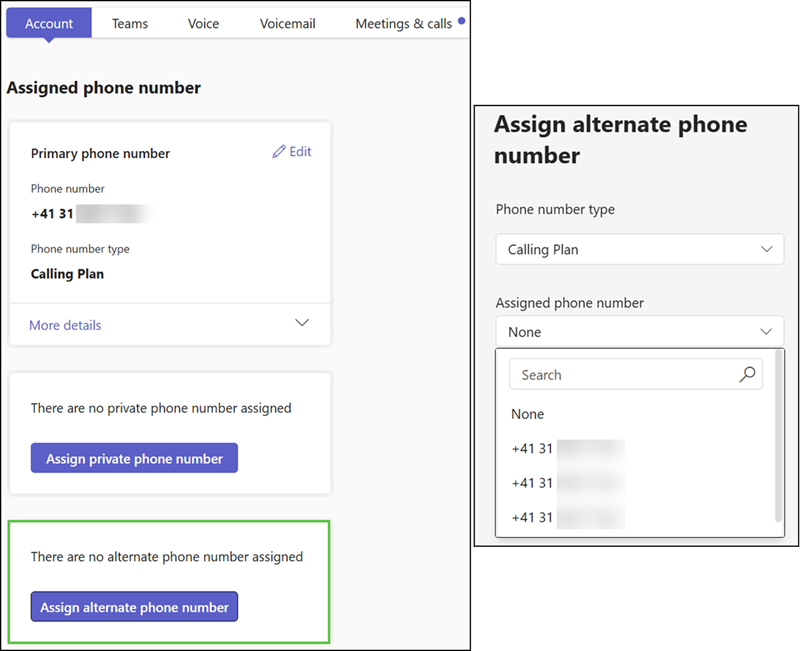
Or as an alternate number via Teams PowerShell and Set-CsPhoneNumberAssignment.
Connect-MicrosoftTeams

$UPN = "<UserPrincipalName>"
$AlternatePhoneNumber = "<AlternateNumber>"

# Get the list of emergency locations in the tenant, to retrieve the LocationId for the phone number assignment
Get-CsOnlineLisLocation | select LocationId,CompanyName,StreetName,PostalCode,City,ValidationStatus

# Assign an alternate phone number to a user
Set-CsPhoneNumberAssignment `
    -Identity $UPN `
    -PhoneNumber $AlternatePhoneNumber `
    -PhoneNumberType CallingPlan `
    -LocationId "<LisLocationId>" `
    -AssignmentCategory Alternate
Once a number is assigned, Teams can indicate that policy assignments are missing.
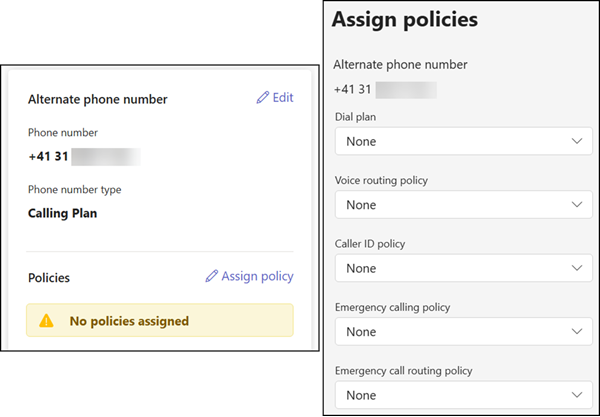
Five custom Phone policies should be assigned to an alternate number:
- TenantDialPlan
- OnlineVoiceRoutingPolicy
- CallingLineIdentity
- TeamsEmergencyCallingPolicy
- TeamsEmergencyCallRoutingPolicy
Custom policies can be assigned using the cmdlet Set-CsPhoneNumberPolicyAssignment. The policies are assigned to the alternate phone number, rather than to a user account.
Set-CsPhoneNumberPolicyAssignment -TelephoneNumber $AlternatePhoneNumber -PolicyType TenantDialPlan -PolicyName "<PolicyName>"
Set-CsPhoneNumberPolicyAssignment -TelephoneNumber $AlternatePhoneNumber -PolicyType OnlineVoiceRoutingPolicy -PolicyName "<PolicyName>"
Set-CsPhoneNumberPolicyAssignment -TelephoneNumber $AlternatePhoneNumber -PolicyType CallingLineIdentity -PolicyName "<PolicyName>"
Set-CsPhoneNumberPolicyAssignment -TelephoneNumber $AlternatePhoneNumber -PolicyType TeamsEmergencyCallingPolicy -PolicyName "<PolicyName>"
Set-CsPhoneNumberPolicyAssignment -TelephoneNumber $AlternatePhoneNumber -PolicyType TeamsEmergencyCallRoutingPolicy -PolicyName "<PolicyName>"
Confirming the policy configuration in the Teams admin center.
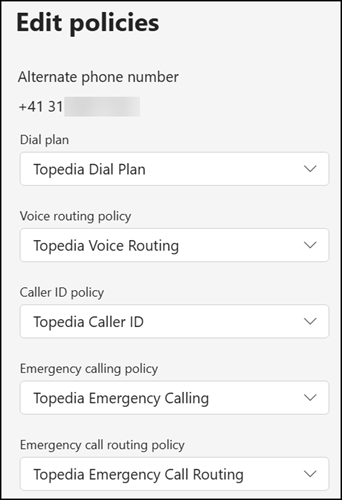
Teams administrators should also read the known limitations.
How does this affect your Teams users?
Once a number is assigned, it is automatically displayed to the user. Users assigned more than one business telephone number can then make and receive calls from any of those numbers within their existing Teams account.
The additional number appears at the top of the Calls app.
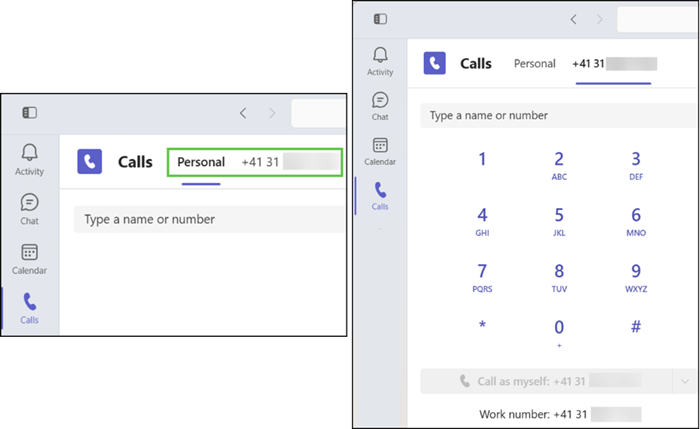
Alternatively, the phone number can be selected before the call starts.
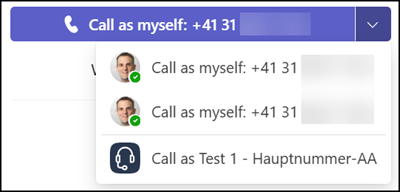
As a reminder, users cannot yet select the alternate number on Teams Mobile or Desk devices.
