
In August 2021, Microsoft paused and rolled back QR code login in Outlook for Entra ID accounts. Personal Microsoft accounts were not affected.
As of August 2021, this experience has been put on hold indefinitely for commercial and enterprise users due to organizations’ lack of control over them. The work involved in providing these controls is extensive and the Identity team continues to work on them. We rolled back this feature for commercial and enterprise users since we wanted to provide more security and customization for all the different cases they managed.
QR code login for Entra ID accounts should be available again for Outlook Mobile until November 2024.
Outlook on the web and the new Outlook for Windows include a new “Outlook Mobile” option in the ribbon bar under Help. Microsoft would like to use this to simplify logging into Outlook Mobile.

Entra ID accounts do not have to enter account names or passwords in Outlook Mobile with the simpler method. Users complete their login steps on a PC, then scan a QR code in Outlook Mobile.
Content
Use QR code login with Entra ID accounts
If the rollout is complete and the option is enabled for your account, you will find it in Outlook on the web and in the new Outlook for Windows under Help.
Complete the sign-in steps on your PC (username + authentication). At the end, Outlook will show you a QR code.
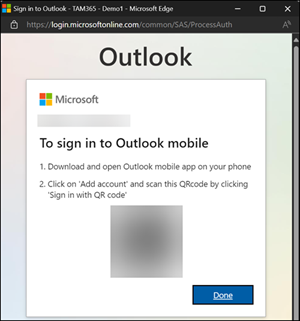
In the Outlook Mobile app, add a new email account, select the option to scan a QR code, and follow the next steps. Outlook adds the account to the app.
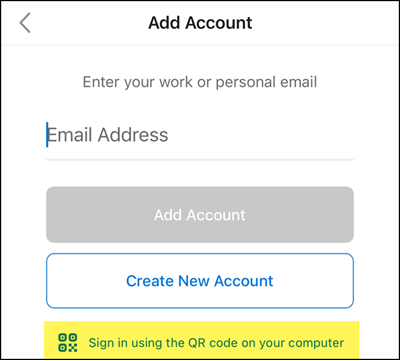
Note
The QR code login did not work with Outlook for iOS during my tests. With Outlook for Android, the QR code login is working; Outlook Mobile adds the account. Outlook for iOS may still have a bug, or the rollout is not yet complete.
Disable QR code login for Entra ID accounts
(in Exchange Online)
Exchange administrators can disable the QR code login option via an OWA policy. By default, the property AccountTransferEnabled is active.
This feature is on by default but you can turn it off by setting the Set-OWAMailboxPolicy command, AccountTransferEnabled to false. Users that have already used this feature won’t be signed out.

Connect-ExchangeOnline
Get-OwaMailboxPolicy | select Identity,AccountTransferEnabled | fl # Get the state for all OWA policies

# Change the state for the global policy
Set-OwaMailboxPolicy -Identity OwaMailboxPolicy-Default -AccountTransferEnabled $false
The OWA policy change can take up to 8 hours.
The “Outlook Mobile” option is hidden in Outlook. It is no longer available for the account.
Disable QR code login for Entra ID accounts
(with Conditional Access Policy)
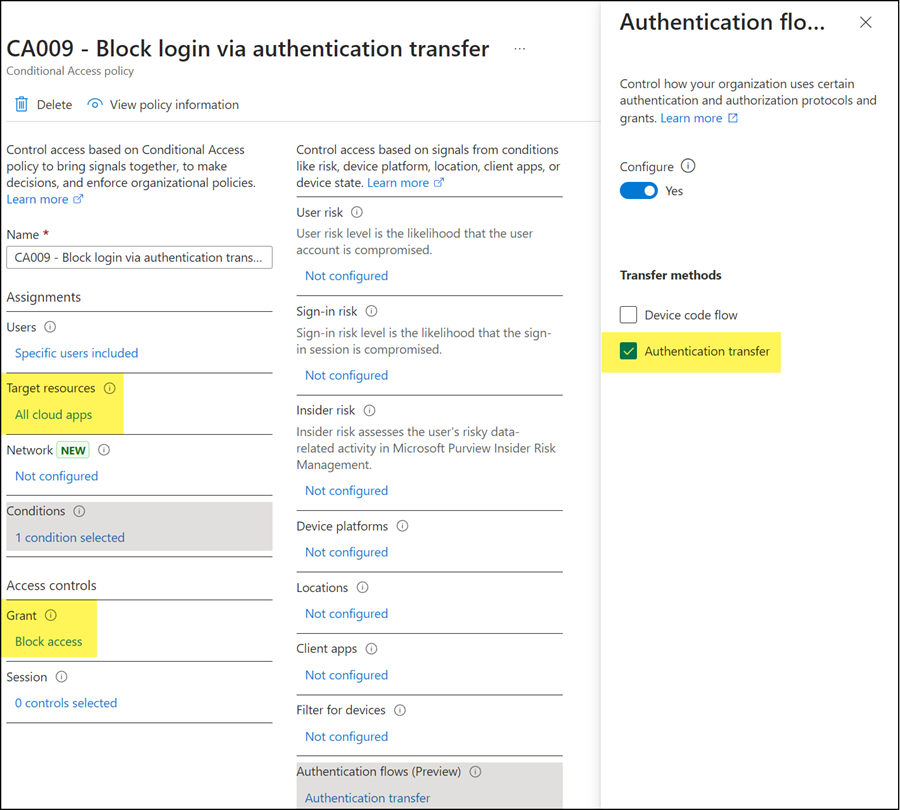
Microsoft refers to the possibility of restricting Authentication Transfer via a Conditional Access Policy.
You can create a new CA policy and select the following options:
- Target resources: All cloud apps
According to the sign-in logs, the resource “Office 365 Exchange Online” should be sufficient. At the moment, however, it does not block the option for QR code with the resource. With this selection, the Outlook app only signals that the QR code is invalid. With “All cloud apps” it blocks the possibility for QR code. - Conditions > Authentication flows > enable Authentication transfer
- Access control > Grant > Block access
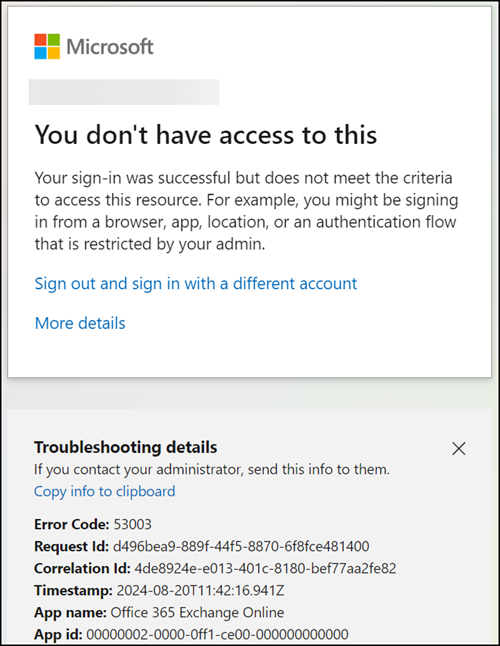
If users select the “Outlook Mobile” option, the policy blocks it. The CA policy does not hide the Outlook Mobile option.
Update from 28 September 2024:
The rollout has been canceled and will not be continued at the moment.
