
Microsoft is adding a new option to temporarily pause all Teams notifications for a set period. The capability should help users reduce interruptions during focused work, meetings, and other activities.
Timeline
The rollout should be completed in October 2026.
How does this affect your users?
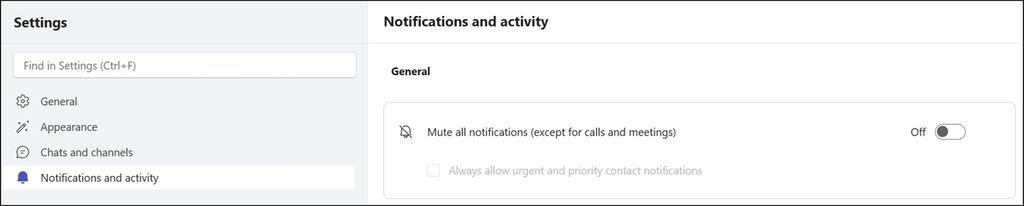
Until now, users could not temporarily pause all notifications to reduce interruptions. They could mute all notifications, but that is not always the ideal solution, because users have to unmute them manually later.
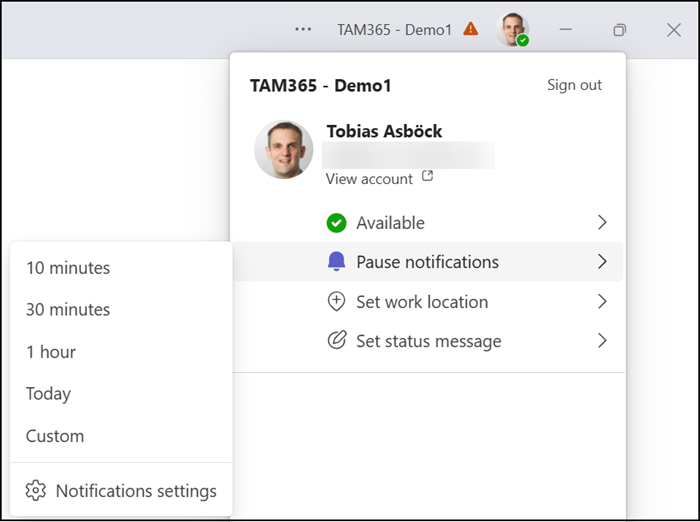
With the new option, users can select a pause duration, and Teams stops notifying them for that period. Users can choose a predefined period (10 minutes, 30 minutes, one hour, the full day, or a custom end date). The option is in the profile menu in the upper-right corner of the Teams app.
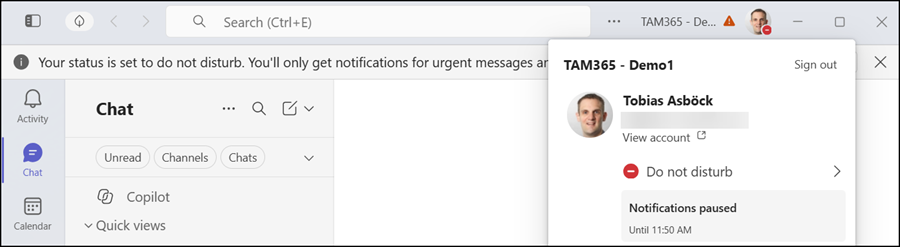
What happens if users choose to pause notifications?
Teams sets the user’s presence status to “Do not disturb”. This status isn’t new and always mutes all notifications except urgent messages and those from priority contacts. Some users may not know this presence status or, like me, forget to update it later. The pause is synchronized across platforms. Users can update or end it at any time.
When the selected period ends, notifications resume automatically, and Teams restores the user’s previous notification preferences. This update does not change any existing notification settings. It’s a user setting only.
The “Pause notifications” capability should be available on Teams desktop, web, and mobile.
I found the option in Teams desktop and web, but not yet in the mobile app. It is probably still rolling out to mobile, but users can already set “Do not disturb” manually.
