
Microsoft introduced an updated option that allows administrators to pin the Copilot desktop app to the Windows taskbar for selected groups of users. As a result, some users may notice the Copilot icon on their taskbar, giving them one-click access to Copilot without having to search for the app first.
Pinning the Copilot desktop app itself is not new.
In August 2025, Microsoft introduced the option to pin the Copilot app to the Windows taskbar and later extended it to auto-pin the Microsoft 365 Companion apps (which were a flop).
What is new is the option to pin the desktop app for selected user groups.
Previously, admins could only pin it for everyone or no one, with nothing in between. Pinning now targets specific groups, such as a department, a team, or early adopters, so not all users see the change at once. This should allow organizations to roll out the Copilot desktop app step by step.
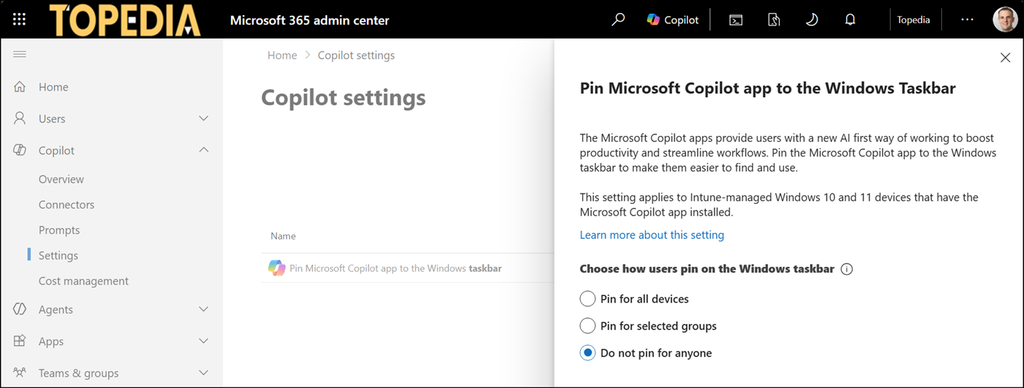
Some notes from the documentation:
- The default setting is not to pin the app. Users can still pin the app manually.
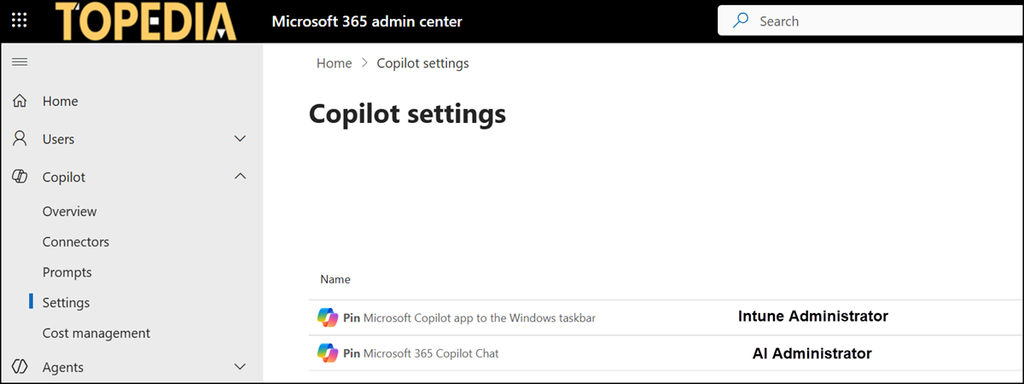
- Pinning the Copilot desktop app is part of Copilot settings in the Microsoft 365 admin center. Admins need the Intune Administrator role. The setting is not visible for users with the AI Administrator role.
- This rollout only applies to Windows devices managed by the organization where the Copilot desktop app is already installed. Nothing new is installed on their devices.
- On devices running Windows 11 or later, changes take up to eight hours to apply and don’t require a restart. Changes to devices running older versions of Windows take up to 48 hours to apply and might require a restart.
Also, there are two pinning options, you should not mix them: one for Copilot Chat (introduced in November 2024) and the updated one for the Copilot desktop app (introduced in August 2025). Depending on the assigned admin roles, you may find just one of them.
The rollout should already be completed. As mentioned, the default setting is to not pin the app, so nothing changes (for now).
