Recently, I described how to deploy the new unified Copilot desktop app for pilot users. Microsoft plans a broader rollout starting in mid-September 2026.
This unified Copilot app works with personal accounts, work or school accounts, or both. This means users can soon log in with personal accounts and other work or school accounts on your managed company devices.
On a managed company device, I want to control which accounts my users can use.
In this post, I describe…
- How to prevent sign-in with Microsoft personal accounts.
- Restrict work or school accounts to specific organizational tenants (for a multi-tenant setup), and deny all other accounts.
- Restrict a multi-tenant setup to the new unified Copilot desktop app only.
- If needed, how to allow Microsoft personal accounts with tenant restrictions.
- How to troubleshoot some impacts from tenant restrictions.
In my test case, I used a tenant restriction policy for managed Windows clients (currently in preview).
Later, I noticed that Microsoft also mentions using tenant restrictions if an organization wants to exclude Microsoft personal accounts. So my initial research was on the right track.
Admins can continue to limit Microsoft account (personal) access to the Copilot app using Tenant Restrictions.
Content
General information
There are three steps to complete:
- Define what is allowed: Allow the regularly used tenants in a multi-tenant setup; block everything else, including Microsoft personal accounts. It’s a whitelisting approach.
- Configuration in Microsoft Entra: Configure the tenant restriction policy in Microsoft Entra.
- Deployment via Intune: Deploy the tenant restriction policy with Intune to all pilot users’ clients.
Warning:
If these tenant restrictions are not yet in place in your organization, you must test them first with a small test device group.
The tenant restriction policy can have a high impact on managed Windows clients, particularly but not exclusively in a multi-tenant setup, because it affects sign-in behavior across multiple Microsoft desktop apps, including…
- The new unified Microsoft Copilot desktop app,
- The previous Microsoft 365 Copilot desktop app,
- Microsoft Teams,
- Microsoft 365 apps (Word, Excel, PowerPoint, OneNote),
- The new Outlook and Outlook Classic,
- Microsoft Edge, including Edge for Business and personal Edge profiles,
- and others.
As Adam Fowler recently described, the restriction policy doesn’t return a clean “access blocked” message for personal Microsoft accounts. Instead, expect authentication loops or generic sign-in errors.
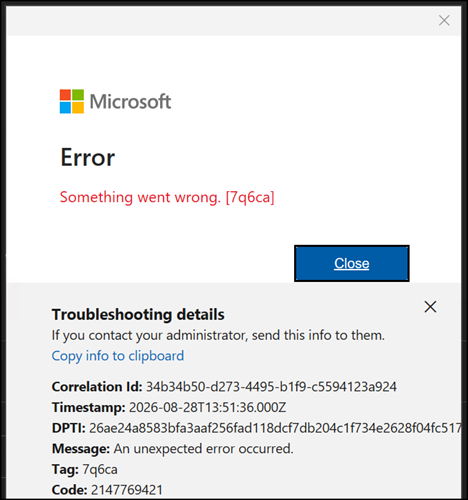
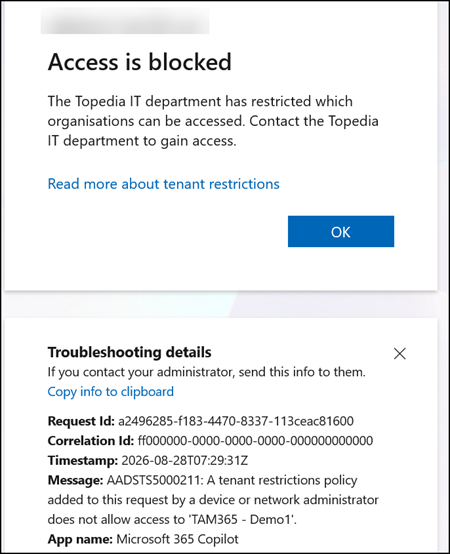
In comparison, if a user wants to sign in with a non-allowed organizational account, the sign-in experience returns “access is blocked” for the account. Unfortunately, Microsoft still does not provide this information for personal accounts.
Set up a tenant restriction policy in Microsoft Entra
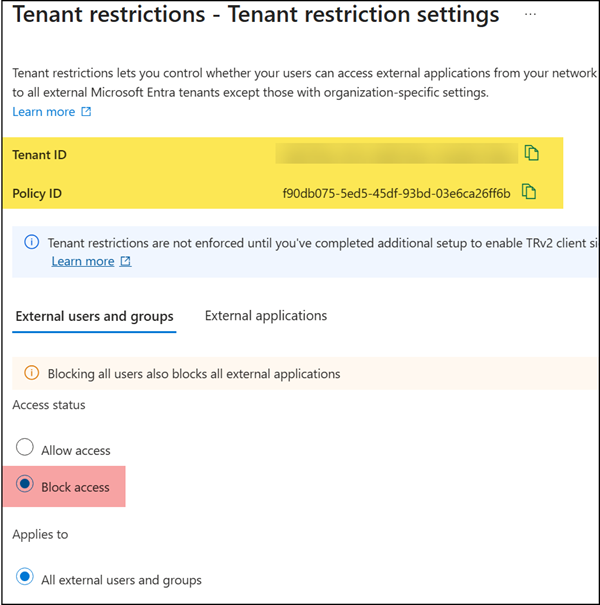
Open Microsoft Entra ID > External Identities > Cross-tenant access settings, then select the Default settings tab. At the bottom, you can find the default settings for Tenant Restrictions. It’s also worth knowing what Microsoft notes:
Although tenant restrictions are configured along with your cross-tenant access settings, they operate separately from inbound and outbound access settings. Cross-tenant access settings give you control when users sign in with an account from your organization. By contrast, tenant restrictions give you control when users are using an external account. Your inbound and outbound settings for B2B collaboration and B2B direct connections don’t affect (and are unaffected by) your tenant restrictions settings.
- The default setting is “Block access”, meaning it is a whitelist approach.
- Both the tenant ID and the policy ID are required for the Intune deployment.
Also, in Cross-tenant access settings, switch to the organizational settings tab.
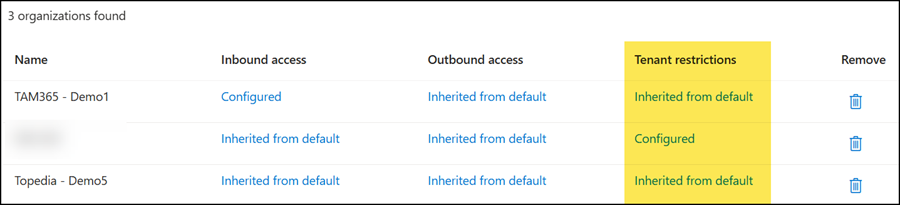
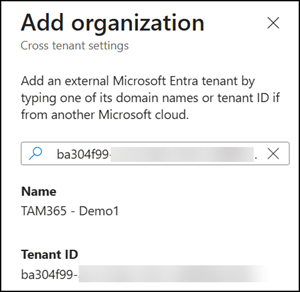
Add a new organization if an external organization does not already exist. You must provide either the external tenant ID or domain (xxx.onmicrosoft.com). You will see “Inherited from default” in the tenant restrictions column. As noted in the previous step, the default is “Block access.”
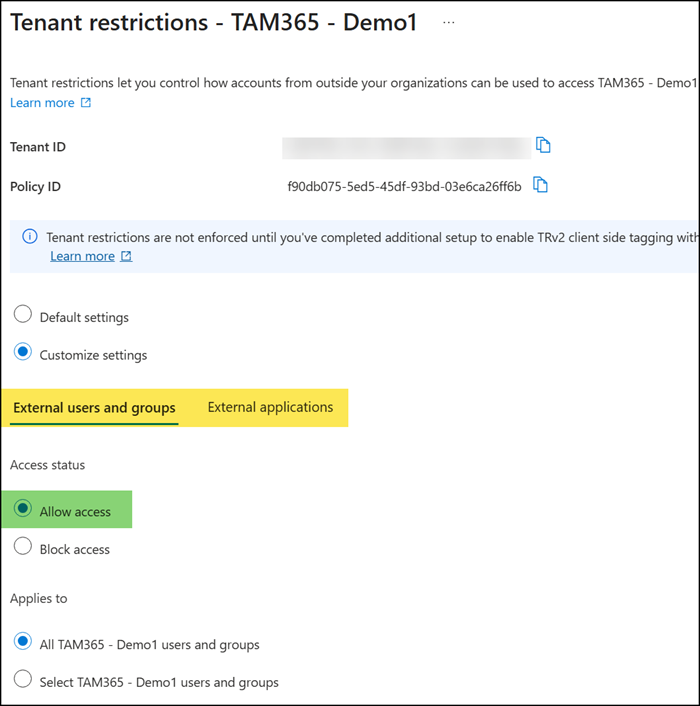
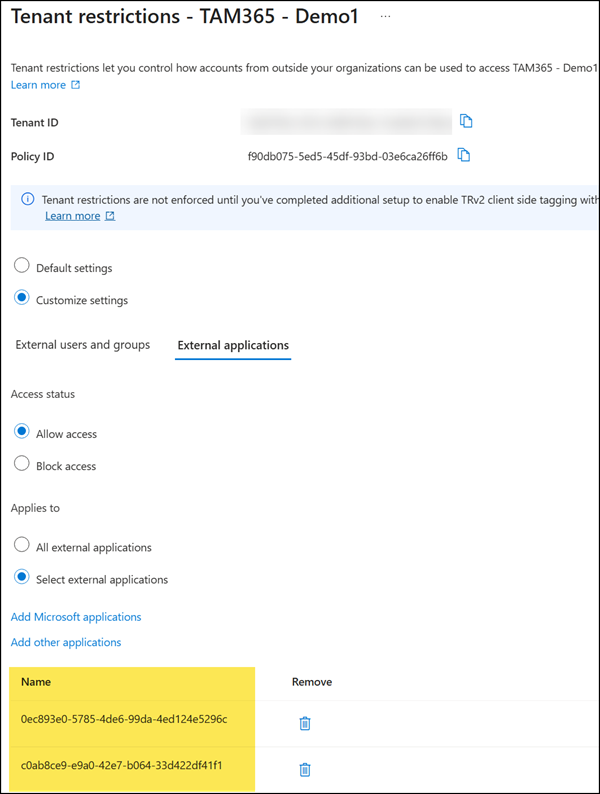
Edit the tenant restriction for the external organization and customize the default to “Allow access” for both tabs (“External users and groups” and “External applications”). Optionally, you can restrict allowed users from the external organization. The policy ID is always the same in your tenant.
Deploy tenant restrictions to managed Windows clients
I deployed the tenant restrictions to my pilot device group via Intune. The pilot group should also be fairly small, since you must deploy and test the tenant restrictions on those pilot clients.
I extended my configuration profile from the unified Copilot app deployment. The profile now also deploys the tenant restrictions to these clients.
- Edit the configuration profile and search for the “Tenant Restrictions” setting.
- Enable the setting and add the tenant ID and policy ID from the previous step.
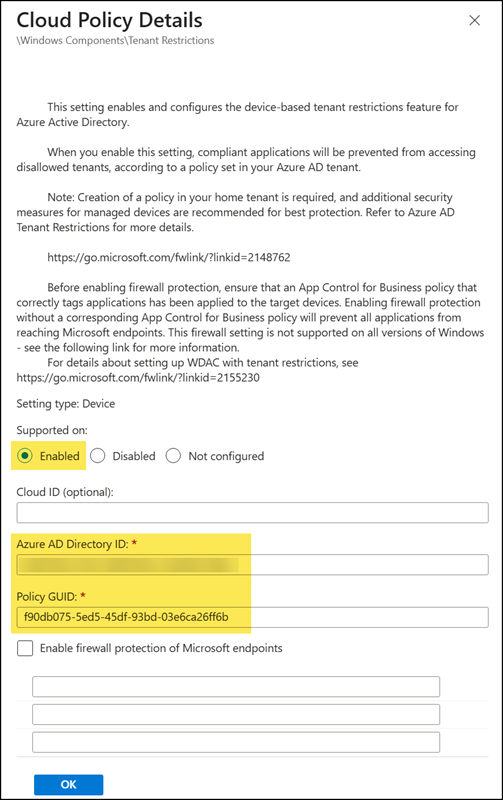
- Save the updated profile and wait for the new setting to deploy to the pilot clients.
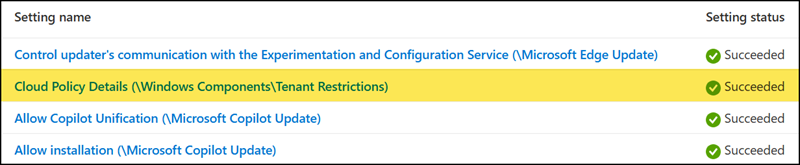
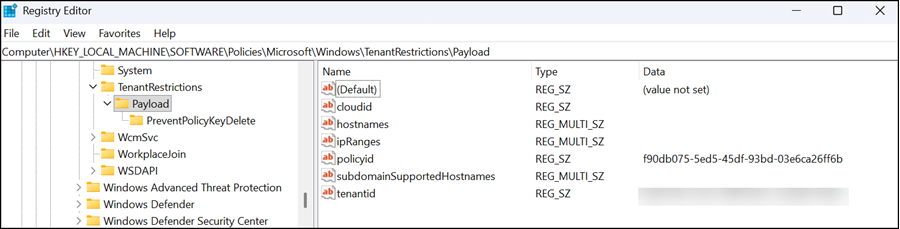
Intune deploys the tenant restriction policy to the registry at HKLM\SOFTWARE\Policies\Microsoft\Windows\TenantRestrictions\Payload.
Testing the tenant restriction policy
You can now test the new policy.
- Open the new Copilot desktop app.
- ✅ Allowed: Switch to an allowed work or school organization. The Copilot app will switch to the second work or school account.
- ❌ Blocked: Switch to a non-allowed work or school organization. You will see an access is blocked message, noting a tenant restriction policy prevents access.
A tenant restrictions policy added to this request by a device or network administrator does not allow access to….
- ❌ Blocked: Switch to a personal Microsoft account. You may see either an authentication loop or a generic sign-in error.
- If you see the authentication loop, the Copilot app opens another window in the background that waits for you to click OK. Search for the window and close it to break the loop.
- In other cases, if the app has already cached logon credentials from a personal account, you are in a real loop because the app keeps trying to load background information. Quit the app via the taskbar and reopen it to end the loop. Now you still get the error, but you can switch to a supported account.
Optional: Allow Microsoft personal accounts
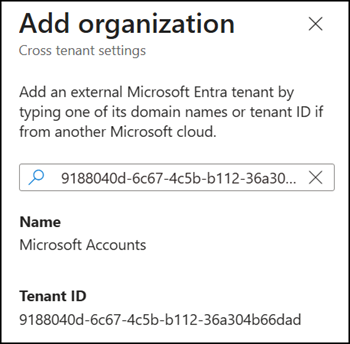
Tenant restrictions also allow Microsoft personal accounts. According to Microsoft, the organization ID for Microsoft Accounts is 9188040d-6c67-4c5b-b112-36a304b66dad. Just add a new cross-tenant organization with the ID and update the tenant restriction settings.
Be patient with the Microsoft organization:
Normally, when you update tenant restrictions in Entra ID for an organization, the update propagates quickly to devices. This is different with the Microsoft Accounts organization. Wait at least 12 hours after updating anything for that organization.
Optional: Allow the Copilot desktop app in a multi-tenant setup
I also configured the tenant restriction policy to allow only the new unified Copilot desktop app in a multi-tenant setup.
You need to allow the following two app IDs:
- 0ec893e0-5785-4de6-99da-4ed124e5296c > the ID for the OfficeHome application; the Copilot desktop app is included.
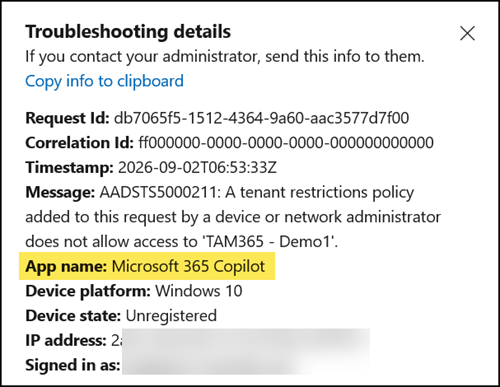
- c0ab8ce9-e9a0-42e7-b064-33d422df41f1 > the ID for Microsoft 365 App Catalog Services. Microsoft 365 Copilot Chat is included in the app.
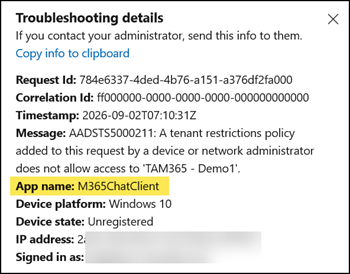
Add the two app IDs to the allowed external applications. Refer to the troubleshooting section below to find these IDs if other cases are still blocked.
Unexpected issues and troubleshooting
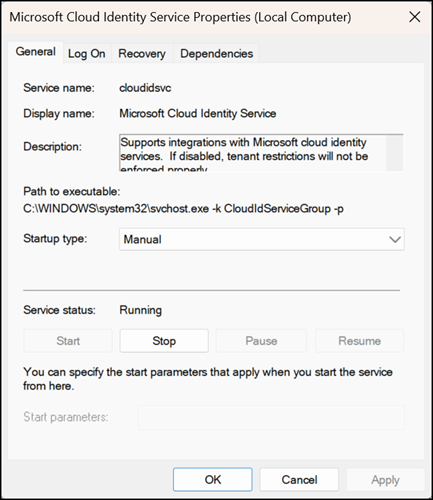
If you have issues with the policy, try restarting the local service “Microsoft Cloud Identity Service.”
Or check the Windows event logs at Applications and Services Logs > Microsoft > Windows > TenantRestrictions > Operational.

Multi-tenant setup:
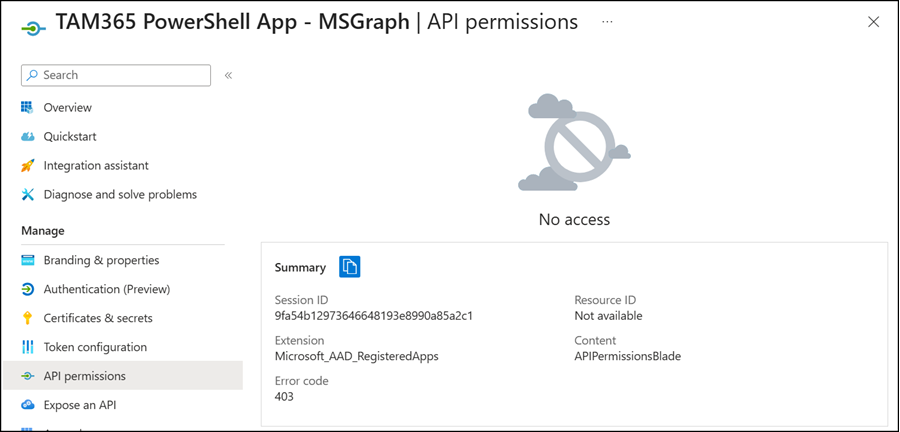
I have a multi-tenant setup and added my tenants to the allowed list. As soon as the tenant restriction policy is enabled, I lose access to all API permission settings in Azure apps as a Global administrator. This only affects external tenants in the allowed list, not the home tenant. It’s strange, but the policy is the cause. You may see more unexpected Entra ID behaviors.
Review the sign-in activities
Review the sign-in activities in Entra ID. You may find many events with failed logins, all due to tenant restrictions. The event includes the failed tenant ID and the app ID that caused the failure. I used my Sentinel logs to simulate this.
SigninLogs
| where TimeGenerated > ago(48h)
| where ResultType <> "0"
| where ResultDescription contains "A tenant restrictions policy"
| order by TimeGenerated desc
| project TimeGenerated,ResourceDisplayName,ResourceIdentity,ResourceTenantId,ResultDescription,AppId,ResultType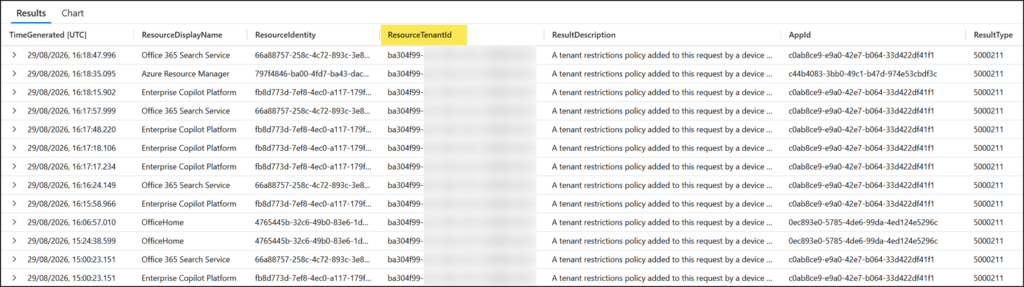
To find the tenant name, use the PowerShell sample from Martin Heusser or copy the ID and temporarily paste it into a new organization in the cross-tenant access settings, as described in the setup section. Entra will return the tenant name.
If tenant restrictions need to be disabled quickly:
- Disable the tenant restriction setting in the Intune configuration profile.
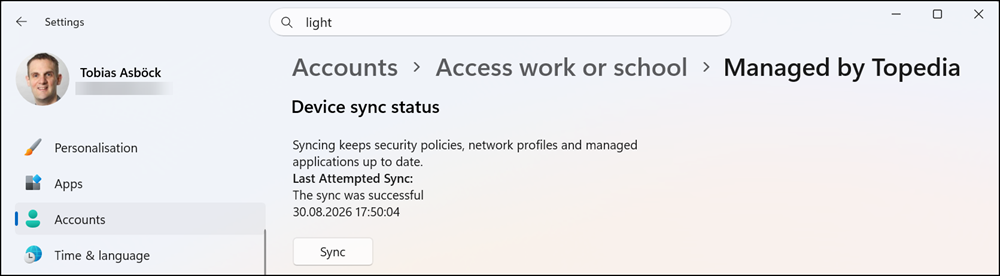
- Force a sync on the Windows client in Windows settings > Accounts > Access work or school > open “Connected by…” and select Info. This always removed the tenant restriction settings instantly.