
As Microsoft recently announced, they will unify the Copilot desktop apps on Windows and Mac, as described here.
We’re updating Copilot to create a simpler, more cohesive experience for everyone. Depending on the account and device you use, you will see changes to the Copilot app including changes to appearance and functionality, such as navigation, feature availability, or sign-in experience.
You will be able to sign in to the updated Copilot app with a personal account, a work or school account, or both. Work and personal accounts remain separate. Your organization’s security, privacy, compliance, and administrative controls continue to apply when you use Copilot with your work or school account.
The updated sign-in experience is a major note. Currently, Microsoft offers two Copilot desktop apps:
- Microsoft Copilot app for consumer / personal accounts
- Microsoft 365 Copilot app for work or school accounts
The new unified app combines both apps, and it’s again called Microsoft Copilot.
If an organization has training materials describing the differences between the Microsoft Copilot and Microsoft 365 Copilot apps, it should update them.
*************
Updated 2 September 2026:
I have published a follow-up post on how to use Entra ID tenant restrictions to prevent Microsoft personal accounts in the new Copilot desktop app, or how to configure the new app for a multi-tenant setup.
*************
Content
Rollout information
The rollout for the new Copilot desktop app should start in mid-September 2026. An administrator can already enable the app for pilot users to test it early. Microsoft has published a deployment guide.
I configured these settings on my client for my personal tests. As a result, the new Microsoft Copilot app replaced the previous Microsoft 365 Copilot app.
In my case, I used Intune to deploy the required settings. This post describes the required steps plus some additional information for managed Windows clients. At the end, the Microsoft 365 Copilot app will be replaced.
I will handle these steps from the deployment guide:
Windows Devices
- Ensure EdgeUpdate is on version 1.3.253.25 or higher.
- Download the Copilot update policy file.
- Enable the Updater Experimentation And Configuration Service Control policy.
- On devices that already have the Microsoft Copilot application or the Microsoft 365 Copilot application installed, enable on the Copilot Unification Allowed policy.
- On devices without the Copilot application installed, set the Install policy to Force Installs.
Important: The Microsoft Store app won’t work for this pilot deployment
I spent most of my time on this, as it was an unknown situation for me.
I previously installed the Microsoft 365 Copilot app via the Microsoft Store on my personal client. My unification configuration never updated the app. I asked Claude for help to analyze the Edge Update log at C:\ProgramData\Microsoft\EdgeUpdate\Log. The log included details on why my Copilot app didn’t update.
Your Copilot update policy is correctly configured and correctly loaded —
Claude AIcopilot_unification_allowed][1]is confirmed three times. But EdgeUpdate has never actually initiated an update check for the Copilot app itself. … Compare this to how Edge browser updates worked earlier in your first log, none of that sequence exists for the Copilot GUID.
Why that’s happening
The scheduled task runs are only checking the apps already registered with EdgeUpdate on this machine — typically justmsedgeupdateitself andmsedge(the browser), plus WebView2. The Copilot app isn’t in that registered app list yet, soDoUpdateAllAppsnever asks the server about it, regardless of how the policy is configured.
Likely explanation
This lines up with what the Microsoft article implies:copilot_unification_allowedonly controls whether an already-registered Copilot install accepts the unification update — it doesn’t cause EdgeUpdate to discover or register a Copilot app that isn’t already integrated with EdgeUpdate’s own app list. If your installed Copilot app was installed via the Microsoft Store or a standalone MSI rather than through EdgeUpdate itself, EdgeUpdate may simply not know about it as an “app” to check updates for.
…
After confirmation
Store-installed apps (MSIX/AppX packages) are updated through the Microsoft Store’s own update pipeline, not through EdgeUpdate. EdgeUpdate only manages apps that were installed via its own Omaha-based mechanism — Edge browser, WebView2, and (for the unification rollout) a Copilot client registered directly under EdgeUpdate’s Clients key. A Store install never creates that registration, so from EdgeUpdate’s perspective, Copilot simply doesn’t exist as an app it’s responsible for.
I uninstalled the Copilot app (the Store app) to force a fresh install via the Edge Update service.
Access to the new Copilot URL
Microsoft also mentions that the new Copilot URL must be accessible.
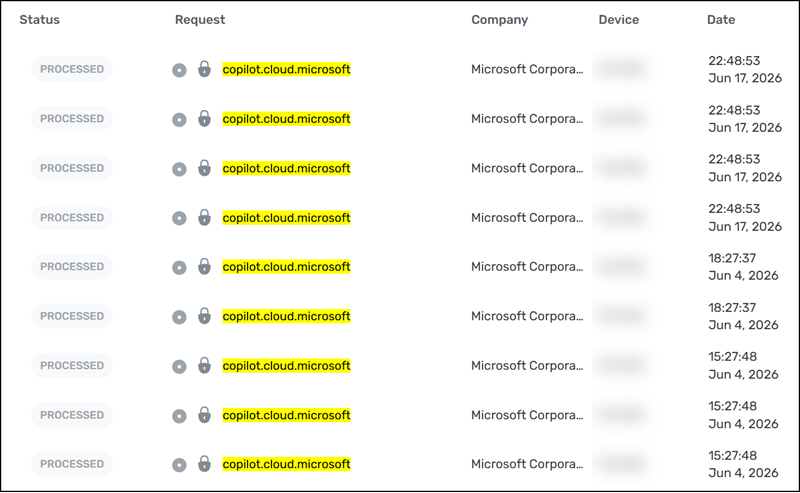
Ensure that copilot.cloud.microsoft isn’t blocked within your environment. For more information, see Microsoft 365 app and network requirements for Microsoft Copilot, and Add Microsoft Copilot endpoints to your allow list.
My network watcher indicates the domain communication started on 4 June 2026. This is not directly related to the new app, since the domain communication was already occurring beforehand. The new app is also communicating with the domain.
Deploying the new Copilot desktop app
- Ensure EdgeUpdate is on version 1.3.253.25 or higher.
Checking the current version was a bit challenging. First, I checked it with PowerShell.
The version was too old.

I started the Edge Update task via the Task Scheduler.
# Run this with elevated privileges
Start-ScheduledTask -TaskName "MicrosoftEdgeUpdateTaskMachineUA"
Still no change in the version.
Then I noticed the Edge update log at C:\ProgramData\Microsoft\EdgeUpdate\Log included a different version.
[08/22/26 16:51:38.412][MicrosoftEdgeUpdate:msedgeupdate][41316:56180][C:\Program Files (x86)\Microsoft\EdgeUpdate\1.3.263.3\msedgeupdate.dll][version 1.3.263.3][opt][official]
I asked Claude to help me read the latest Edge Update version from the update log.
$result = Get-Content "C:\ProgramData\Microsoft\EdgeUpdate\Log\MicrosoftEdgeUpdate.log" -Encoding Unicode |
    Select-String -Pattern "App heartbeat\]\[AppName: edgeupdate\].*pv: ([\d\.]+)" |
    Select-Object -Last 1

$version = $result.Matches.Groups[1].Value
$version
- Download the Copilot update policy file.
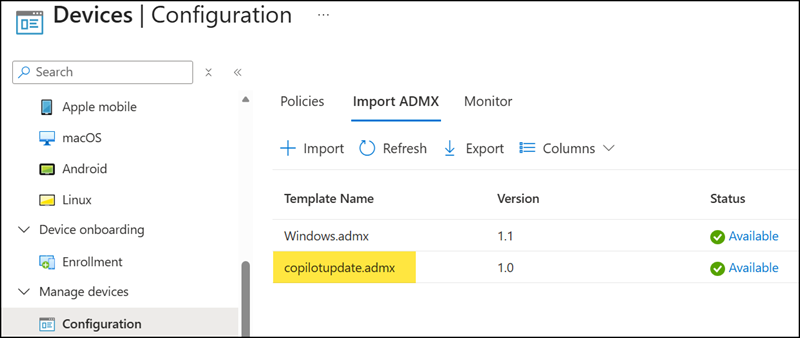
The Copilot settings for the new Copilot app are not yet available in the Intune settings catalog. I downloaded the policy package, unzipped the contents, and imported copilotupdate.admx and copilotupdate.adml (en-US) to the Intune Device configuration. The required settings are part of the copilotupdate template. The Windows.admx template is a prerequisite for the copilotupdate.admx template.
- Enable the Updater Experimentation and Configuration Service Control policy.
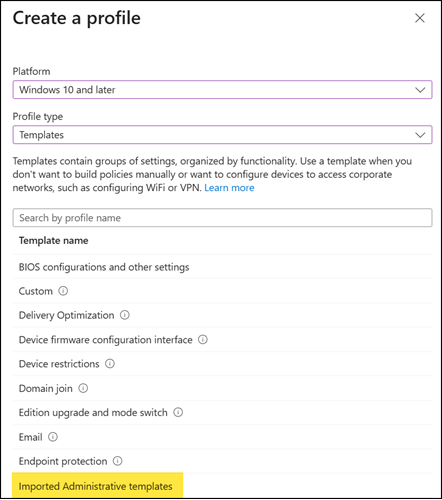
I created a new configuration profile and selected the imported administrative template.
I found the three required device settings:
- Control updater’s communication with the Experimentation and Configuration Service
- Allow install (to allow or force the installation via Edge Update)
- Allow Copilot Unification
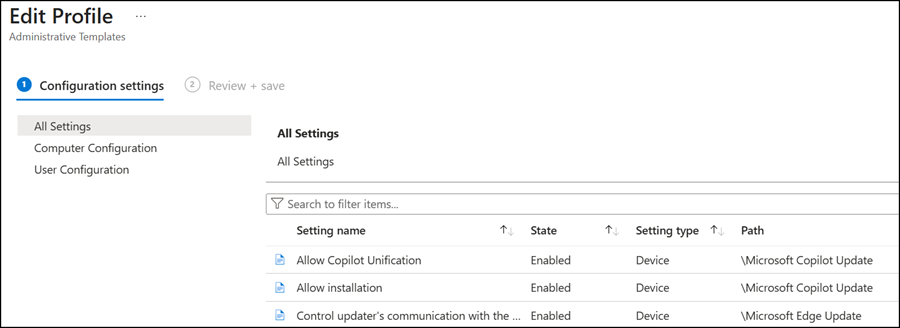
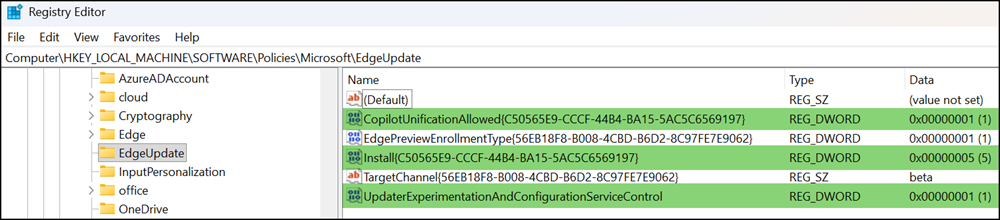
I assigned the configuration profile to a device group with selected pilot devices. All three settings were deployed on my client.

Also confirmed via the registry entries.
Using the new Copilot desktop app
I reran the Edge Update task. After a few hours, Edge Update installed the Copilot app in the background.
The new Copilot app is listed as recently added in the Windows start menu.

After I started the Copilot desktop app, it switched to Microsoft Copilot (previously Microsoft 365 Copilot).
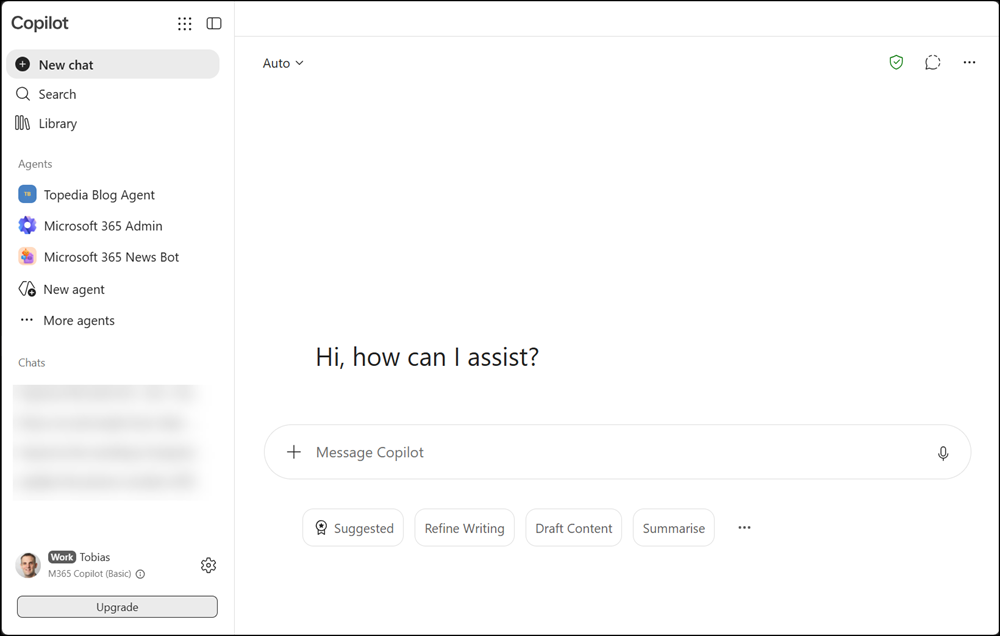
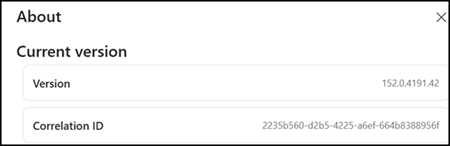
The design is the same. You should verify the version number in the Copilot app settings. Version 152.x is the new app, meaning the pilot deployment was successful.
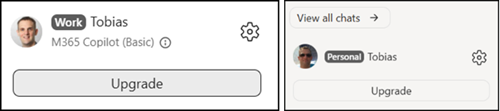
Next, switch your accounts, for example, from a work or school account to a personal Microsoft account. Each account is separated from the other. It will restart the Copilot app.
In the lower-left, you can find the account type and licensing, as in Copilot Web.
The Windows Task Manager now includes multiple new copilotapp.exe processes. Previously, this was M365Copilot.exe.
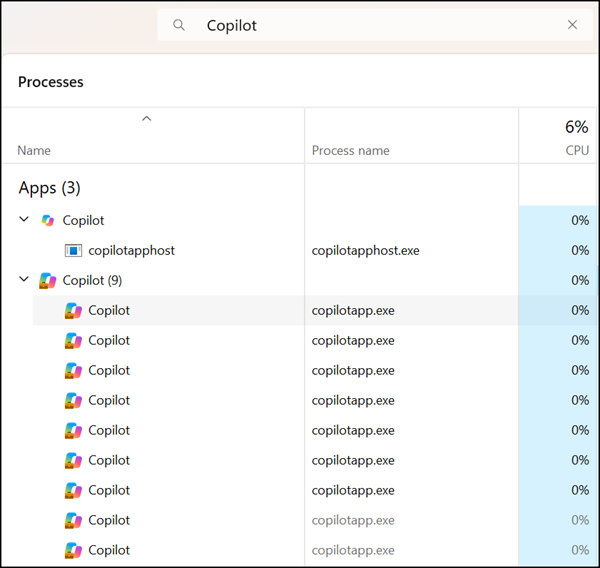
Congratulations, your pilot deployment of the new Copilot app was successful.
