
Since May 2024, Microsoft has been unifying app management in the Teams admin center and Microsoft 365 admin center, with several postponements along the way. In the meantime, Microsoft extended app management to include agent management.
Microsoft has now started the fourth phase in this process, affecting all organizations not involved in phases one to three or that skipped a phase. Organizations that already completed one of the previous phases are not affected by this rollout.
Phase 4 unifies app and agent management for cross-platform apps. This includes apps developed for Teams, Outlook, Microsoft 365, and other services.
Before this rollout, managing Teams apps that also work in Outlook and the Microsoft 365 app was fragmented across two admin centers:
- The Integrated apps and Agent apps pages in the Microsoft 365 admin center, and
- the Manage apps page in the Teams admin center.
This sometimes resulted in inconsistent availability settings for the same app.
With unified agent and app management, administrators can manage apps and agents from either the Microsoft 365 admin center or the Teams admin center. Availability settings remain synchronized across both, ensuring a consistent management experience.
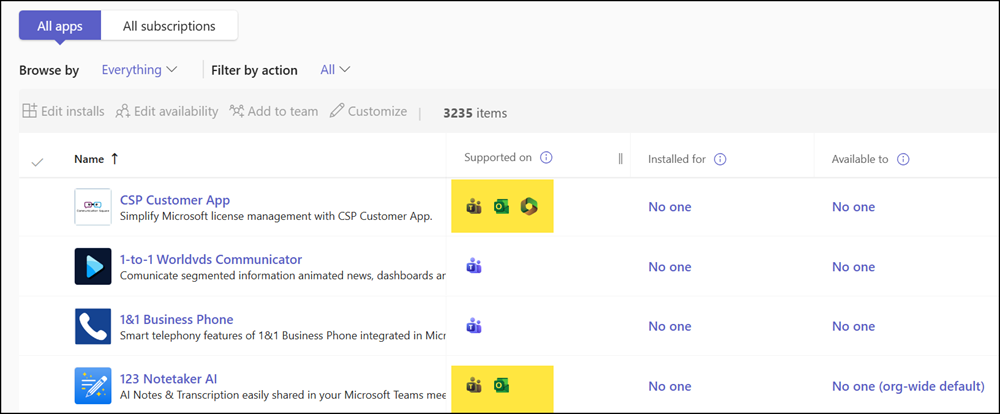
- The account starting the transition must be a Global Administrator. No other role can start the transition phase. A Teams Administrator can prepare the transition.
- After the tenant is unified, all changes to org-wide settings, agent app, status, or availability in Teams Admin Center automatically sync to the Microsoft 365 admin center, and vice versa.
- Read and follow the details in Unified agent and app availability management across Microsoft 365 and Teams Admin Centers. The transition process depends on the current configuration and whether you previously updated org-wide app settings.
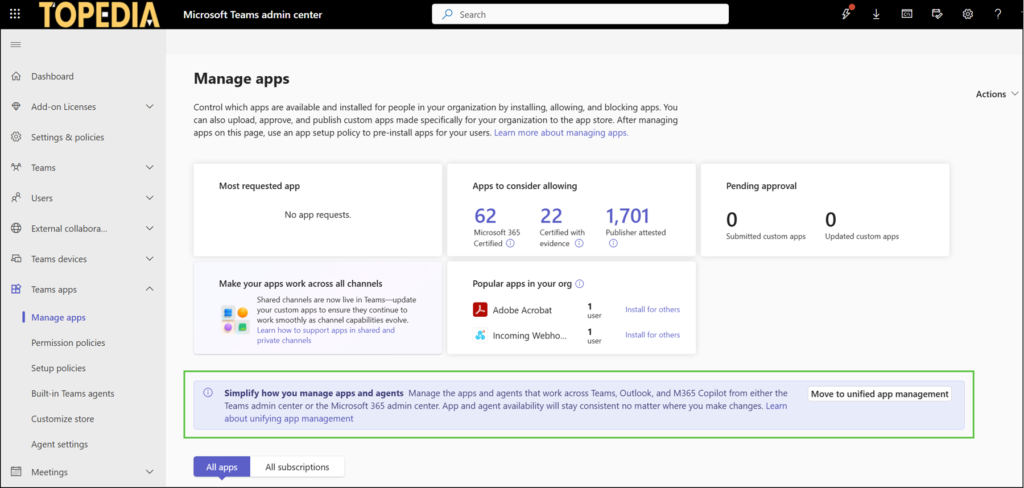
A banner appears in the Teams Admin Center > Manage apps to move to unified app management once the tenant is ready for the transition.
An assistant guides administrators through the three-step process. You can pause and resume preparation later.
Content
Step 1 – Reviewing global settings
You may have conflicts between the current settings in the Microsoft 365 admin center and the Teams admin center. First, define the correct global settings.
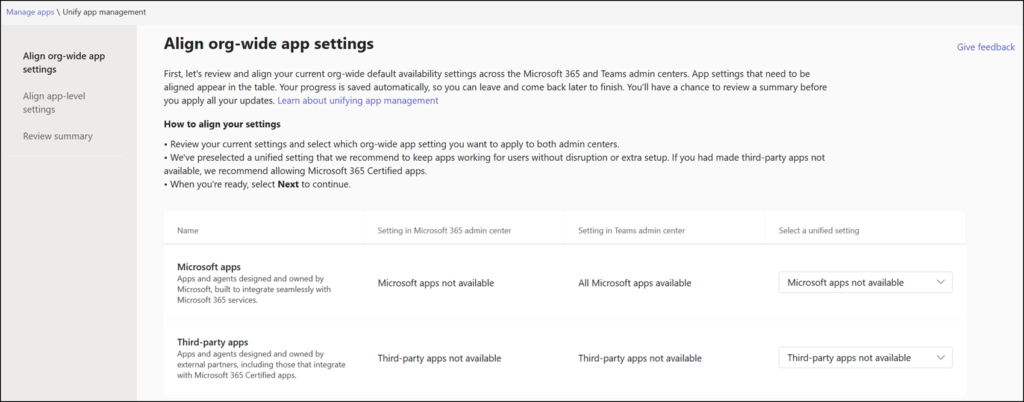
- “Setting in Microsoft 365 admin center” is the global configuration for Integrated Apps, as described here.
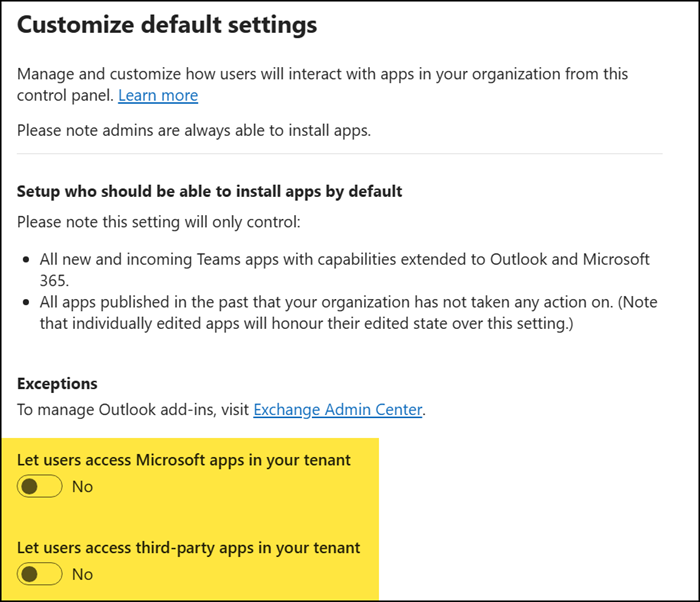
- “Setting in Teams admin center” is the org-wide app settings in the Teams apps, as described here.
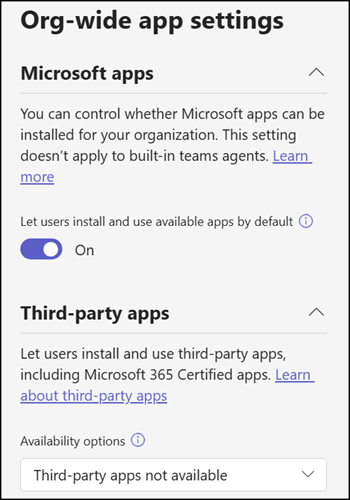
Be careful when updating org-wide app settings, as the change also updates all existing apps. Preparation is essential.
Step 2 – Resolving app conflicts
Next, review the conflicts between Integrated Apps and Teams apps. This includes both Microsoft and third-party apps. You can also export the current list for review. This step is empty if you have no conflicts > congratulations.
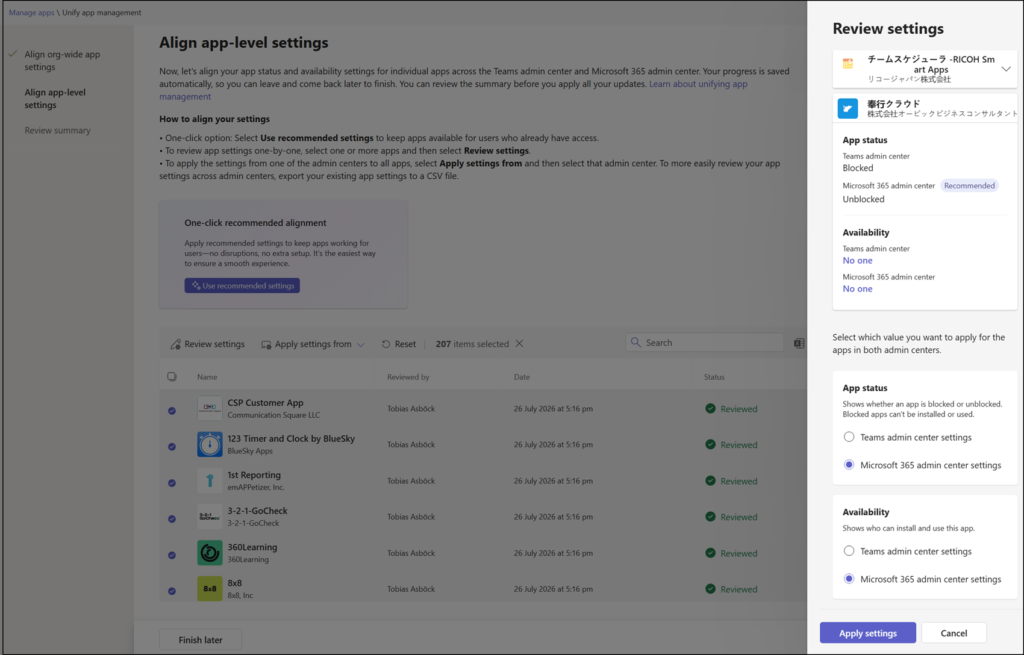
An administrator can review apps manually, one by one or in bulk, or select all and apply either the global configuration from Integrated Apps or Teams Apps.
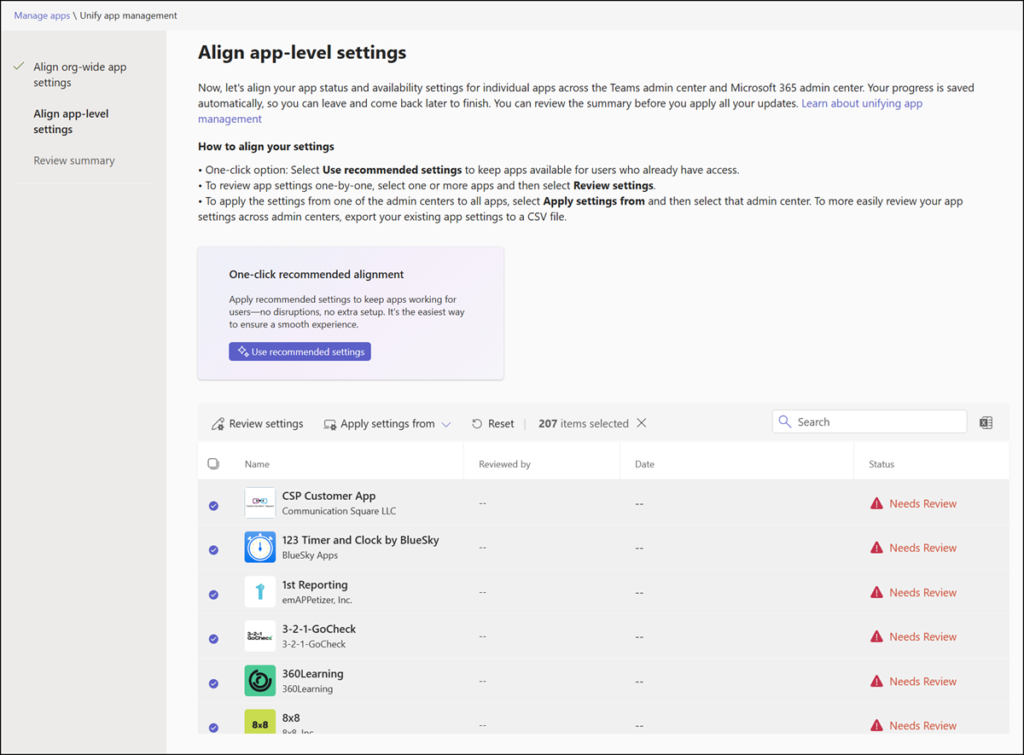
Review Microsoft and third-party app settings manually.
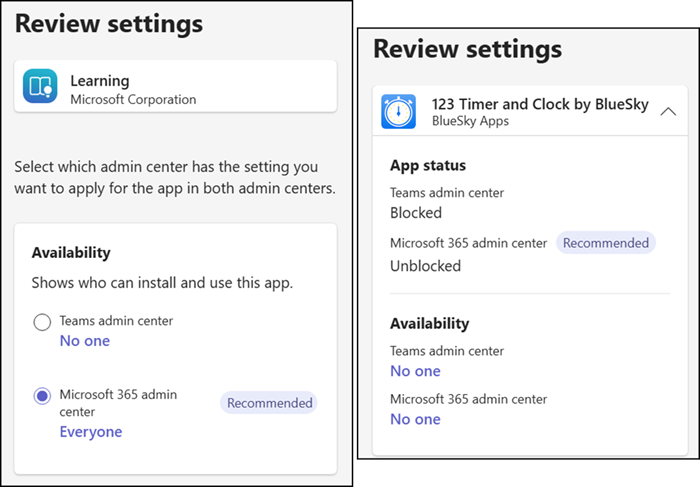
Microsoft provides two options for review.
- App status: To block or unblock an app. A blocked app is unusable, even if it’s available to someone in the organization.
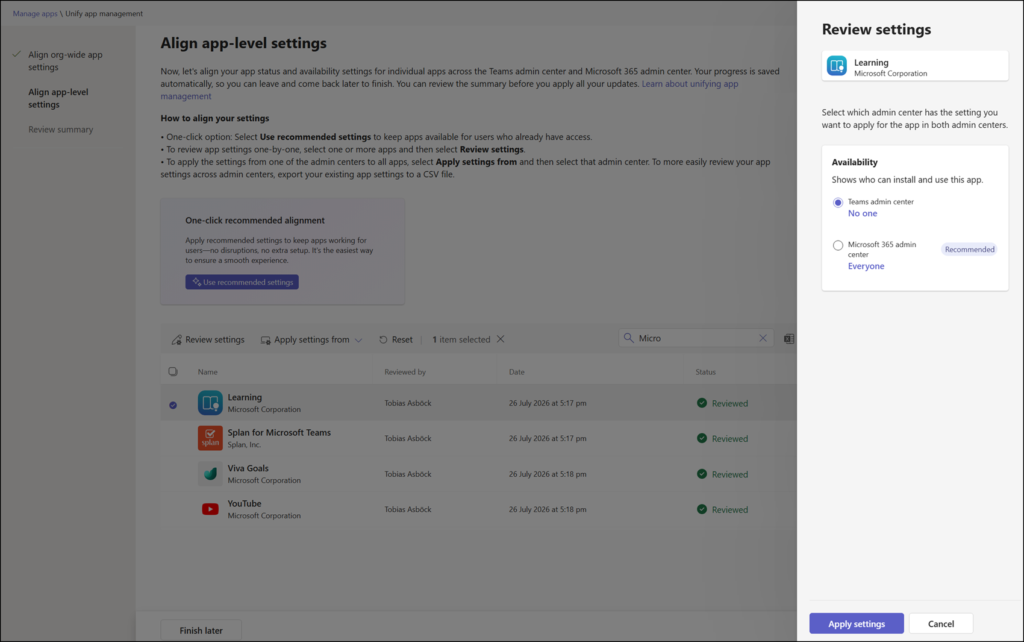
- Availability: To control who can install the app. The system shows “No one”, “Everyone”, or selected groups, depending on the existing configuration.
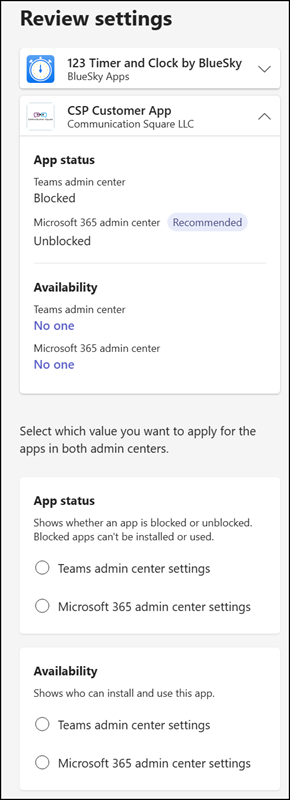
In my case, I first marked all 207 apps and set the app state to “Unblocked” and availability to “No one”.
Then I searched for the Microsoft apps and manually updated the four apps.
Step 3 – Reviewing the transition
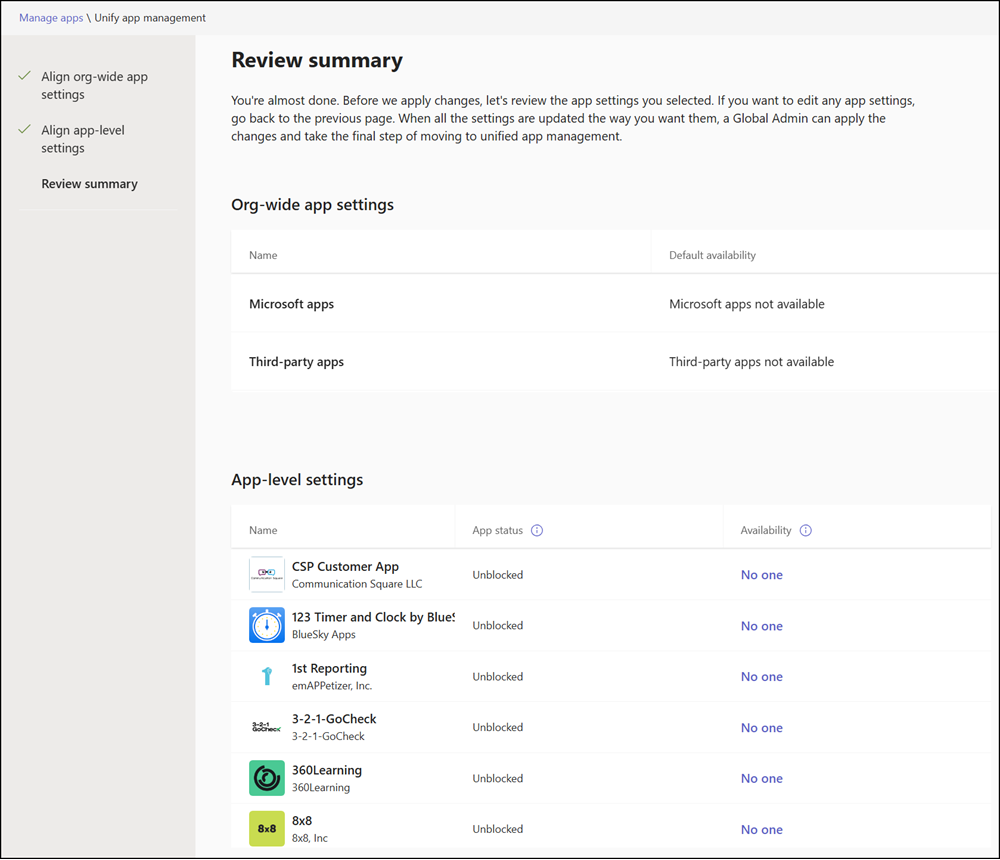
Review the configuration before starting the transition. The system provides a final summary of all new configurations and app updates. Review the summary carefully, as you can’t change the transition afterward. That said, this is not the end. You can still update settings and apps later with unified management. A Global Administrator must start the final transition.
Confirm the last step.
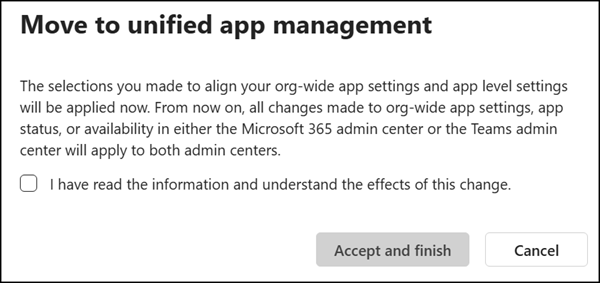
The transition is completed quickly.
Now, all changes to org-wide settings, agent app, status, or availability in Teams Admin Center for cross-platform apps automatically sync to the Microsoft 365 admin center, and vice versa.
