
As posted in June, Microsoft is rolling out Vision in Microsoft 365 Copilot.
As usual at this time, this capability will be available by default for all Copilot Premium users, unless an AI administrator updates the settings.
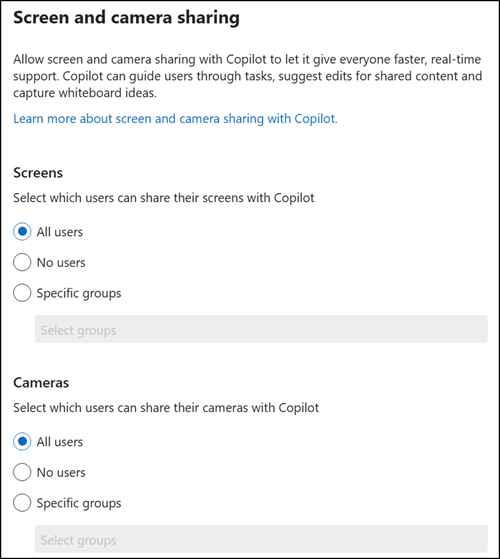
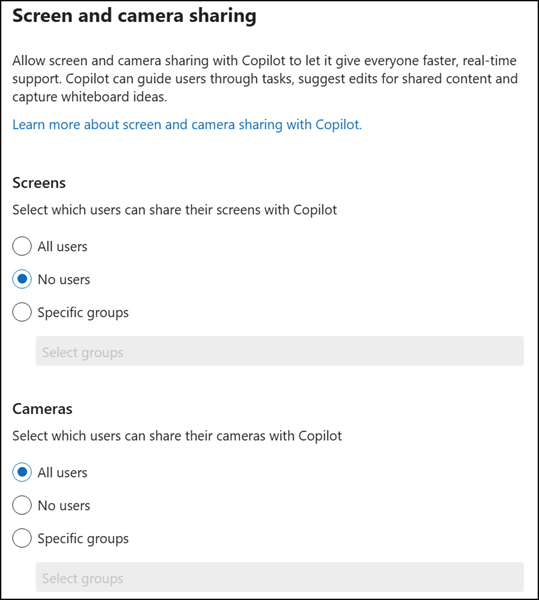
This was the possible configuration in June: “All users” or “No users”
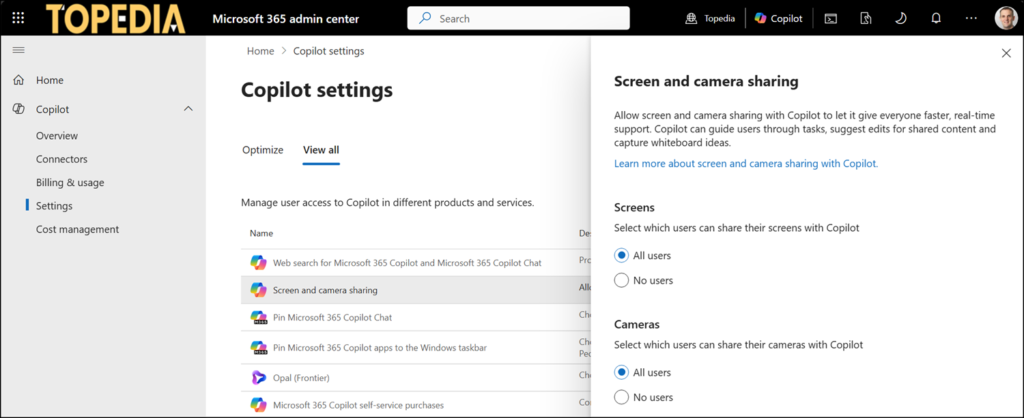
In the meantime, Microsoft has updated the configuration. Administrators can now define selected Entra ID groups. Don’t use this configuration for now, as Microsoft has implemented a misconfiguration (see the details below).
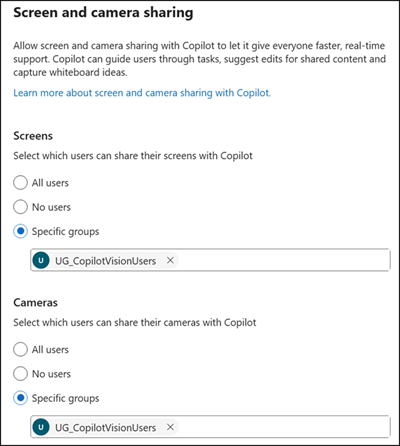
Saving the setting and it’s done. The more interesting part for admins is what happens once this setting is saved or left unchanged.
I know from the past that many of these Copilot settings in the Microsoft 365 admin center manipulate the Office Cloud Policies in the Microsoft 365 Apps Admin Center. One example is Copilot pinning, as demonstrated in November 2024 (the setting had a bug in the M365 admin center).
The configuration for Copilot Vision works the same way. The dangerous thing is that the Screen and Camera policy settings are invisible. They are hidden in the policy. Microsoft may have forgotten to publish it.
My analysis below covers the different configurations.
It is important to remember that the settings described below do not appear in the cloud policies. Use browser logs or Purview Audit Logs to analyze what the policy loads in the background; search for an endpoint “policywithpayload”. Microsoft is currently hiding these settings. These settings may be published later.
Content
Screen and Camera are available for all users
This is the default configuration.
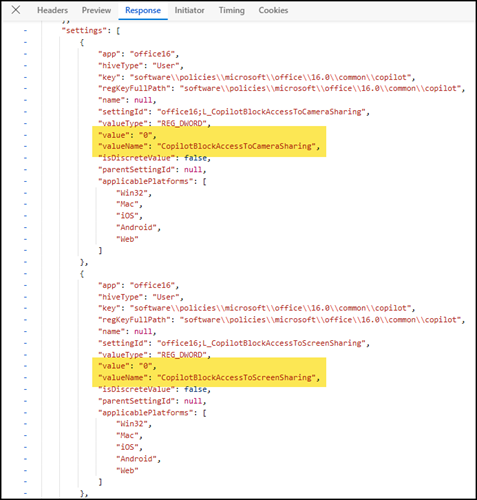
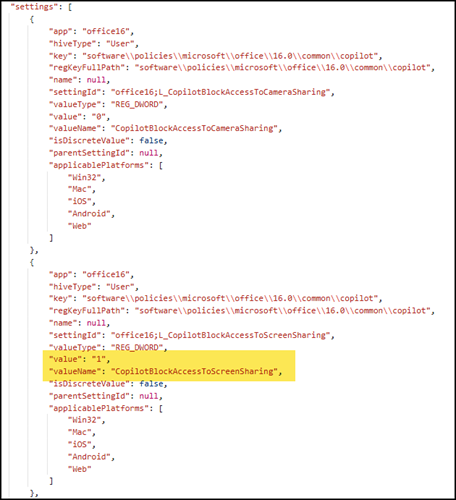
Microsoft adds two new settings to the tenant-wide cloud policy: CopilotBlockAccessToScreenSharing and CopilotBlockAccessToCameraSharing, both with the value 0. The value 0 indicates the feature is enabled, meaning no user is blocked from using the feature. It’s worth noting that Microsoft created this tenant-wide policy automatically if you did not create it.
Disable one of the two Vision capabilities for all users
A configuration like this.
Microsoft updates the setting (in my case, CopilotBlockAccessToScreenSharing) to 1 in the tenant-wide cloud policy. The value 1 indicates the feature is disabled.
Restricting Vision capabilities to selected Entra ID groups
A configuration like this.
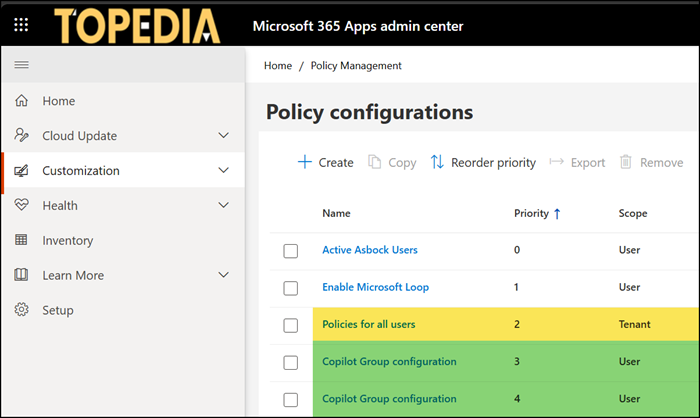
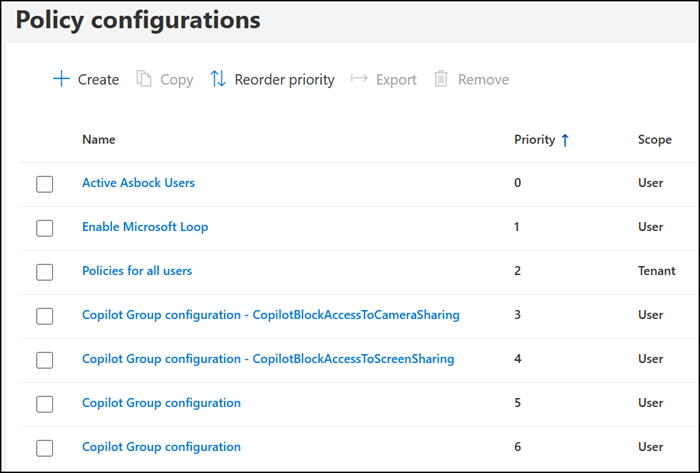
The system creates two new cloud policies named “Copilot Group configuration” at the very end of the existing cloud policies. See the green-marked policies in the sample below. At the same time, the system removes the two previous settings, CopilotBlockAccessToScreenSharing and CopilotBlockAccessToCameraSharing, from the tenant-wide policy.
The priority is worth noting. If a tenant-wide policy already exists, the new Vision policies are always configured with a lower priority.
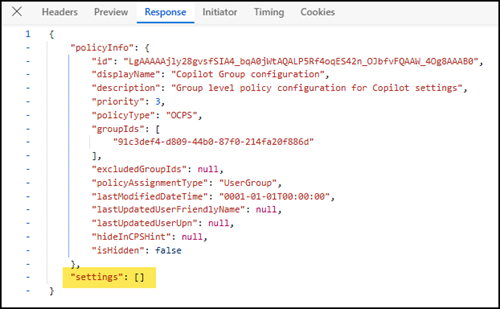
Next, open one of these two policies and navigate to the policies section. Nothing is configured, just a 0. Even after clicking through all these settings, no policy shows as configured.
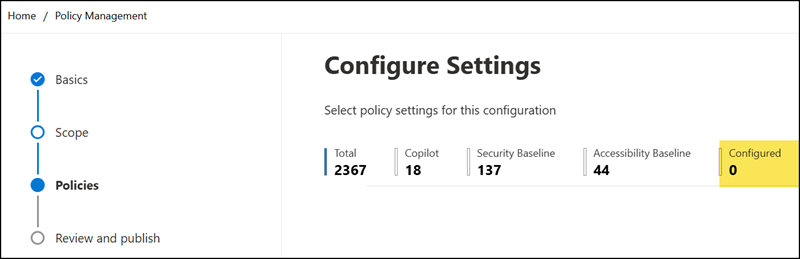
This suggests there must be a hidden setting in this policy. As with the tenant-wide policy previously, the policy loads the hidden setting. One policy includes the setting CopilotBlockAccessToScreenSharing with value 1, the other CopilotBlockAccessToCameraSharing with value 1, including the scoped Entra ID group IDs. The policy does not include other settings.
Did you notice the values? Microsoft has prepared a misconfiguration.
CopilotBlockAccessToScreenSharing and CopilotBlockAccessToCameraSharing are block policies, where the value 1 indicates the feature is blocked for the selected groups. It should be 0.
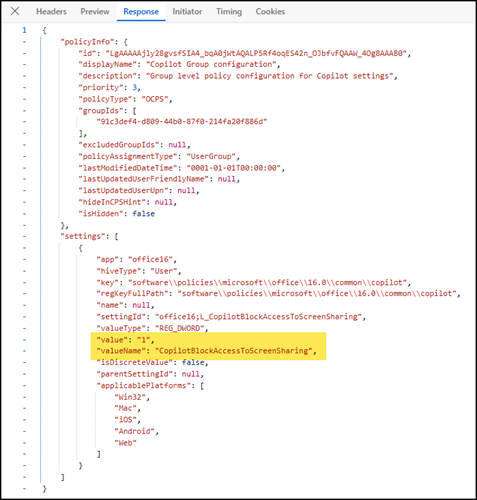
Without knowing what these two empty “Copilot Group configuration” policies are for, an administrator may delete them, unaware of the hidden Copilot settings they contain. This can be dangerous, as deleting these two policies resets the Copilot Vision configuration to the default state.
On the other hand, when updating the configuration via the M365 admin center, for example, changing selected groups to “No users”, Microsoft does not delete the previously created policies. The setting is removed and added to the tenant-wide policy instead.
Renaming the policies? Not recommended!
Renaming the policies causes the system to recreate both of them, which may result in a policy setting conflict.
Office Cloud Policy changes in Purview Audit Logs
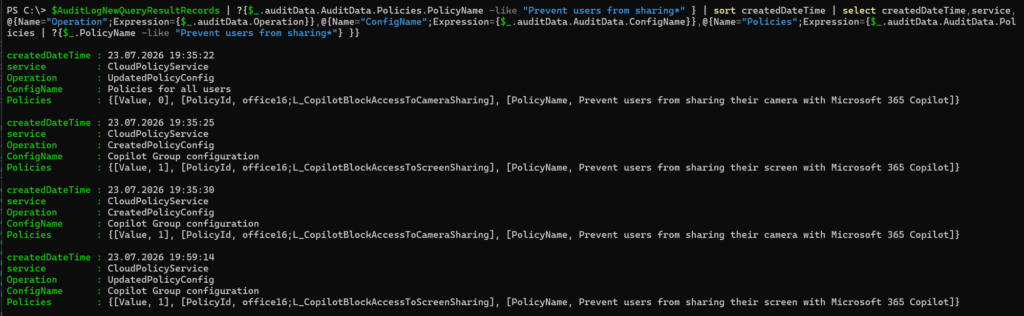
As a reminder, Purview Audit Logs include Office Cloud Policy changes since December 2024.
All the described changes appear in the logs. The changes are executed by your account, not by a system account. Filtering for the workload CloudPolicyService isolates these entries. My sample was prepared via Microsoft Graph auditLogQuery.
My conclusion
Microsoft does not intend for these Vision settings to be configured in the Office Cloud Policy service, same as the other Copilot settings in the Microsoft 365 admin center. The current issue is the extension restricting Vision capabilities to selected users, which creates new, unknown cloud policies in the tenant. In addition, the developers implemented the wrong configuration for selected groups.
I prefer to configure such settings directly via the Cloud Policies, as it allows administrators to build customized org-wide policies instead of relying on random settings created by Microsoft.
