
Teams Town Hall events, webinars, and meetings now support Secure Reliable Transport (SRT) as an inbound streaming protocol, available alongside the existing Real-Time Messaging Protocol (RTMP). SRT delivers high-quality, low-latency video over the public internet and supports a backup stream with automatic failover to improve reliability for high-visibility broadcast events.
This update can be relevant to organizations hosting Teams Events with external encoders, as well as to event producers and administrators who configure broadcast streams.
- Support for Secure Reliable Transport (SRT) is disabled by default, leaving only RTMP as an option in the event settings. A Teams administrator can enable both protocols (RTMP and SRT), just RTMP, just SRT, or neither, which disables external encoders entirely.
- SRT-In can be enabled in the event options via the Teams for Windows and Teams for Mac desktop clients, just like RTMP-In.
Content
Timeline
The rollout to general availability should be completed in July 2026.
Updated 8 August 2026:
The rollout should be completed in August 2026.
Updated 7 September 2026:
The rollout should be completed in September 2026.
How does this affect your organization?
SRT streaming allows event organizers to use Secure Reliable Transport as an inbound protocol from an external encoder, as an alternative to RTMP. Events can be configured with a primary and a backup SRT stream, with automatic failover between them. The organizer can select either RTMP-In or SRT-In, but not both.
Existing RTMP workflows remain supported and are unaffected by this update. Attendees are not affected either.
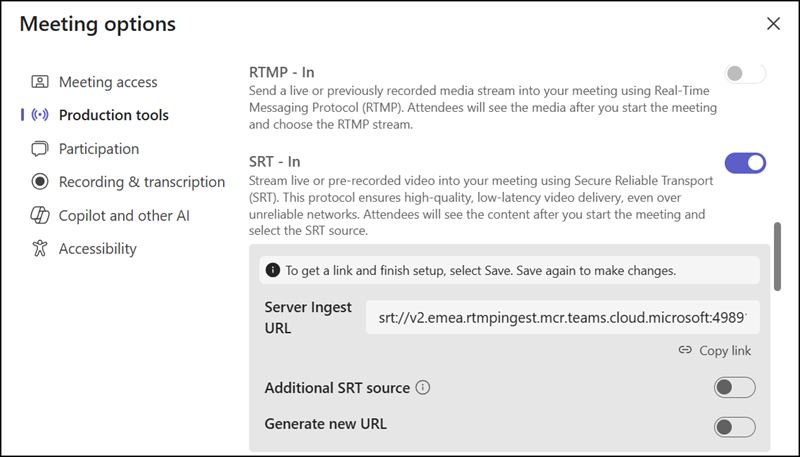
RTMP-In vs. SRT-In
RTMP-In and SRT-In both allow organizers to connect an external encoder to a Teams event, but they differ in protocol design and requirements.
- RTMP-In requires H.264 (AVC) encoding, CBR for 720p, and CBR or VBR for 1080p. It has been the standard ingest protocol for Teams live events and town halls, and the RTMP ingest endpoint uses ports 1935/1936 via the domain *.rtmpingest.mcr.teams.microsoft.com. This legacy ingest endpoint remains valid until the end of 2026.
Important:
As a reminder for RTMP-In, you should follow the upcoming network updates, which will replace the previous ingest endpoint on ports 1935/1936 and the domain.
- SRT-In supports both H.264 (AVC) and H.265 (HEVC) encoding, with CBR and VBR available for 1080p. SRT is designed for better resilience over unpredictable public internet connections, using packet recovery to reduce the impact of latency and packet loss compared to RTMP. The SRT ingest endpoint uses port 49891 over the domain *.rtmpingest.mcr.teams.cloud.microsoft, distinct from the RTMP endpoint’s domain and port.
To prepare for SRT, your external encoder must support the protocol, and you need network access to port 49891 and the domain *.rtmpingest.mcr.teams.cloud.microsoft.
You should also review the SRT-In requirements described by Microsoft.
The incoming SRT feed must deliver:
- H.264 Advanced Video Coding (AVC) and H.265 High Efficiency Video Coding (HEVC)
- Constant Bitrate (CBR) and Variable Bitrate (VBR) for 1080p
- Frame rate of least 29.97 fps or 30 fps or higher
- Square Pixel Aspect Ratio (PAR)
How to enable SRT-In for Teams Events?
As mentioned, SRT-In is disabled by default and unavailable unless a Teams administrator enables the configuration. You configure SRT-In in your Teams meeting policy via the AllowedStreamingMediaInput setting. Note that the SRT-In setting is not yet available in the Teams Admin Center; you have to configure it via PowerShell.

AllowedStreamingMediaInput
Enables the use of RTMP-In or SRT-In in Teams meetings, webinars or town halls.
Possible values are:
- “” – this setting will not allow the user access to any streaming encoders. (This is the default value.)
- RTMP – this setting will allow the user access to RTMP-In streaming encoders during a Teams meeting, webinar or town hall.
- SRT – this setting will allow the user access to SRT-In streaming encoders during a Teams meeting, webinar or town hall.
- RTMP, SRT – this setting will allow the user access to RTMP-In or SRT-In streaming encoders during a Teams meeting, webinar or town hall.
To update the policy:
Set-CsTeamsMeetingPolicy -Identity "<PolicyName>" -AllowedStreamingMediaInput "RTMP,SRT"
# OR
Set-CsTeamsMeetingPolicy -Identity "<PolicyName>" -AllowedStreamingMediaInput "RTMP"
# OR
Set-CsTeamsMeetingPolicy -Identity "<PolicyName>" -AllowedStreamingMediaInput "SRT"
# OR
Set-CsTeamsMeetingPolicy -Identity "<PolicyName>" -AllowedStreamingMediaInput ""