
Microsoft is bringing Planner Agent, previously available through Microsoft 365 Copilot Chat, directly into Planner as an embedded Copilot Chat experience. Copilot Premium users can ask natural language questions, identify high-priority or at-risk work, and get help organizing tasks without leaving Planner to do so.
Users should open a Planner Basic plan in Planner on the web and then select the Copilot icon in the bottom-right corner.
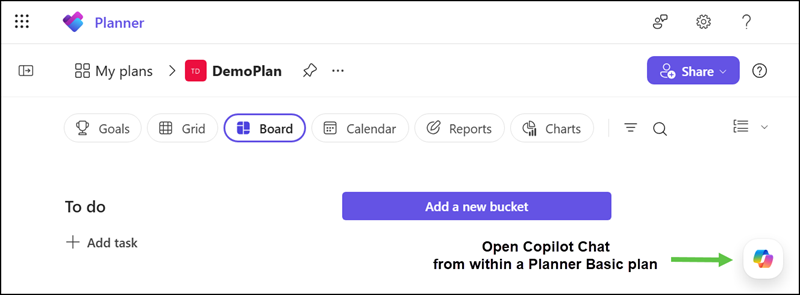
Planner then opens Copilot Chat and focuses on the current plan.
Copilot Chat in Planner is available by default for users with a Microsoft 365 Copilot license, but only if they are enabled for the Frontier program.
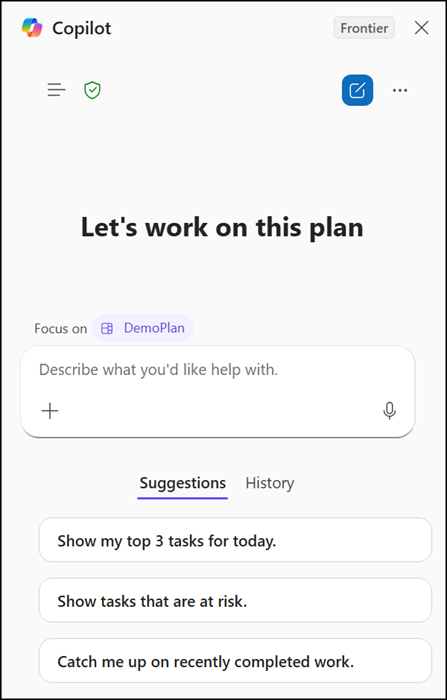
Copilot adapts the Planner task view in the plan interactively when users enter a prompt or select one of the suggested prompts; for example, showing the top three tasks for today will hide all other tasks.
Users can get contextual insights, draft updates, manage task hierarchies through interactive task cards, and have structured plans created for them, organized by goals and buckets, all without leaving the Copilot Chat prompt box.
While chatting with the Planner Agent about some demo tasks, I asked the agent to describe the capabilities and limitations within Copilot Chat in Planner.
Task Management Capabilities via Planner Agent
- Task Retrieval and Intelligent Prioritization
The Planner Agent enables dynamic retrieval of tasks across plans and private task lists. It can automatically prioritize tasks based on contextual rules such as due dates, overdue status, priority level, and current progress. This allows users to quickly identify the most relevant tasks without manual filtering or sorting.
- Context-Aware Task Focus
The Planner Agent can generate focused task views, such as identifying the most important tasks for the current day. This includes combining multiple factors like urgency, priority, and status to provide actionable recommendations for daily work.
- Guided Work Structuring
The Planner Agent supports transforming high-level goals or loosely defined work into structured task lists. It can suggest task breakdowns, logical sequencing, and plan organization, helping users move from unstructured input to actionable work items.
- Task Creation with Enriched Context
Tasks can be created through the Planner Agent with automatically structured content. The Agent can include relevant details such as descriptions, priorities, and scheduling information based on user input, reducing the need for manual task definition.
- Task Updates and State Management
The Planner Agent allows updating task properties such as status, due dates, priority, and descriptions. It supports quick adjustments to reflect real-time progress and ensures that task data remains current without requiring navigation through the Planner interface.
- Task Insight and Summarization
The Planner Agent can present summarized views of tasks, including key attributes such as status, priority, and deadlines. This enables efficient review of work without opening individual tasks and supports faster decision-making.
- Plan Structuring Support
The Planner Agent can assist in organizing plans by suggesting and creating structural elements such as buckets and goals. This helps align tasks with higher-level objectives and improves overall plan clarity.
- Interaction Efficiency
A key capability of the Planner Agent is reducing interaction overhead. Users can perform multiple task management actions, such as reviewing, creating, and updating tasks, through a single conversational interface instead of navigating multiple views in the Planner application.
- Known Limitations
The Planner Agent operates within a defined set of supported actions. Certain features of Microsoft Planner are not accessible through this interface, including user task assignment, checklist management, attachment management, and the configuration of reminders or recurring tasks. These actions must be performed directly in the Planner application.
Planner Agent
