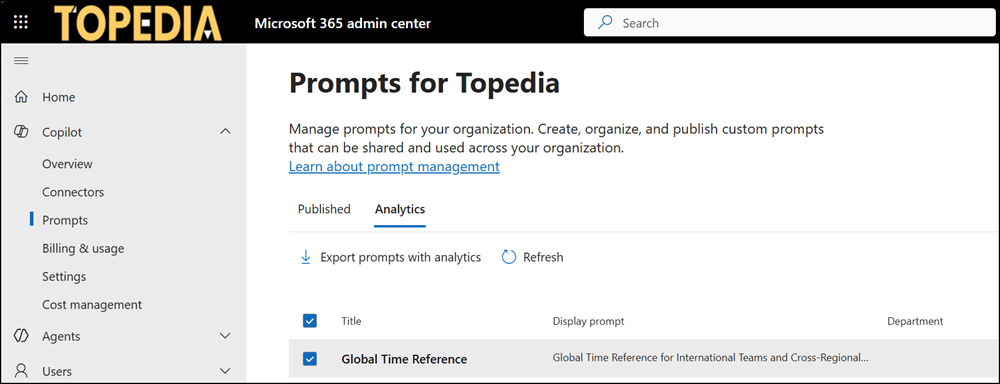
Microsoft 365 Copilot Chat now supports organization-curated prompts that administrators create and publish from the Microsoft 365 admin center. This allows organizations to shape the Copilot experience around internal terminology rather than leaving prompt discovery entirely to individual users.
Organization-curated prompts are available to both Copilot Basic and Copilot Premium users. An administrator defines whether a curated prompt is available in Work chat, Web chat, or both, which is what distinguishes Basic from Premium availability.
Timeline
The rollout should be completed in July 2026.
How does this affect your organization?
Users with the AI Administrator or Search Editor roles can now create, edit, delete, import, and publish organizational prompts from the Microsoft 365 admin center under Copilot > Prompts. Prompts can be added manually or imported in bulk via CSV, up to 100 prompts per file and 1,000 published prompts per tenant. Published changes can take between 3 and 24 hours to appear in the Copilot Chat prompt.
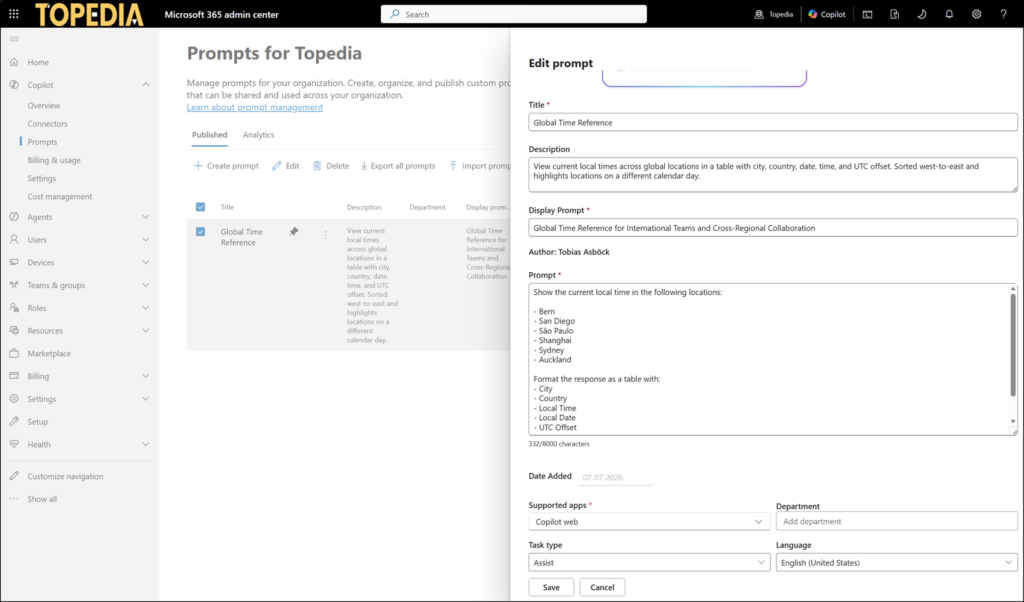
A curated prompt includes the following information:
- Title: a short label shown on prompt gallery cards, up to 35 characters.
- Description: an optional internal note for administrators, not shown to end users, up to 200 characters.
- Display prompt: short text shown on pill suggestions, cards, and autosuggestions, up to 132 characters.
- Prompt: the full instruction sent to Copilot when selected, up to 8,000 characters.
- Supported apps: the Copilot surfaces where the prompt is available, Copilot Work (for Premium users), Web (for Basic users), or both.
- Department: optional free-form text used for filtering, up to 120 characters.
- Task type: category used for prompt lab filtering, for example, Analyze, Assist, Create, Edit,…
- Language: the locale in which the prompt is written; there is no automatic translation between languages.
An organization needs to publish at least one curated prompt; otherwise, organizational prompts remain unavailable to their users. A curated prompt cannot be saved as a draft to finish later. It’s either published or canceled.
Once published, organizational prompts are available to users in three places.
Selecting a prompt in any of these locations places the prompt text in the message box without submitting it, allowing users to edit it before sending.
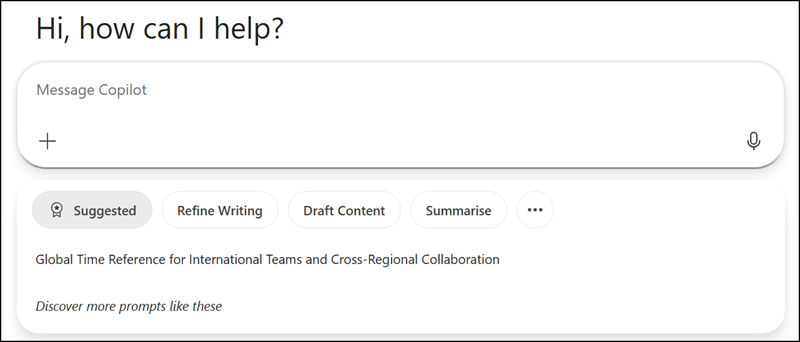
- Suggested prompts: Up to 4 pinned prompts are supported and shown on the Copilot Chat home page.
Suggested prompts are currently available in Microsoft 365 Copilot Chat on the web and in the Windows app, not in Copilot Chat in Teams or in the Microsoft 365 mobile app.
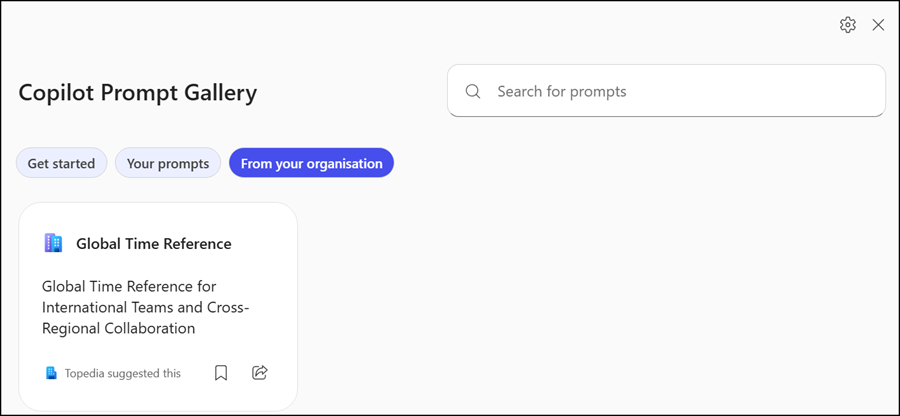
- Prompt Gallery: The full library of prompts available to the user, including organizational prompts.
Curated prompts in the Prompt Gallery are available in Microsoft 365 Copilot Chat on the web, in the Windows app, and in Teams, but not in the Microsoft 365 mobile app.
- Autosuggest: Matching organizational prompts suggested as typeahead while a user types in the Copilot input box.
Autosuggest for curated prompts is available in Microsoft 365 Copilot Chat on the web, in the Windows app, in Teams, and in the Microsoft 365 mobile app.
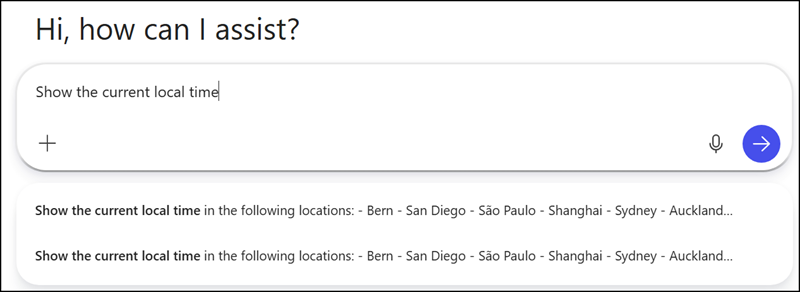
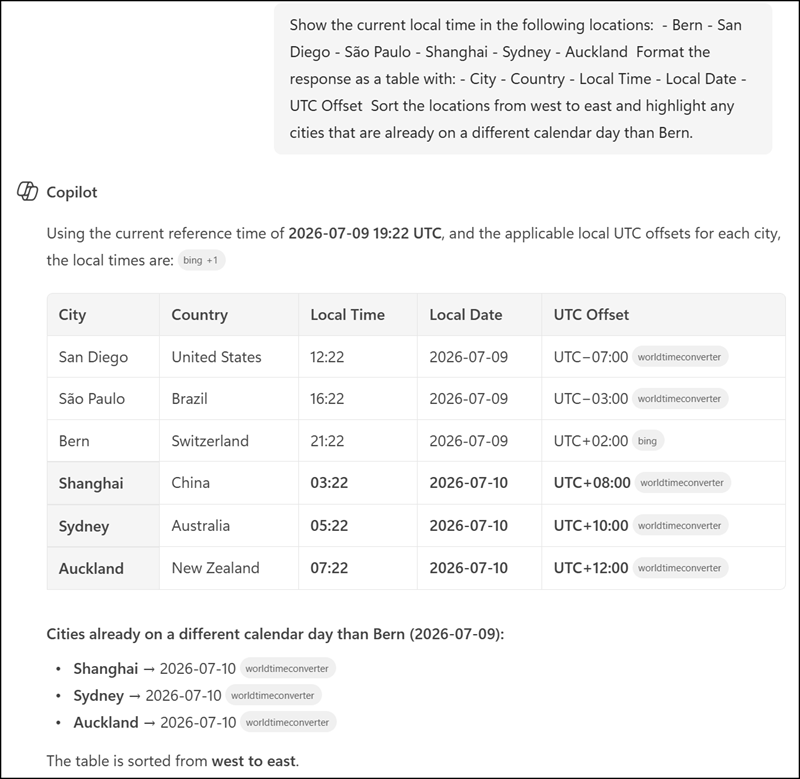
One example, used from my suggested prompt.
Administrators can use analytics for each curated prompt, including active users and submissions, which are available over 7-, 14-, or 28-day windows to help identify underused or top-performing prompts.