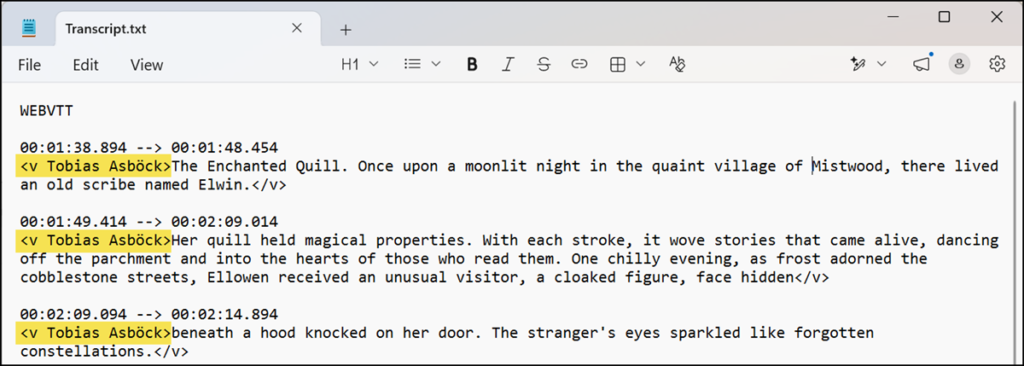
In July, when I posted about the new tenant-level control for Graph API access to Teams transcripts, I also tested downloading and reading a transcript without speaker attribution.
I always got an endpoint error stating the format was invalid.
{“error”:{“code”:”BadRequest”,”message”:”Invalid format ‘application/vnd.microsoft.graph.transcript+text’ specified.”,”innerError”:…

It took me a while to realize the error was not related to my request being wrong. The endpoint simply did not support it yet. 🤦♂️ A note in the documentation informed about this limitation.
The application/vnd.microsoft.graph.transcript+text format and the related tenant administrator controls take effect at the end of July 2026.
So, I tested the same steps again, and now it’s working.
I have this configuration for Teams transcripts in my tenant: EnableGraphTranscriptAccess and EnableAttributedTranscripts.

Theoretically, this means I should be able to download transcripts, but without speaker attribution.
In my case, I simulated downloading a transcript for a scheduled meeting. You must obtain the transcription ID from the event to download the transcript.
Note: A scheduled meeting now expires after 60 days (Meet now meetings after 8 hours), except if the meeting was rescheduled. Transcripts cannot be downloaded after a meeting has expired.
The Microsoft Graph URL looks like this, which reveals the required parameters:
https://graph.microsoft.com/v1.0/users/<UserID>/onlineMeetings/<MeetingID>/transcripts/<TranscriptID>/content
- User object ID (it’s the meeting organizer)
- Meeting ID
- Transcript ID
The Graph permission OnlineMeetings.Read and OnlineMeetingTranscript.Read.All are required. I used delegated permissions for my simulation to access the transcripts from my personal account.
To use application permissions, tenant administrators must create an application access policy and grant it. The policy authorizes the configured app to fetch online meetings or online meeting artifacts on behalf of the user, with the user ID specified in the request path.
- The object ID of the meeting organizer is required.
- The meeting join URL, meaning the full link to join the meeting, is also required. You can use either the new shorter URLs or the old long URLs.
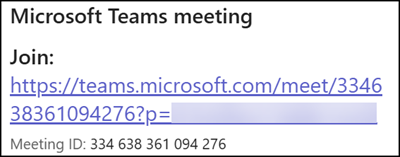
- Encode the meeting join URL and request the meeting details via the onlineMeetings endpoint. The meeting ID and expiration date are included in the response.

- List all available transcripts for the meeting. A meeting can include more than one transcript.
- Request the required transcript via the transcript content endpoint. A local path is required to store/export the transcript content.
Import-Module Microsoft.Graph.Authentication
Connect-MgGraph -Scopes OnlineMeetings.Read,OnlineMeetingTranscript.Read.All

$UserID = "<MeetingOrganizerObjectId>"
$MeetingJoinUrl = "<MeetingJoinUrl>"
$LocalPath = "C:\Temp\MeetingTranscripts" # Change this to your preferred local folder path for storing meeting transcripts.

# 3) Find the online meeting by the join URL
$EncodedJoinUrl = [System.Web.HttpUtility]::UrlEncode($MeetingJoinUrl)
$Url = "https://graph.microsoft.com/v1.0/users/$UserID/onlineMeetings?`$filter=JoinWebUrl eq '$EncodedJoinUrl'"
$MeetingResult = Invoke-MgGraphRequest -Method GET -Uri $Url

# 4) Get the transcript for the meeting
$Url = "https://graph.microsoft.com/v1.0/users/$UserID/onlineMeetings/$($MeetingResult.value.id)/transcripts"
$TranscriptResult = Invoke-MgGraphRequest -Method GET -Uri $Url

# 5) Download each transcript (without speaker attribution, a meeting can include more than one transcript)
foreach ($Transcript in $TranscriptResult.value) {
    $Headers = @{ "Accept" = "application/vnd.microsoft.graph.transcript+text" }
    $Url = "https://graph.microsoft.com/v1.0/users/$UserID/onlineMeetings/$($MeetingResult.value.id)/transcripts/$($Transcript.id)/content"
    $TranscriptFileName = "TranscriptVND-$($Transcript.callId)-$((($Transcript.createdDateTime -as [datetime]).ToString("yyyy-MM-dd_HH-mm-ss"))).txt"
    Invoke-MgGraphRequest -Method GET -Uri $Url -Headers $Headers -OutputFilePath "$LocalPath\$TranscriptFileName"
}Done: Transcript downloaded, without speaker attribution included. ✅
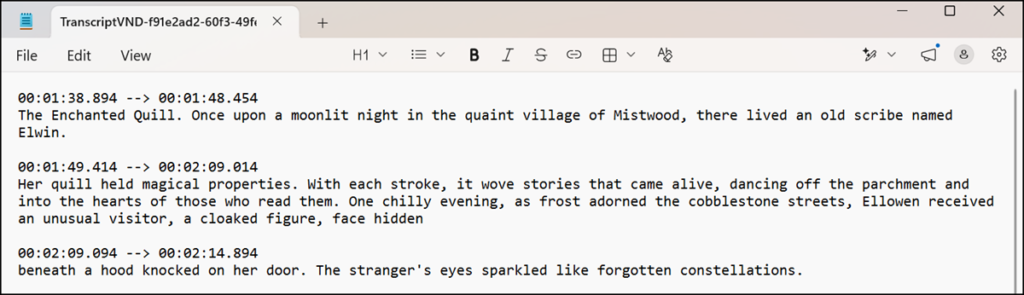
Now, the same test with speaker attribution included.
The main difference is the updated header, also described in the documentation. This option was available before Microsoft enforced the new Teams configuration for transcripts at the end of July. The sample already worked during my test in July.
# Download the first transcript (with speaker attribution)
$Headers = @{ "Accept" = "text/vtt" }
$Transcript = $TranscriptResult.value[0]
$Url = "https://graph.microsoft.com/v1.0/users/$UserID/onlineMeetings/$($MeetingResult.value.id)/transcripts/$($Transcript.id)/content"
$TranscriptFileName = "TranscriptVTT-$($Transcript.callId)-$((($Transcript.createdDateTime -as [datetime]).ToString("yyyy-MM-dd_HH-mm-ss"))).txt"
Invoke-MgGraphRequest -Method GET -Uri $Url -Headers $Headers -OutputFilePath "$LocalPath\$TranscriptFileName"
As expected, the system now denies the download, since my Teams configuration does not allow it to include speaker attribution. ✅

Here is the same sample from July, with speaker attribution included.