Microsoft is now rolling out the option to transfer a user-owned SharePoint Embedded container to one or more new users, including the option to copy Loop pages to a new workspace. This extension is important for departing employees, as this user-owned container will be deleted (including all content) if the owner account is deleted.
The SharePoint Embedded Administrator role is required for this task, not the SharePoint Administrator role.
In my case, I do the steps with SharePoint Online PowerShell. The steps can also be completed in the SharePoint admin center. Unfortunately, PnP PowerShell still has some restrictions with SPE containers, such as a missing cmdlet to add accounts to a container, which is mandatory for the user-departure flow.
- Find the user’s container. The PrincipalOwner is the main owner. If this account is deleted, the container will be deleted too.
Import-Module Microsoft.Online.SharePoint.PowerShell
Connect-SPOService -Url https://<Tenant>-admin.sharepoint.com
Get-SPOContainer | ?{$_.OwnershipType -eq "UserOwned" } | select PrincipalOwner,ContainerId,CreatedOn

- List the container and check the property ContainerRedirectUrl. A new user must use this URL to access the container content in Loop. If ContainerRedirectUrl is still empty, the rollout has not yet reached your tenant. Wait some more weeks.
$SPEContainer = Get-SPOContainer -Identity "<ContainerId>"
$SPEContainer | select ContainerId,PrincipalOwner,OwnershipType,ContainerName,OwningApplicationName,CreatedOn,ContainerRedirectUrl

- Add the new account(s) to the container. The PrincipalOwner cannot be changed. It is an additional account with a defined role for the container.
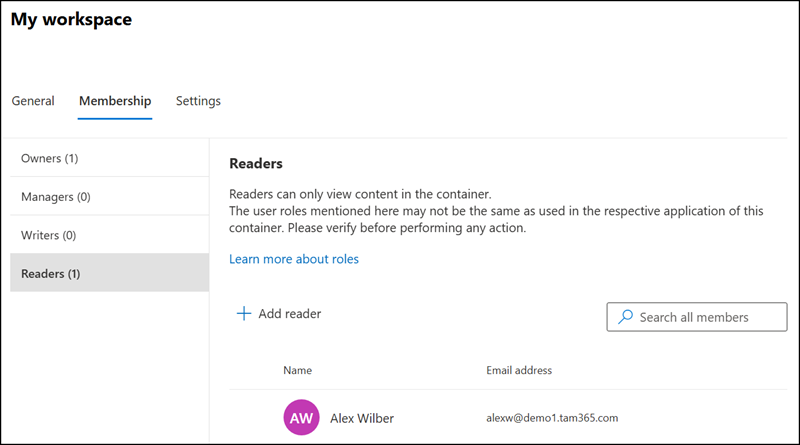
The new account does not need to be added as an owner; other roles can also be used. From my perspective, the Reader role should meet the requirements for a user-departure flow, as it allows users to copy content to another workspace. This account can also be added via the SharePoint admin center.
Owners
Owners have full control over the container and the contents of the container.
Managers
Managers can add, update, and delete the contents of a container and maintain the container’s permissions, but cannot delete a container.
Writers
Writers can add, update, and delete content in the container.
Readers
Readers can only view content in the container.
# Owner role
Add-SPOContainerUser -ContainerId $SPEContainer.ContainerId -LoginName $NewUserUPN -Role Owner

# Manager role > the same as Editor
Add-SPOContainerUser -ContainerId $SPEContainer.ContainerId -LoginName $NewUserUPN -Role Manager

# Writer role
Add-SPOContainerUser -ContainerId $SPEContainer.ContainerId -LoginName $NewUserUPN -Role Writer

# Reader role
Add-SPOContainerUser -ContainerId $SPEContainer.ContainerId -LoginName $NewUserUPN -Role Reader
The additional account was defined.
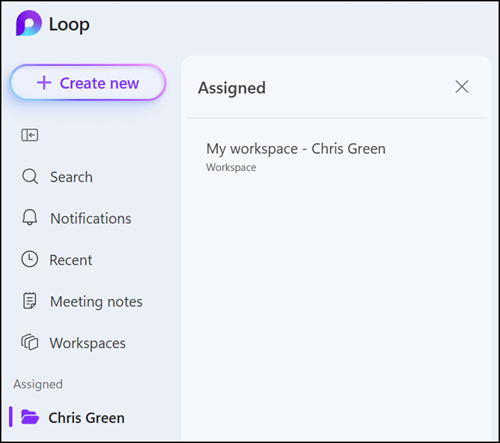
The new user can access the container via the ContainerRedirectUrl. Send the URL to the user.
Note: The new user must open the URL twice because Loop has a session issue on the first request. It works with the second request. After the call, there is now also an “Assigned” section in Loop on the web that lets users reopen the workspace until the container is deleted.
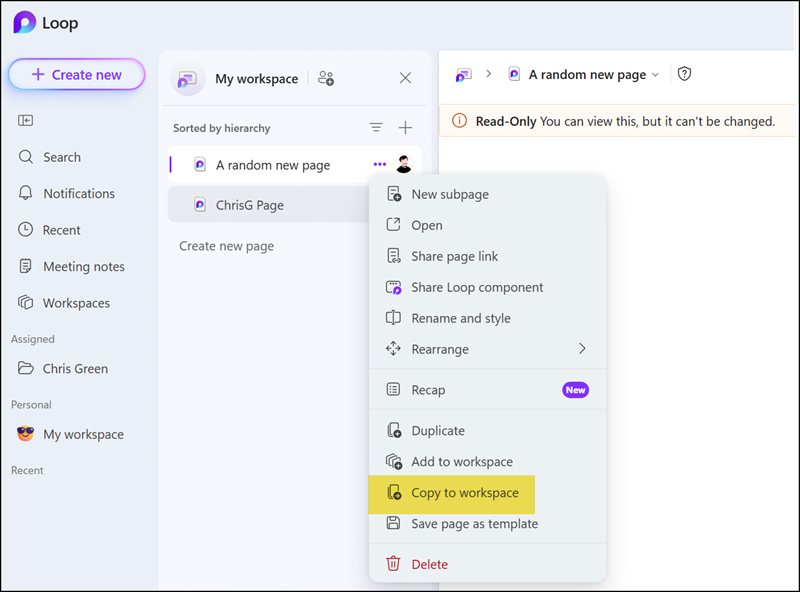
Now, for the first time in Loop history, there is a “Copy to workspace” option in this workspace.
It’s different from the existing “Add to workspace” option. “Copy to workspace” is currently available only in such user-owned containers with an assignment.
- Add to workspace
Adds a reference to the page in another workspace. The page itself stays in its original Loop container; the second workspace just displays a linked view, marked with a small link icon. The URL stays identical, since it is the same underlying page. There is no new page created.
Access follows the original: permissions are still governed by the source container, so anyone who loses access to the original workspace loses access everywhere the page is linked, and edits sync instantly to all locations because there is only one copy of the content. If the original container is deleted, the reference becomes orphaned, and the page is no longer accessible from the linked workspace. - Copy to workspace
Creates a full, independent copy of the page and its content in another workspace. This generates a new page with its own unique URL, distinct from the source. It is a genuinely separate object in Loop’s storage, not a pointer.
Access is also independent: the copy gets its own permissions in the destination container, so it is unaffected by permission changes on the original, and edits made afterward do not sync in either direction. If the original container is deleted, the copy remains fully intact and accessible in its own workspace.
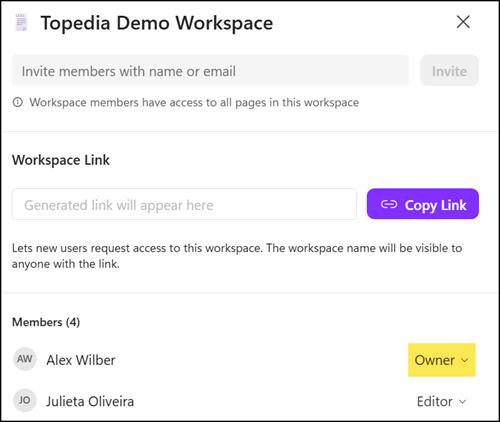
Important:
The user must be an owner of the destination workspace. By default, workspace members have the Editor role (it’s the Manager role from a container perspective). In such cases, Loop returns an error if the user tries to copy a Loop page to the destination workspace. The copy process works if the user has the Owner role.