
Microsoft 365 Copilot now lets users set up and review Outlook Inbox rules by describing what they want in Copilot Chat.
Rather than opening Outlook settings and configuring rules manually, users can ask Copilot to create a rule, for example, by requesting that emails from their manager be moved to a specific folder, and Copilot sets it up for them. Users can also ask Copilot to list their existing Inbox rules, which show the rule names, the conditions they rely on, the actions they trigger, and whether each one is active.
- Rules created by Copilot work like rules created the traditional way through Outlook settings.
- Copilot-created rules apply only to messages received after the rule is created, so existing emails in the inbox are not automatically moved or changed.
- Every rule, regardless of how it was created, remains visible and manageable from Outlook’s native Rules settings, so users retain full control over anything Copilot sets up on their behalf.
The feature requires a Microsoft 365 Copilot license and is now available.
Users can access it through Microsoft 365 Copilot Chat in Work mode. When used within Outlook itself, it’s supported on all available Outlook platforms via the Copilot button:
- Outlook on the web
- New Outlook for Windows
- Outlook Classic
- Outlook for Mac
- Outlook Mobile
Here are some sample prompts to try:
- Create a rule that moves emails from my manager into a folder called Manager.
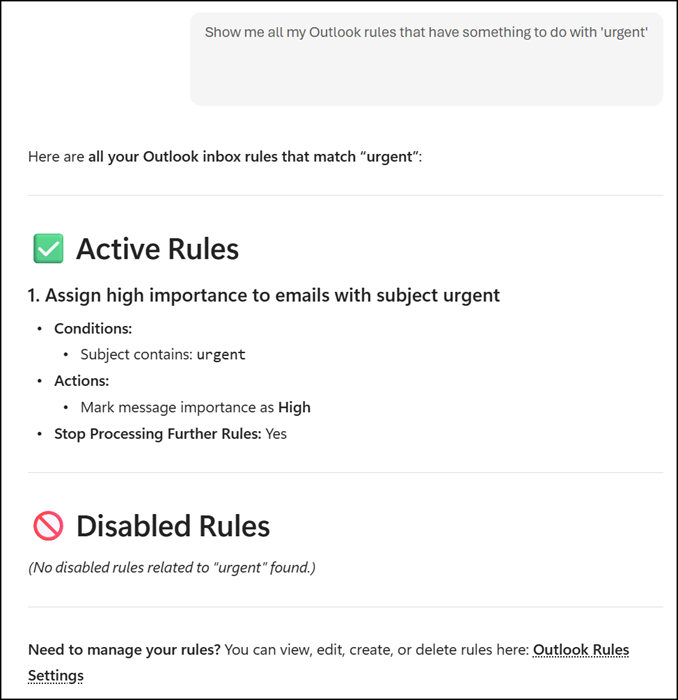
- Show me all my current Inbox rules.
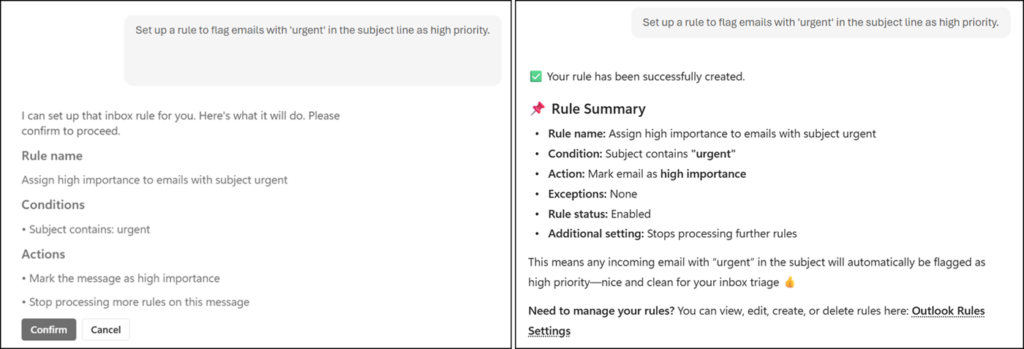
- Set up a rule to flag emails with ‘urgent’ in the subject line as high priority.
Creating a new Outlook rule.
List the newly created rule.
Delete the newly created rule.
Copilot:
I can list and create inbox rules, but I currently don’t have a tool available to delete an existing rule directly.
