
Microsoft Places now supports work location detection via wireless network (WLAN). The feature is currently in Public Preview.
If configured, Microsoft Places can detect the work building based on WLAN signals and automatically check users in at the work location.
As this topic has often been published in the media, especially in German-speaking media: Work location detection via WLAN is disabled by default and gated through three stages.
- In the tenant: An Exchange administrator has to implement the WLAN configuration first.
- For all users: A Teams administrator must provide this option via a Teams policy. Without it, no one can enable the feature.
- User opt-in: The Teams administrator can choose between manual user opt-in (default) and opt-out.
Work location detection via WLAN is available in Teams for Windows and Mac. The web and mobile versions of Teams are not supported.
Two weeks ago, I configured the feature in my personal tenant, and nothing happened. Initially, I thought I had misconfigured something (and yes, I had some issues with the BSSIDs), but then I assumed the feature might not yet be available in my tenant.
Today, Teams informed the work location was updated based on the connected WLAN signal. It seems the feature is now rolling out.
***************
Updated 2 June 2026:
The rollout should be completed by the end of June.
***************
Several requirements must be prepared.
In my post, I summarize what you should configure, based on the documentation and my personal experience.
Content
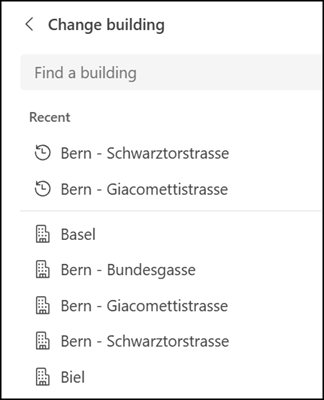
Preparing buildings in Microsoft Places
An Exchange Administrator (or Places Administrator) has to prepare the work buildings for the organization. I already described the steps back in August 2024.
Preparing WLAN information in Microsoft Places
An Exchange Administrator must register WLAN SSIDs and BSSIDs for the work buildings.
1) WLAN SSIDs for all buildings
The SSID (Service Set Identifier) is the human-readable network name, up to 32 characters long, such as “Contoso-CorpNet” or “Office-WLAN”. It identifies the logical wireless network.
Configure all WLAN SSIDs for the organization’s buildings using Set-PlacesSettings.
Set-PlacesSettings -Collection Presence -WorkplaceWifiNetworkSSIDList 'Default:<SSID1>;<SSID2>'
2) WLAN BSSIDs used in your work buildings
The BSSID (Basic Service Set Identifier) is the MAC address of the specific access point’s radio interface, formatted as A4:5E:60:F1:22:0B. It identifies a physical access point, or more precisely, a radio on that access point.
- Create a CSV file containing all BSSIDs and their corresponding building names. The file must include a header row with the fields BSSID and BuildingName.
A sample of how to find the BSSIDs in the current network.
Note that in some cases, the command must be run multiple times to list all BSSIDs in the current network.
# Trigger a scan, wait, then read results
netsh wlan show networks mode=bssid > $null   # discard first read
Start-Sleep -Seconds 4                         # let the scan complete
netsh wlan show networks mode=bssid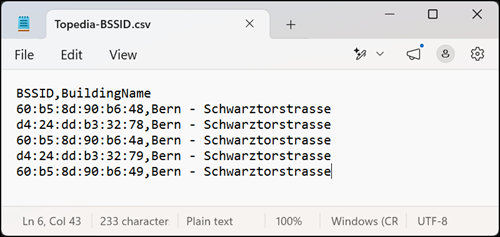
Map the BSSID information and building names to the Places directory buildings.
Add-WifiDevices -Action MapBuildings -InputFilePath "C:\Temp\Topedia-BSSID.csv"- The result is a BuildingMapping.csv file that lists the building names from the input file alongside their corresponding Places directory building names. Each building name without a match is shown on its own line.
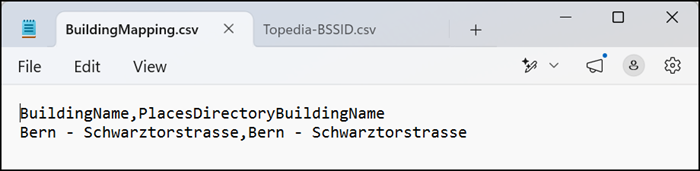
- If any building names have no matches, update BuildingMapping.csv so that all building names correspond to a valid Places directory building entry.
- Upload the BSSID list to Microsoft Places.
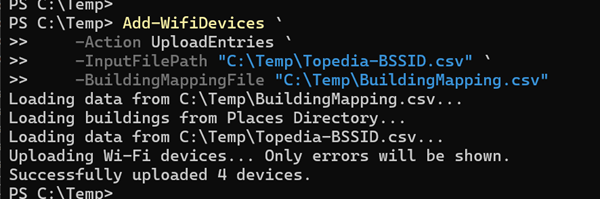
- Propagating the BSSID information across the system can take 24 to 48 hours.
Keep in mind, any mistake in the BSSID matching will require waiting through the propagation period again.
3) Deleting BSSID access points
If you made a mistake with the BSSIDs, they can easily be deleted. The cmdlet Add-WifiDevices adds a new Places device for each BSSID. The BSSID is the device ID, and all these devices have the type “Wifi”.
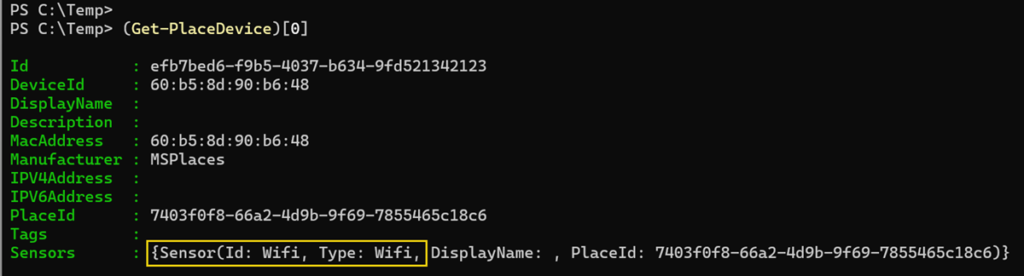
Filter all of these devices to find the object ID.
(Get-PlaceDevice) | ?{ $_.Sensors.SensorType -eq "Wifi" } | select Id,DeviceId,MacAddress,PlaceId,Sensors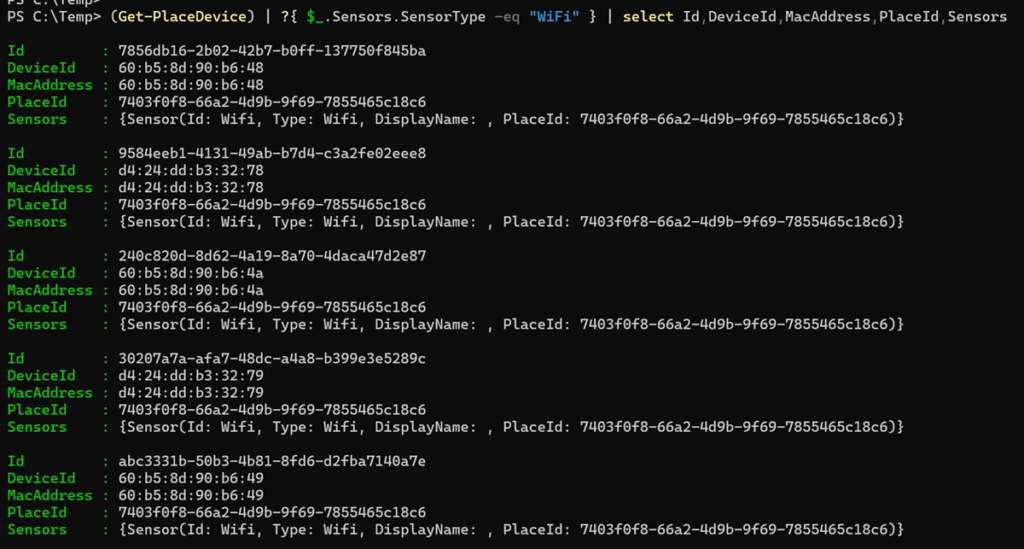
Once you know the internal object ID, you can delete the device with Remove-PlaceDevice.
Updating the WorkLocationDetectionPolicy in Microsoft Teams
The Work Location Detection policy in Teams is disabled by default and has two settings. A Teams administrator can also create new custom work location detection policies using the cmdlet New-CsTeamsWorkLocationDetectionPolicy.
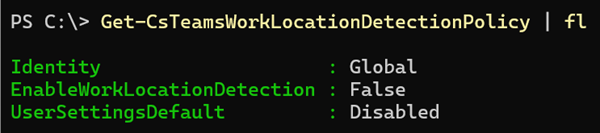
EnableWorkLocationDetection
This parameter specifies whether Microsoft Teams determines a user’s work location based on interaction with organization‑managed networks and devices. When enabled, users’ work location gets updated using signals from administrator‑configured resources, such as desks or peripherals managed by the organization. This parameter does not collect or use geographic location data from users’ personal or mobile devices.
UserSettingsDefault
This parameter specifies the default user consent behavior when automatic update of work location is enabled and only applies to WiFi, and has no impact on device-based detection.
- Disabled (default): Users must explicitly opt in (Ask mode).
- Enabled: Automatic update is enabled by default, and users can opt out (Inform mode).
For my test, I configured a new policy and assigned it to my account only.

Enabling work location detection as a Teams user
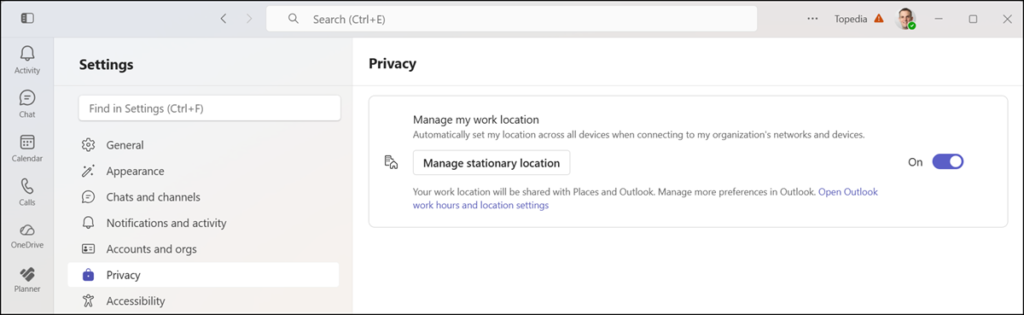
If EnableWorkLocationDetection is set to True and UserSettingsDefault is set to Disabled, users will find a new section in the Teams Privacy settings allowing them to opt into work location detection.
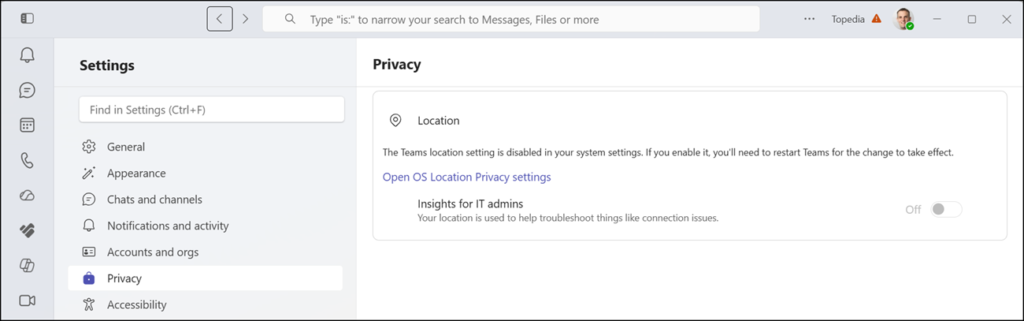
In my case, I previously disabled location services for Teams in Windows and had to enable them first.
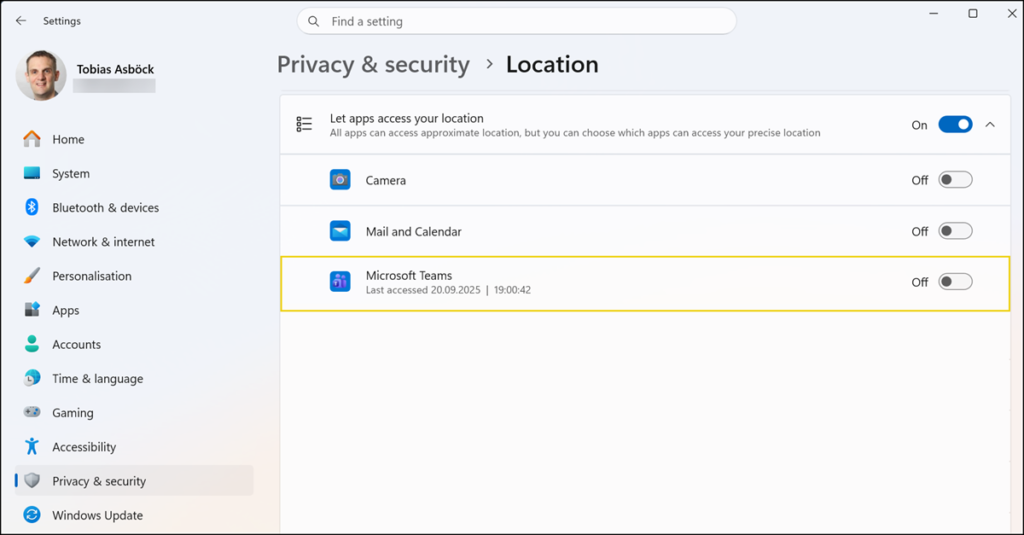
The work location option becomes available after restarting the Teams client.
Users can opt in and optionally set a stationary location for permanent devices that remain in a building (for example, a stationary PC). When Wi-Fi is not detected, the device remains checked in at the selected building instead of being automatically checked out.
Teams should update the location based on the WLAN signal once connected to a company WLAN whose access points have been configured by the Exchange administrator.
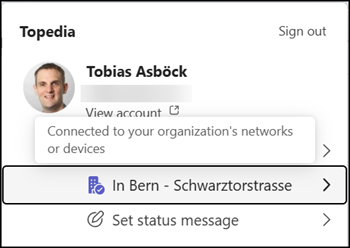
The feature is still rolling out. If the location has not been updated yet, wait a few more weeks.
Additional hints on why the location might not be updated for users (from the documentation):
- Work location is not automatically updated on desktop computers connected via Ethernet. (Based on my own tests, a combined LAN and WLAN connectivity is not supported for silent location detection.)
- At the end of a user’s working hours, their actual location is cleared, and the history of actual location isn’t available.
- If a user connects after their set work hours, their work location won’t be updated. Users can go to Set your work hours and location in Outlook for more information on setting work hours.
- Users choose whether to share their work location with coworkers in the Teams and Outlook Calendar setting.
- Users can manually set, override, or clear their work location at any time, whether they’re inside or outside corpnet.
