
Microsoft is introducing granular restore capabilities in Microsoft 365 Backup for SharePoint Online and OneDrive for Business.
SharePoint Backup Administrators can browse, search, and restore individual files or folders from protected restore points, reducing recovery time and limiting impact by restoring only the necessary content.
Timeline
- Rollout to Public Preview should be completed in March 2026.
- Rollout to global availability is scheduled for May 2026.
How does this affect your organization?
This update affects your organization if you have configured a Pay-as-you-go setup and Microsoft 365 Backup for SharePoint and/or OneDrive.
Previously, restoring a SharePoint or OneDrive site collection required restoring the entire site if it was included in the backup.
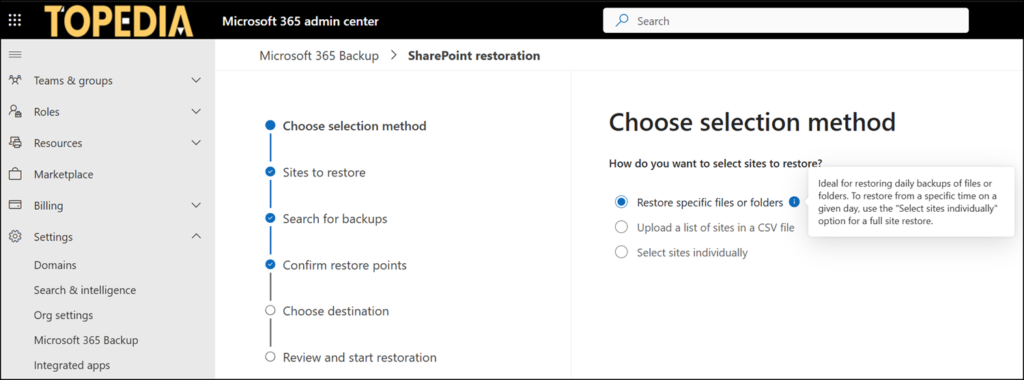
With granular file and folder restore, you can now restore specific files or folders from SharePoint and OneDrive site collections.
To start, open the Microsoft 365 admin center > Settings > Microsoft 365 Backup > Restorations, then select whether to restore from SharePoint or OneDrive.
Important:
Your account must have the SharePoint Backup Administrator role assigned, even if you use the Global Administrator role. Without it, the option to restore files or folders is disabled. Normal users cannot restore their own content.
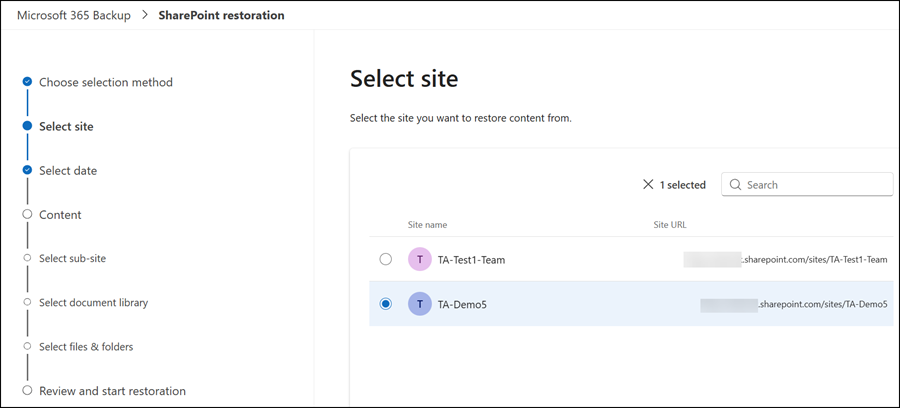
Select the site containing the file or folder. All sites included in your backup are listed.
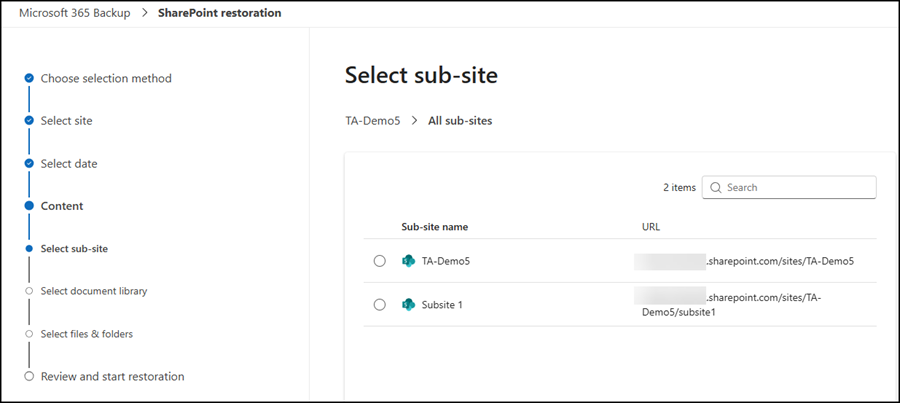
Select a restore date and source. Microsoft lists the source site and any available subsites for the selected restore point.
As a reminder, Microsoft officially recommends using SharePoint Hub Sites instead of subsites.
Browse the site’s document libraries to locate the file or folder, then select the content to restore (the files or folders).
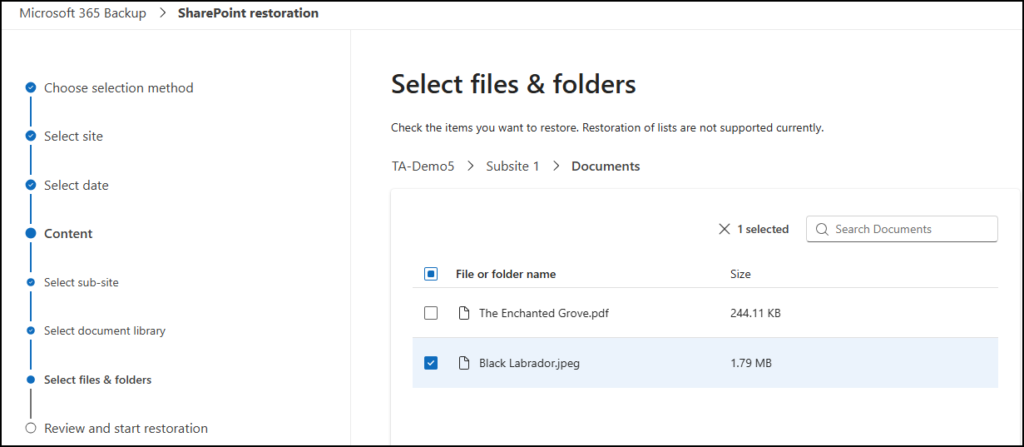
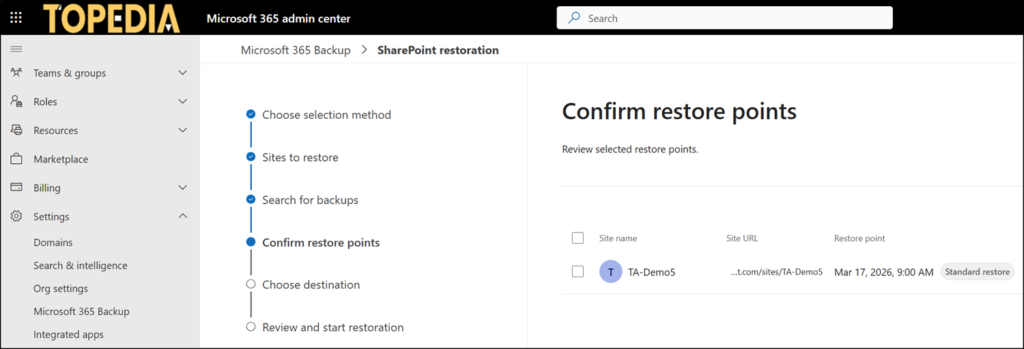
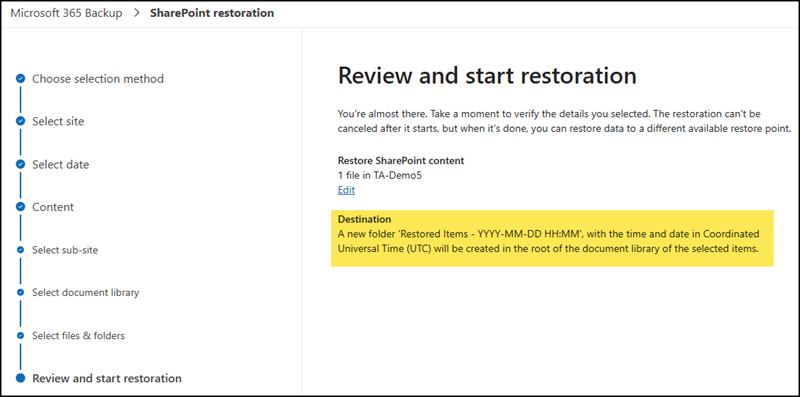
You get a summary before the restoration begins.
Note: The restore destination is always predefined. You cannot restore content to a different site or destination.
A basic report shows the restore state.
Restore logs or summaries cannot be downloaded once the task completes. Microsoft 365 Backup is still a black box. It’s working or not, nothing in between.
From my perspective, I kept my test as simple as possible for a backup tool: restoring a single image file. The restore failed.
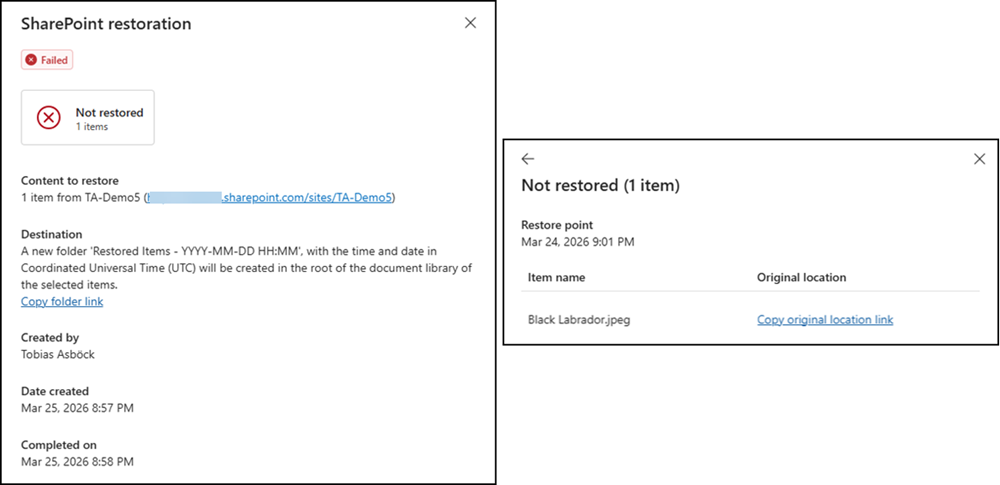
The restore has not actually failed, though.
The system is reporting an incorrect status because I selected a subsite. Microsoft offers the option to restore from a subsite into a subsite, but it seems they have a bug in the restore report when you do.
I ran three restore tests.
The Completed restore is from the root site collection. Both Failed restores are from subsites.
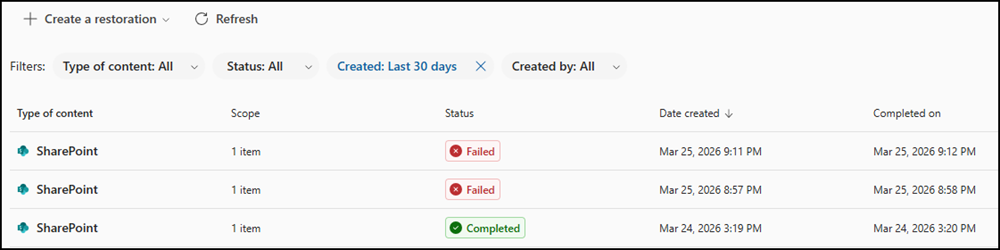
I only found out what had happened after opening the subsite directly and seeing both restores were completed there.
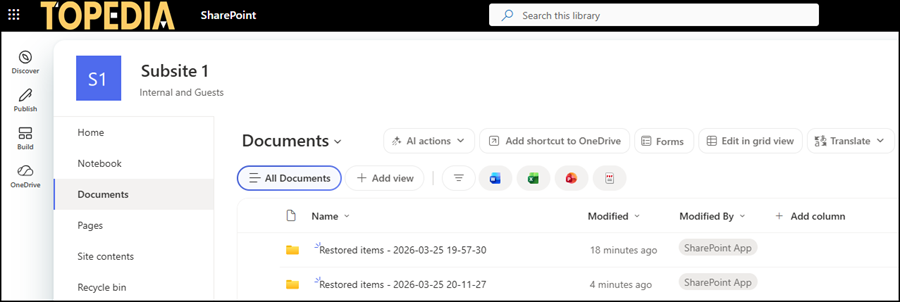
Checking the folder contents confirmed it: the restore completed successfully, the file is intact.
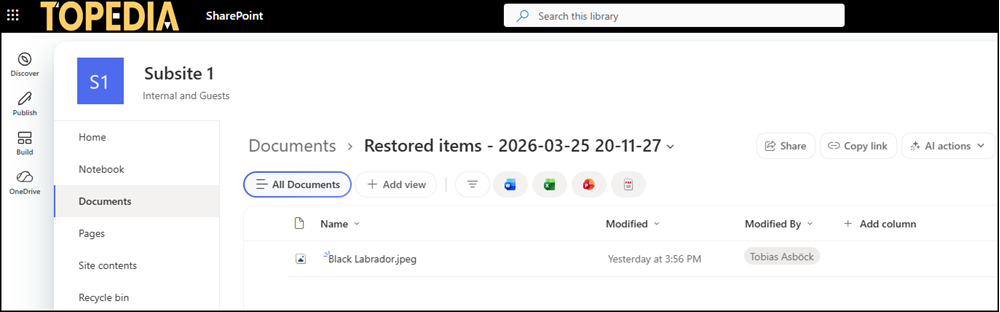
The restore worked, but the restore status reporting is incorrect for subsites. I am confident Microsoft has not tested restores from subsites.
