
Teams Mobile for Android and iOS got a browser-selection for non-Office and non-PDF links. When tapping such links in Teams Mobile, users can choose which browser opens them.
The experience encourages Microsoft Edge while preserving user choice. Teams administrators can remove the option via a Teams policy.
Timeline
The rollout has been completed.
Updated 25 April 2026:
The rollout should be completed in May 2026.
How does this affect your users?
When a user taps a non-Office document (Word, Excel, PowerPoint) or a non-PDF link in Teams Mobile, a bottom-sheet prompt asks them to choose a browser. If Microsoft Edge is not installed and the user selects Edge, a prompt will guide the installation.
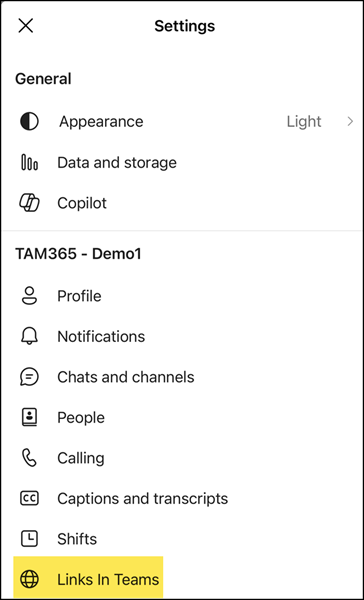
A new Links in Teams setting appears under Teams Mobile settings to manage the preferred browser.
- In Teams Mobile, tap your profile icon.
- Select Settings.
- Select Links in Teams and choose your preferred browser.
- If Microsoft Edge is selected but not installed, follow the prompt to download it.
How does this affect Teams administrators?
Teams admins can manage the availability of the “Links in Teams” experience via Teams PowerShell and the LinksInTeams setting.
LinksInTeams
Controls the availability of browser choice options in Teams Mobile.
- When set to OfferBrowserOptions, users get two browser choice experiences:
(1) browser options in the Teams Mobile settings page for configuring default preferences, and (2) browser options in the upsell card when tapping links. OfferBrowserOptions is the default value.- When set to UseUserDefaults, links open using the user’s system default browser settings.

Update your Teams Mobility Policy to change the availability of the “Links in Teams” experience.
Connect-MicrosoftTeams
Set-CsTeamsMobilityPolicy -Identity Global -LinksInTeams <OfferBrowserOptions | UseUserDefaults>