
Microsoft has introduced a new capability that lets administrators exclude specific folders from syncing with the OneDrive Sync client. This lets organizations prevent machine-specific or development-related folders (for example, PowerShell module directories, Visual Studio configuration folders, and other org-defined folders) from uploading to the cloud and instead keep them local to the device. This policy should help avoid unnecessary cloud storage consumption by content that does not need to be in OneDrive.
The folder sync configuration is off by default. Users cannot update it. An administrator has to deploy the exclusion rules to the client.
Administrators can use the new “Exclude specific kinds of folders from being uploaded” policy (EnableODIgnoreFolderListFromGPO).
- This policy is not yet available in the Intune settings catalog, but administrators can upload the OneDrive.admx template to Intune. The OneDrive.admx template is available in the local OneDrive program folder, as described by Microsoft.
- Alternatively, for a test, administrators can manually set the registry settings. A restart of the OneDrive Sync client is always required.
# Set registry item for OneDrive folder ignore list
# Run this with elevated privileges
$RegPath = "HKLM:\SOFTWARE\Policies\Microsoft\OneDrive\EnableODIgnoreFolderListFromGPO"

if (-not (Test-Path $RegPath)) {
    New-Item -Path $RegPath -Force | Out-Null
}

New-ItemProperty -Path $RegPath -Name "projectmindset" -Value "projectmindset" -PropertyType String -Force
Once uploaded to Intune, administrators can define folder names to exclude from sync. Wildcards are not supported.
In my case, I used a wildcard for simulation purposes. I used the OneDrive Sync client build 26.153.0809.0004 for my test.
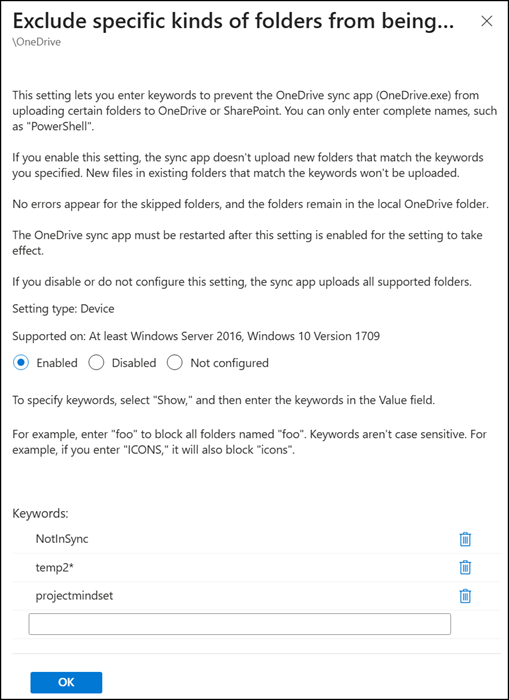
Impact when this policy is enabled:
- Any folder matching those rules, along with its contents, remains on the local device rather than syncing to OneDrive. The sync app does not upload new folders matching the specified names. The folders remain in the local OneDrive folder.
- The policy does not upload new files created in an existing matching folder.
- Users do not see errors or info for skipped folders in the OneDrive activity center, but the folder shows a new not-synced status.
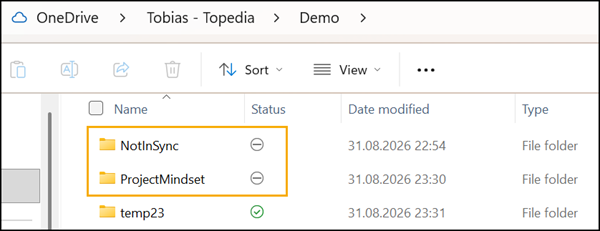
- Folders that were already syncing before a rule is applied (including all contents) continue to sync as before. To bring them under the new exclusion, users need to move them out of the synchronized location and back in again.
- Unsynced, local files moved into an already-excluded folder stay local and do not sync.
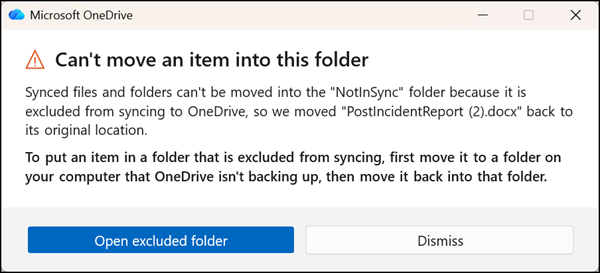
- Moving files that are already syncing directly into an excluded folder is currently not supported.
- I tested the configuration with synced OneDrive libraries and SharePoint libraries (via Shortcut). In my case, folder exclusion worked only for OneDrive, not for SharePoint libraries.
- After any policy change, users must restart the OneDrive Sync client for the new rules to take effect.
This policy should be available to organizations using OneDrive for Windows and OneDrive for Mac through the OneDrive Sync client, but I haven’t found a macOS policy yet.
