
Microsoft is rolling out the ability to assign a time limit when adding users or security groups to Purview role groups. Administrators can specify an expiration date from one day up to two years, enabling temporary administrative access and supporting least-privilege security practices. This enhancement should help organizations improve governance and compliance while reducing the risk of unnecessary long-term privileged access.
Automatic expiring permissions are optional and available for all Microsoft Purview role groups, except for eDiscovery Administrator and eDiscovery Manager.
Timeline
The rollout should be completed in September 2026.
How does this affect your organization?
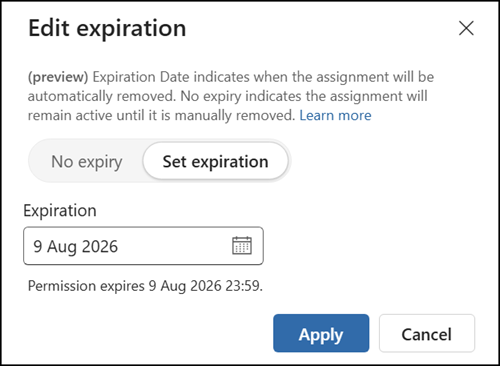
Like with Microsoft Entra admin role assignments, compliance administrators can now also assign users or security groups to a Microsoft Purview role group with a defined expiration period, ranging from one day to two years. When the configured expiration date is reached, the assignment is automatically removed, and access is revoked without requiring manual action. The expiration date is evaluated in the local time zone of the administrator who sets it.
The capability applies to both new and existing assignments. Existing assignments are not modified automatically and remain permanent until an administrator explicitly sets an expiration.
To edit an existing assignment, administrators open the role group, select the user or security group, and edit the role group expiration. The role groups eDiscovery Administrator and eDiscovery Manager do not support expiration.
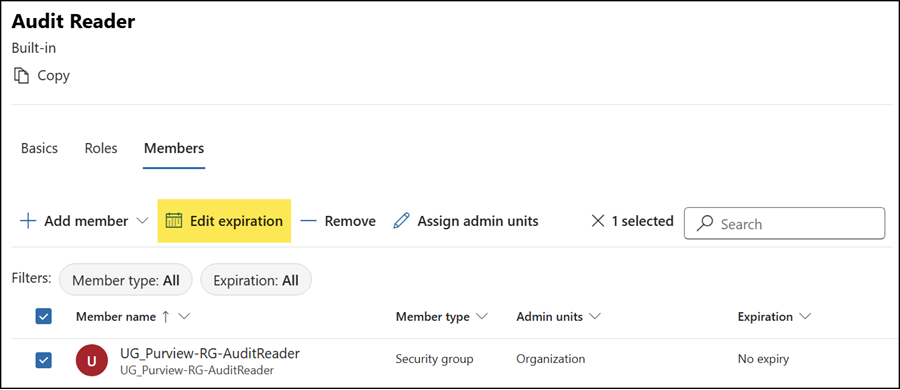
Administrators can set, update, extend, or remove an expiration between one day and two years.
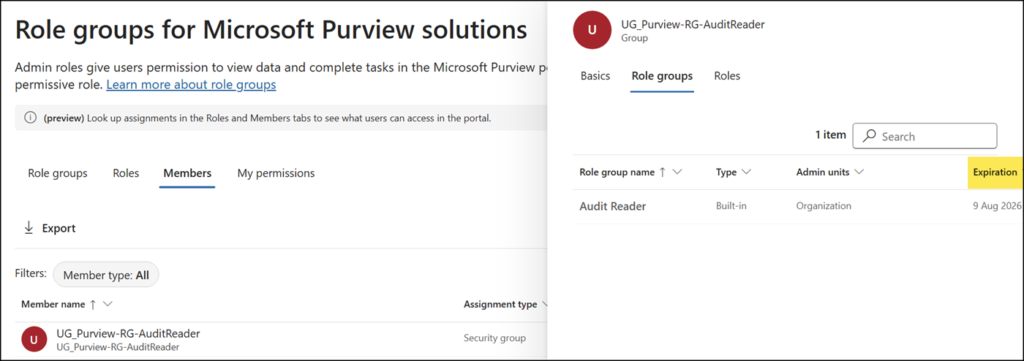
The expiration date is also listed in the new Purview Members view.
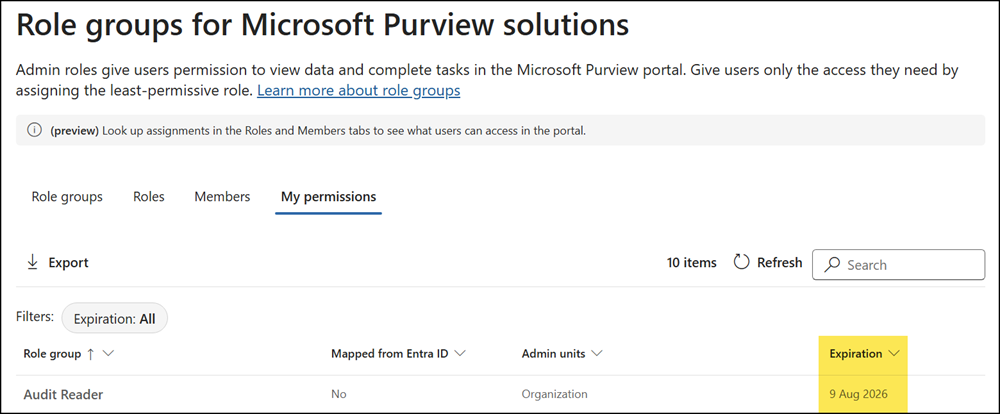
Users do not receive a notification before permissions expire. Users should use the My permissions view in the Purview admin portal to find when their permissions expire.
If a user receives the same role group through both an individual assignment and a security group assignment, each assignment retains its own expiration date independently, and access remains active as long as one of the assignments is still valid.
