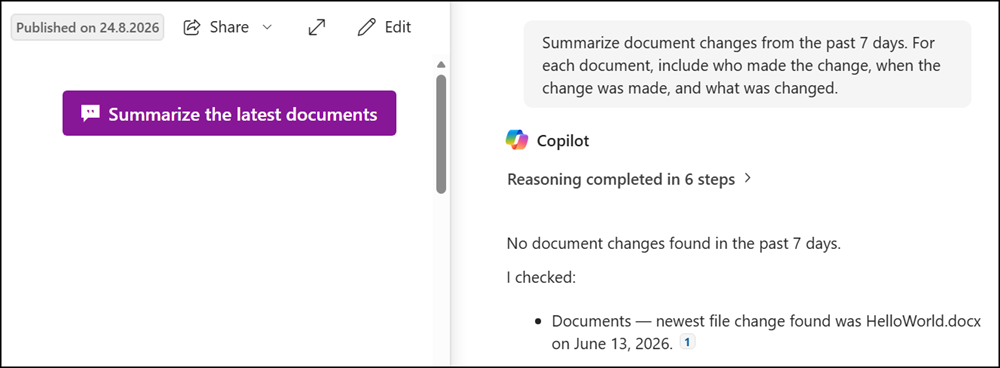
Microsoft has introduced a Copilot Action for the SharePoint page button.
Editors with a Copilot license can add the button to a SharePoint page and configure a Copilot action with a predefined prompt. When a visitor clicks the button, Copilot in SharePoint answers the prompt.
- The button is not visible to users without a Copilot license.
This action type is only available for users with a valid license for Copilot in SharePoint. Additionally, page viewers will need the same license in order to see and use the button. Unlicensed users will not see the button on the page.
- The Copilot action does not work if Copilot in SharePoint is not enabled on the site.
Note: Editors can select the action even when Copilot in SharePoint is disabled.
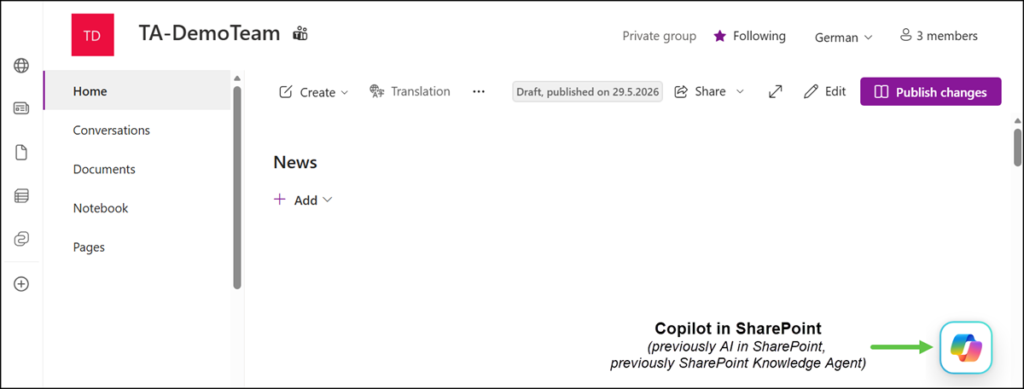
How to configure the SharePoint page button?
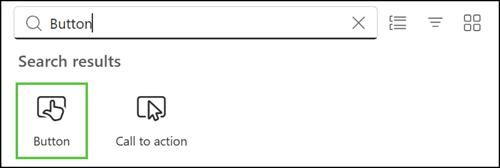
- Search for and add the Button web part on a SharePoint page.
- Edit the web part and select the action “Open Copilot in SharePoint“. This action is not available for users without a Copilot license.
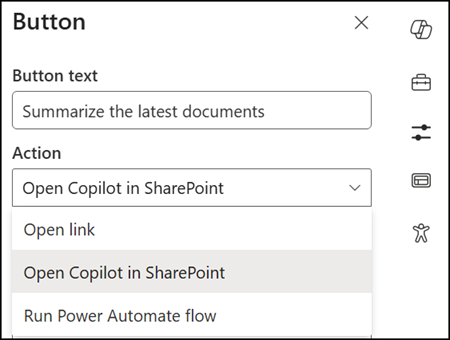
- Define a predefined prompt and update the remaining options as needed.
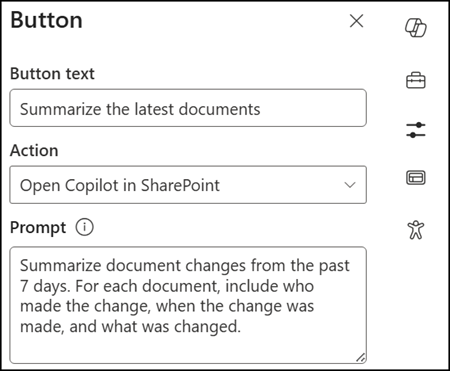
- Any visitor with a Copilot license can click the button. The button sends the predefined prompt to Copilot in SharePoint.