
As previously covered, Microsoft rebranded AI in SharePoint to Copilot in SharePoint after less than three months.
Copilot in SharePoint is soon transitioning from an opt-in to an opt-out preview, meaning it will appear automatically for licensed Copilot Premium users. Copilot in SharePoint brings AI-powered natural language capabilities across SharePoint sites, pages, document libraries, and lists.
SharePoint admins should review their SharePoint tenant settings if they haven’t already. Administrators can actively opt out or limit Copilot to selected sites. According to Microsoft, existing tenant-level and site-level opt-out settings should be honored at rollout.
Timeline
Opt-in for all SharePoint site collections should begin in mid-June 2026 (with no end date provided).
How does this affect your organization?
Users with a Microsoft 365 Copilot license will see a floating Copilot button in the lower-right corner of SharePoint pages, document libraries, and lists. Selecting the button opens a chat experience where users can issue natural language prompts.
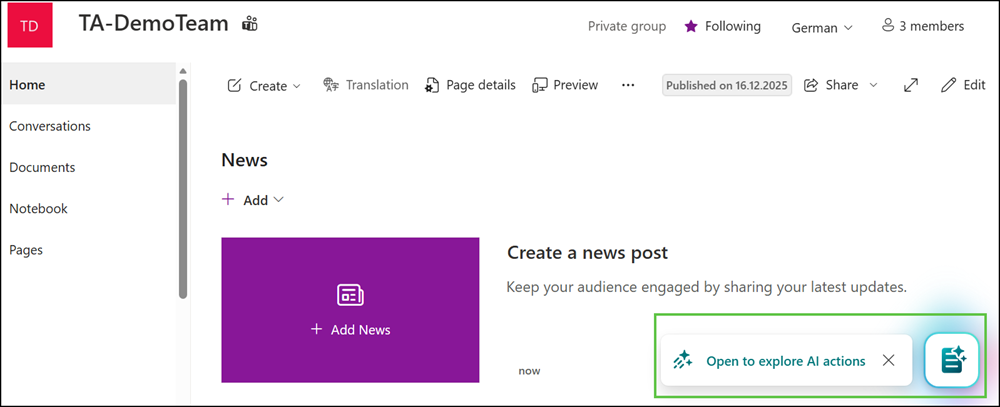
Copilot in SharePoint respects the user’s existing SharePoint permissions and only accesses content the user is already authorized to view or edit.
- The existing site agent and AI experience in SharePoint will be upgraded to Copilot for licensed Premium users.
- Pay-as-you-go billing for the SharePoint Agents feature applies only to SharePoint custom agents and is not affected by this change.
- OneDrive site collections have their own Copilot integrations, provided via the Copilot for SharePoint service plan. It is not clear whether the upcoming opt-in will affect OneDrive site collections.
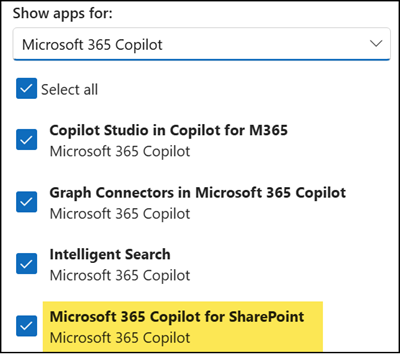
Users with owner or edit permissions can use Copilot in SharePoint for the following:
- Build, edit, and maintain SharePoint content using natural language, without requiring technical or design expertise.
- Execute content tasks, including organizing libraries, building sites, and creating or updating documents, pages, and HTML-based reports.
- Define shared skills and context to encode team standards, so Copilot follows a consistent approach across the team.
- More information on the support page about AI in SharePoint
SharePoint administrators should now review their tenant settings.
Get-SPOTenant | select KnowledgeAgentScope,KnowledgeAgentSelectedSitesList | fl
The KnowledgeAgentScope setting “NoSites” is currently the default, allowing organizations to opt in. Microsoft will update this setting to “AllSites” starting mid-June 2026.
KnowledgeAgentScope
This parameter allows administrators to control which SharePoint sites the Knowledge Agent feature is available on.
The valid values are:
- AllSites: Knowledge Agent is available on all sites. (This will be the default setting starting mid-June 2026 > Manual opt-out via ExcludeSelectedSites)
- ExcludeSelectedSites: Knowledge Agent is available on all sites except those specified in KnowledgeAgentSelectedSitesList.
- (Still missing in the documentation: IncludeSelectedSites: Knowledge Agent is available on the selected sites defined in the KnowledgeAgentSelectedSitesList.)
- NoSites: Knowledge Agent isn’t available on any sites. (This is the default setting until mid-June 2026 > Manual opt-in via IncludeSelectedSites)
If the setting has never been updated manually, I recommend forcing the command to set NoSites again…
# Connect to SharePoint Online admin center
Connect-SPOService https://yourtenant-admin.sharepoint.com

# Set Copilot in SharePoint to be not available by default
Set-SPOTenant -KnowledgeAgentScope NoSites
…or limiting the setting to demo sites to trigger a system-wide setting update.
# Connect to SharePoint Online admin center
Connect-SPOService https://yourtenant-admin.sharepoint.com

# Set Copilot in SharePoint to be available only on the included sites
Set-SPOTenant -KnowledgeAgentScope IncludeSelectedSites

# Specify sites to enable Copilot in SharePoint (initial inclusion list)
Set-SPOTenant -KnowledgeAgentSelectedSitesList @("https://yourtenant.sharepoint.com/sites/site5", "https://yourtenant.sharepoint.com/sites/site7")
I would also not trust the Microsoft rollout. Set a reminder to review the settings starting mid-June.
SharePoint administrators can also use the site-level setting to restrict Copilot content discovery, preventing Copilot (including the former Knowledge Agent) from being used on the site’s content.
Keep in mind:
Restrict this site’s content from appearing in Microsoft 365 Copilot, AI agents, and organization-wide search results. When this setting is on, content will only be discoverable through the site-level search by users who have access to the site.
Set-SPOSite –Identity <SiteURL> -RestrictContentOrgWideSearch $trueMore information
- For SharePoint admins: Get started with AI in SharePoint (preview) – SharePoint in Microsoft 365 | Microsoft Learn
- For SharePoint admins: Restrict discovery of SharePoint sites and content – SharePoint in Microsoft 365 | Microsoft Learn
- For site owners and users: AI in SharePoint: An overview – Microsoft Support
