
Microsoft released Extended SharePoint Permissions to general availability in April. Extended SharePoint Permissions (ESP) is a capability that keeps SharePoint access controls attached to a file after it leaves SharePoint Online.
Content
Extended SharePoint Permissions explained
Until recently, a downloaded Office or PDF file was effectively detached from its source library. Once on a local disk, a USB stick, or in a personal mailbox, the original site permissions no longer applied. Extended SharePoint Permissions (ESP) closes that gap by binding the downloaded file to its origin library through a sensitivity label with user-defined permissions.
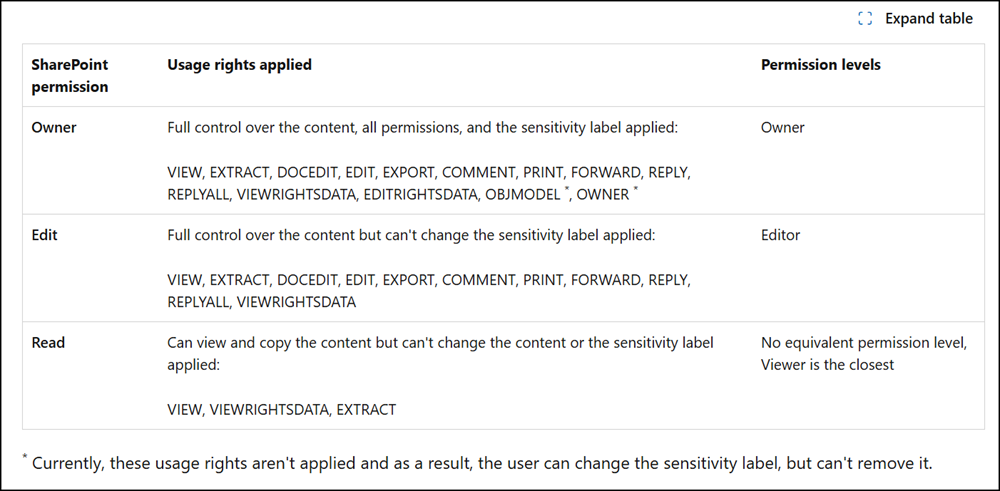
SharePoint translates the user’s current permission level into Rights Management usage rights at the moment of download, and the file checks back against SharePoint each time it is opened. If access in SharePoint changes, or if the original file, folder, or site is deleted, the local copy can no longer be opened.
ESP builds on three existing Microsoft 365 components.
- Sensitivity labels for files in SharePoint.
- SharePoint document library with a default sensitivity label.
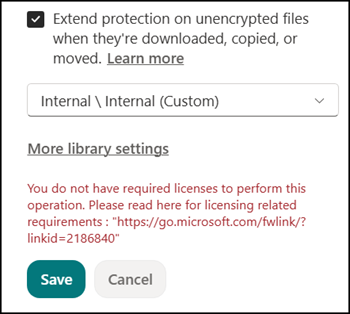
- The new library setting “Extend protection on unencrypted files when they’re downloaded, copied or moved“.
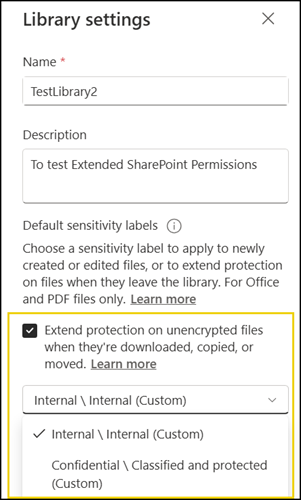
Once configured, SharePoint Online scans the library and labels all unlabeled Office (Word, Excel, PowerPoint) and PDF files, as well as files that carry a label without encryption. Existing manually applied labels that do not encrypt are replaced by the configured ones.
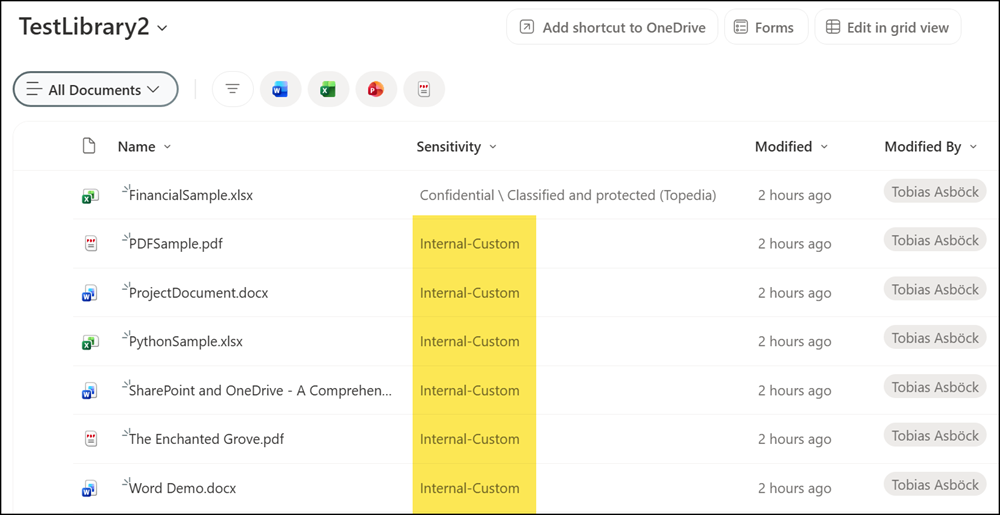
When a document is classified with the new label, users can define user-defined permissions for the document.
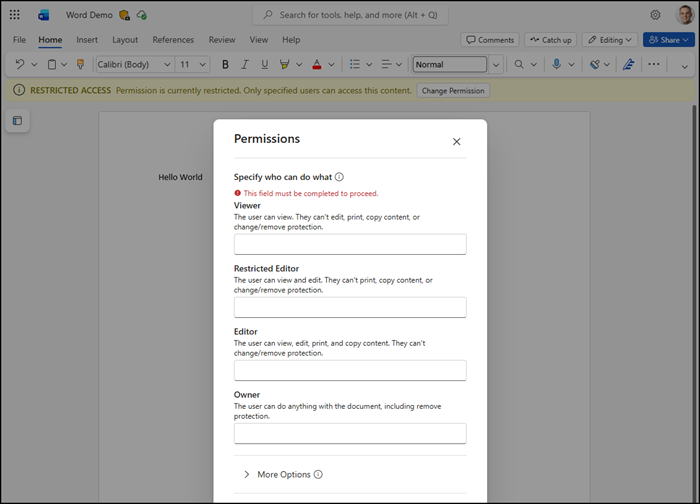
Updated with a sample:
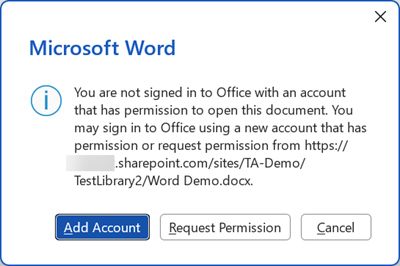
If users download a document and the permissions are later revoked, or if the document is moved or deleted, the Office app will continuously prompt for sign-in. Users can no longer use the local copy until the original document is restored.
Requirements
Administrators should review all ESP requirements, such as:
- According to the Purview service description, the library owner who configures ESP needs one of the following licenses. End users who open protected files do not need the license.
- Microsoft 365 E7/E5/A5/G5 OR
- Microsoft Purview Suite OR
- Microsoft 365 E5/A5/F5/G5 Information Protection and Governance
- AND the SharePoint Advanced Management (SAM) add-on
You may see a message indicating a license is missing. It’s the missing SAM add-on.
You do not have required licenses to perform this operation. Please read here for licensing related requirements : “https://go.microsoft.com/fwlink/?linkid=2186840”
- The ExtendPermissionsToUnprotectedFiles setting must be enabled in the SharePoint tenant.

- Sensitivity labels for files must be enabled in SharePoint.

- To support sensitivity labels for PDFs, support for PDFs in SharePoint must be enabled.

- Co-authoring for files encrypted with sensitivity labels must be enabled in the tenant.

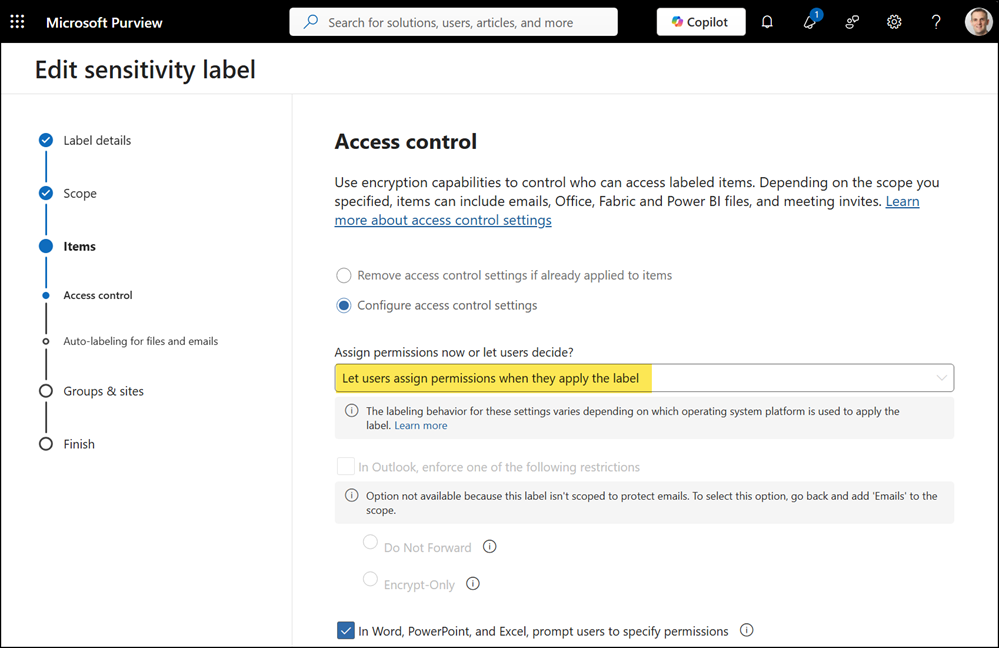
- A sensitivity label with user-defined permissions (UDP) is configured; permissions must be defined by users, not predefined by the organization.
Review the UDP mapping table and supported UDP permissions.
- A user with Read access in SharePoint receives a view-only copy.
- A user with Edit access receives a copy that can be edited.
- Microsoft 365 Apps require a minimum version of 2402.
- Files must contain content.
The user-defined permissions label is the key requirement for ESP because it allows SharePoint to dynamically translate the user’s current SharePoint permission level into Rights Management usage rights at the moment of download.
Because the file checks back against SharePoint each time it is opened, the protection is dynamic rather than static. Offline access is therefore not supported.
Limitations and restrictions
ESP comes with several constraints administrators should plan for. It is important to review the limitations and restrictions before using this feature in a document library.
- Protected files require a live connection to the original SharePoint site, which means offline access is not supported.
- If the file is downloaded today and the user is removed from the site tomorrow, the local copy can no longer be opened. The same applies if the original file, folder, or site is deleted or moved to another site.
- Cross-library moves within the same site only work for users with list creation or deletion permissions; the label is not retained on the new copy.
- The Save As option is unsupported on older Microsoft 365 Apps versions and requires recent minimum builds across Windows, macOS, iOS, and Android.
- On the labeling side, users cannot manually apply non-encrypting labels. ESP can override previously applied non-encrypting labels.
- ESP-labeled files are currently not appearing in the Purview Content Explorer.
- For Microsoft 365 Copilot, the files can still be referenced when the user has read permissions, but Copilot will not summarize them or use them to generate new content.
Summary
ESP is best understood as the operational bridge between SharePoint permissions and Microsoft Purview Information Protection. It does not replace standard governance practices such as managing access through Microsoft 365 groups, Teams ownership, or sensitivity labels for the services. ESP complements those controls by extending the same permission decision to the downloaded copy, which is where classic SharePoint governance has lost visibility.
The trade-off is that protected files depend on a live connection back to SharePoint, so offline access, Save As, and cross-site copy or move operations are sometimes not supported. Microsoft 365 Copilot can reference ESP-labeled files in search results, but cannot summarize them or generate new content from them.
