While testing the DLP restrictions for Copilot a few days ago, Microsoft Purview displayed this message. I was curious what would happen if I clicked Turn On.
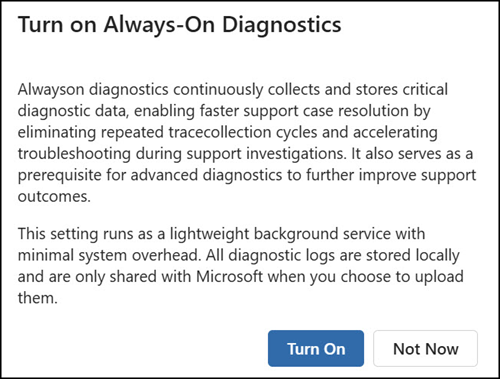
This message is scoped to the Data Loss Prevention (DLP) solution in Purview.
I think it’s not directly related to the message center post, but interestingly, Microsoft published MC1246001 in March, stating:
Starting in the second week of April 2026, Always-on diagnostics for Endpoint Data Loss Prevention (DLP) will be turned on by default for onboarded Windows devices in Microsoft Purview.
…
From the date of this Message Center post through the last week of April 2026, admins may choose to opt out of this setting in the Microsoft Purview portal. If an admin opts out during this period, their selection will be respected, and the setting will remain unchanged.
What happens when you click Turn on, or when Microsoft enables diagnostics by default?
When enabled, Endpoint DLP diagnostic traces, including policy evaluation logs, file classification results, enforcement actions, and error states, are stored locally on the device in a secure, compressed proprietary format for up to 90 days. Logs are not directly accessible by administrators and can only be decoded by Microsoft tools.
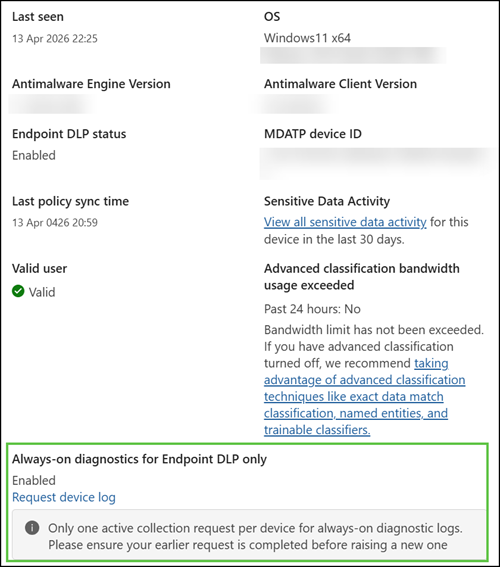
When a support case is opened, an administrator can request that logs be collected from a specific device and shared with Microsoft Support. Uploads typically occur within a 24-hour polling window and require the device to remain online. Uploaded data stays within the tenant’s data residency region and is retained for 180 days after upload, after which it is automatically purged.
- A device must be onboarded to Microsoft Purview and actively reporting with Always‑on diagnostics enabled.
- Devices already onboarded with Defender for Endpoint are automatically onboarded to Microsoft Purview if device onboarding is enabled in the Purview admin portal. The reverse also applies: onboarding devices in the Purview portal simultaneously onboards them into Defender for Endpoint.
- A device must maintain continuous network connectivity and be able to reach Microsoft upload endpoints.
- Always-on diagnostics is currently supported only on Windows devices (Windows 11, Windows 10, and Windows Server).
See the prerequisites and permission requirements for additional details.
Where to find this setting to enable or disable it manually?
Open the Purview Admin Portal, then go to Settings > Data Loss Prevention > Always-on diagnostics.
The first setting, “Always-on diagnostics for endpoint DLP,” enables general log collection on the device.
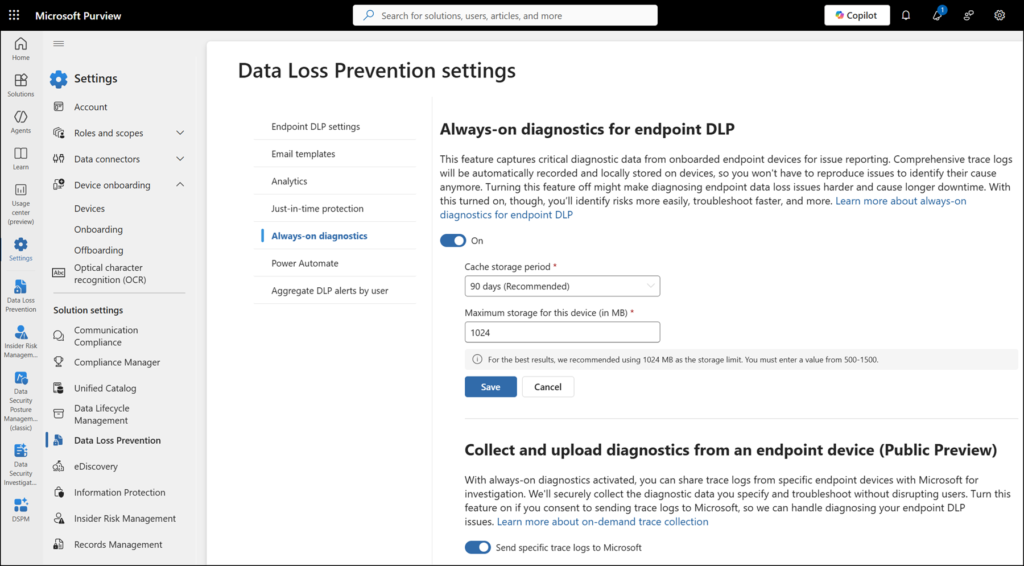
The second setting, “Collect and upload diagnostics from an endpoint device,” enables the option to remotely request logs for a specific device, which are then uploaded directly to Microsoft for use in a support case. Uploads can be tracked via the Always-on diagnostics settings page.