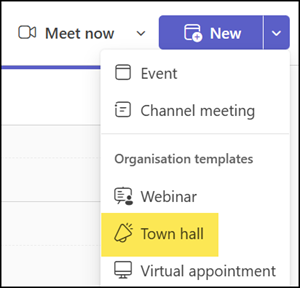
After the licensing changes on 1 April, users can now schedule Town Hall events in Teams with up to 3’000 interactive or 10’000 view-only attendees.
I tested the scheduling with several Microsoft 365 Business and Enterprise users.
Users can schedule a town hall event if the Town hall scheduling setting is enabled in the Teams Events policy.
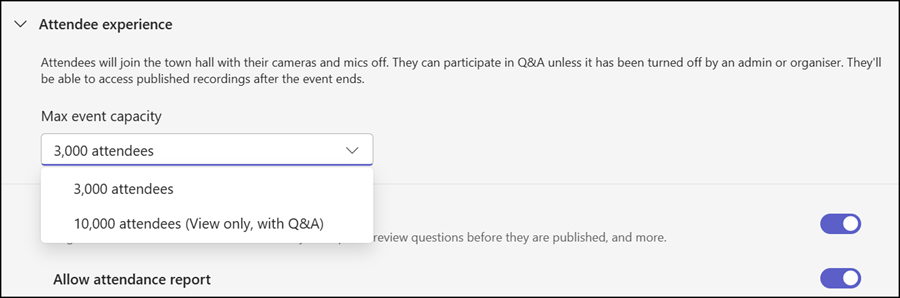
They can choose between an interactive event with up to 3’000 attendees or a view-only event with up to 10’000 attendees.
One of the new attendee capacity packs is required to schedule an interactive event with more than 3’000 attendees, unless an old Teams Premium license is assigned, which still covers events up to 100’000 attendees without the capacity pack.
How attendee limits work for Teams events?
An attendee pack determines the maximum capacity an organizer can set for a Teams event. Organizers can schedule an unlimited number of events as long as the license is assigned to them and is active through the contract term. The attendee limit is based on the number of attendees currently in the event at the same time. If attendees leave, other attendees can join until that limit is reached.
Keep in mind that organizers, co-organizers and presenters don’t count toward the attendee limit.
What does “10,000 view-only attendees” mean?
An event with up to 10,000 attendees where participants can watch the event live and participate in Q&A. Participants in these events can’t use interactive features such as reactions, chat, raise hand, or polls.
Important:
The attendee experience (Interactive or View-only) cannot be changed after the event is created. It must be recreated.
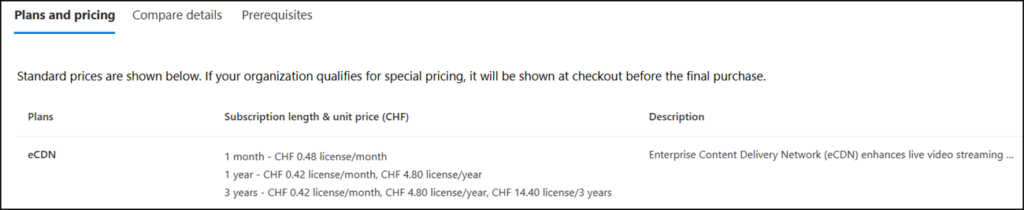
Microsoft eCDN is not yet included
The eCDN option is not yet included in your Teams license. The Teams Admin Center still requires a Teams Premium license or the eCDN add-on to configure the eCDN setting.
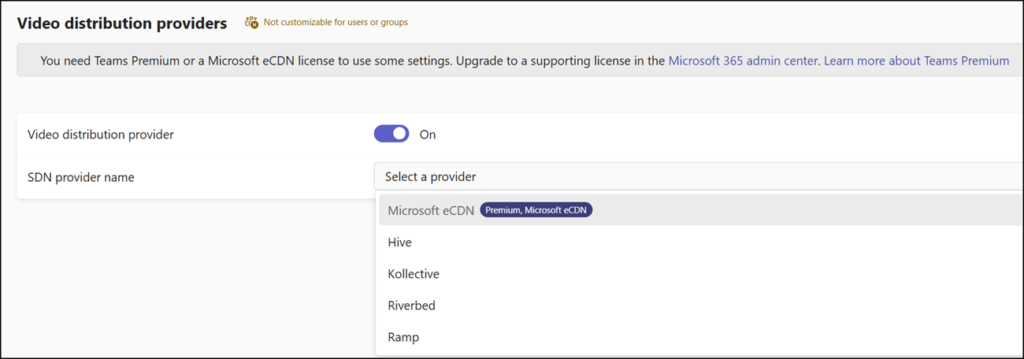
Review the eCDN setup guide for details on configuration and policy settings.
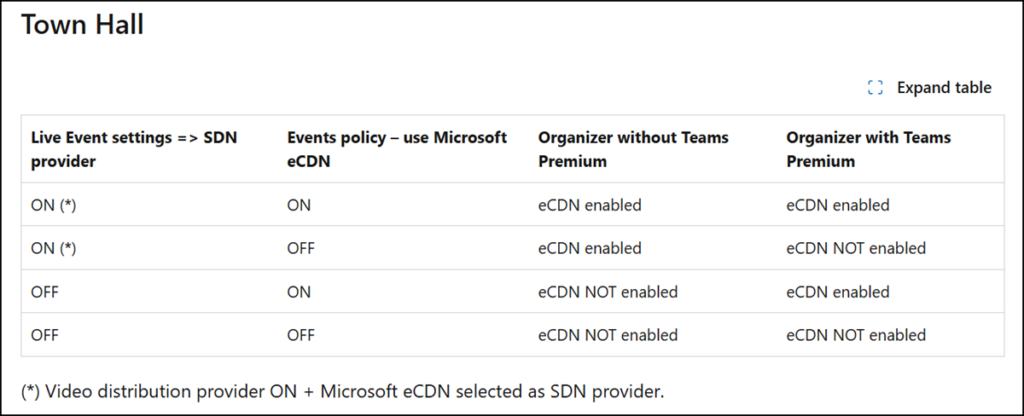
Wait for Microsoft to include eCDN in your Teams license before buying the add-on (Product ID CFQ7TTC0JSQ1).