
Microsoft has updated the in-product feedback experience in Planner to align with the Microsoft 365 feedback policy model. As a result, organizations using Microsoft Planner can now control feedback options (including screenshots and file attachments) through the same centralized policies already used for other Microsoft 365 products.
Timeline
The rollout has been completed.
How does this affect your organization?
Planner now respects feedback policies configured via the Office Cloud Policy service, aligning it with other Microsoft 365 products.
Clicking the feedback button in Planner, located in the top-right corner next to your profile picture, now shows options similar to the rest of Microsoft 365.

Note
Missing the feedback option? Your admin has already disabled it.
The screenshot below shows the default Planner feedback dialog when no feedback policy has been configured.
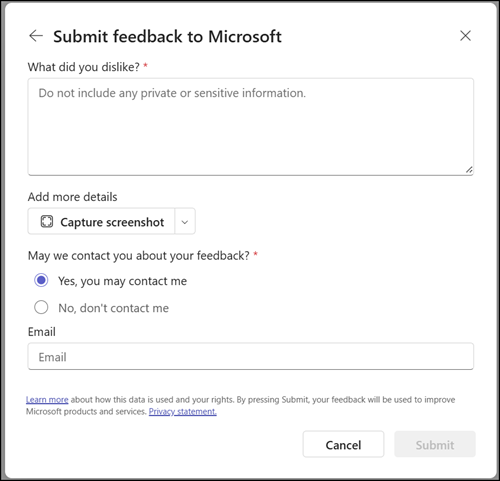
Administrators can control all feedback options through the Office Cloud Policy service. If feedback policies are already configured for other Microsoft 365 products, those same policies now apply to Planner automatically.
The example below shows a restricted configuration in which most options are disabled, leaving users only the option to submit general feedback. If feedback submission is disabled entirely, Planner will hide the feedback button from the interface.
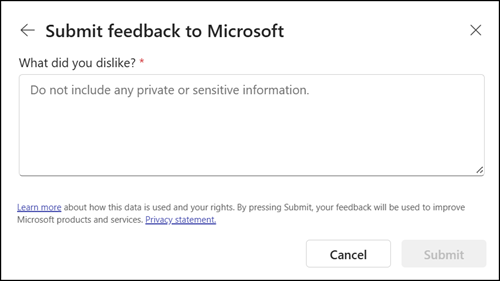
The following feedback policies are available in the Office Cloud Policy service:
- Allow users to access the feedback portal
- Allow users to submit feedback to Microsoft
- Allow Microsoft to follow up on feedback submitted by users
- Allow users to include log files and relevant content samples when feedback is submitted to Microsoft
- Allow users to include screenshots and attachments when they submit feedback to Microsoft
- Allow users to receive and respond to in-product surveys from Microsoft
Microsoft recommends reviewing your feedback policies to ensure they reflect your organization’s requirements. Changes to Office Cloud Policy service settings can take up to 8 hours to take effect.
As an admin, you can view feedback submitted by your users.
Go to Microsoft 365 Admin Center > Health > Product feedback to view feedback submitted by users. See the documentation for further details.
