
Microsoft is rolling out Viva Engage communities in Teams to bring discoverable conversations and leadership engagement directly into the flow of daily collaboration. The new experience integrates community discussions, notifications, and management into the Teams navigation for users with access to Viva Engage.
Viva Engage communities in Teams are enabled by default for any user with access to Viva Engage, typically through the Yammer Enterprise service plan, though this depends on whether Viva Engage license enforcement is active in your tenant. Teams administrators can disable the new community experience if needed.
Content
Timeline
- The new Viva Engage community experience is available to users in Teams Public Preview.
- The global rollout should be completed by May 2026.
- The Viva Engage community experience is not rolling out to Education or governance clouds.
How does this affect your Viva Engage users?
Users with access to Viva Engage will find their communities in the Teams navigation bar, alongside chat conversations. They can join existing communities but cannot create new ones from within Teams.
Teams will briefly display a banner notifying users that Viva Engage communities are now available.
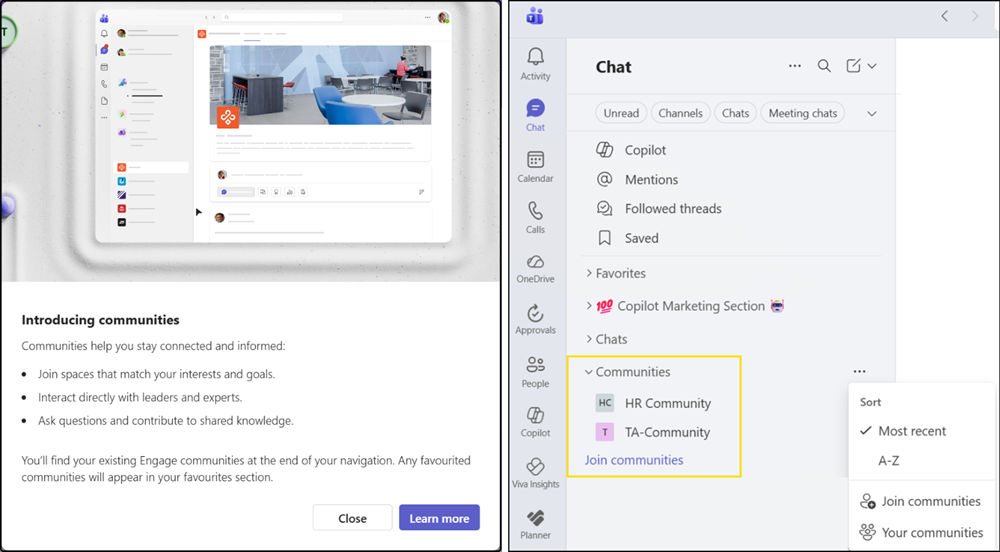
By default, the Communities section is added at the end of the Teams channel list in both the combined and separate experiences. Users can reposition it as needed.
- Existing Viva Engage community memberships sync automatically into Teams.
- Communities favorited in Viva Engage appear in the Teams favorites list.
- Viva Engage announcements and mentions surface in the Teams Activity feed with deep links into the new experience.
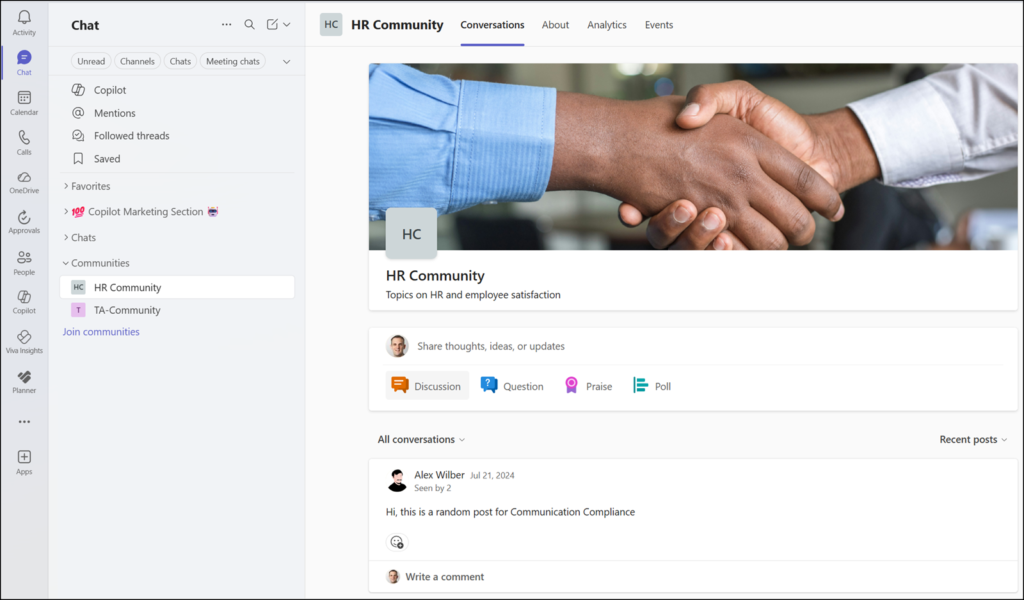
Communities behave similarly to Teams chats.
Community members can post discussions, questions, praise, polls, and announcements (announcements require admin permissions), use reactions, delegated posting (if configured in Viva Engage), and scoped search, as well as participate in events by asking questions, upvoting, and viewing content live or on replay.
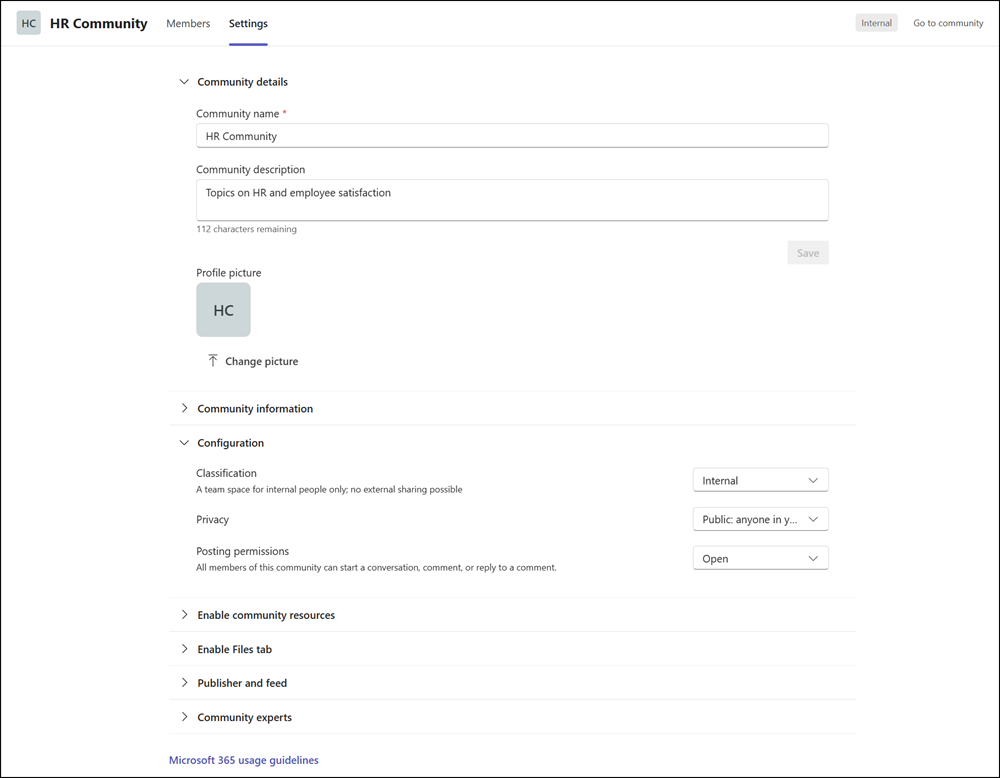
Community admins can manage membership, settings, and roles directly within Teams. Be sure to review the current limitations.
How does this affect your Teams administrators?
Microsoft has published a guide to managing the new community experience.
Viva Engage communities in Teams are enabled by default. A Teams Administrator can disable the Viva Engage experience via the Storyline property in the Teams Messaging configuration. This property is currently undocumented.

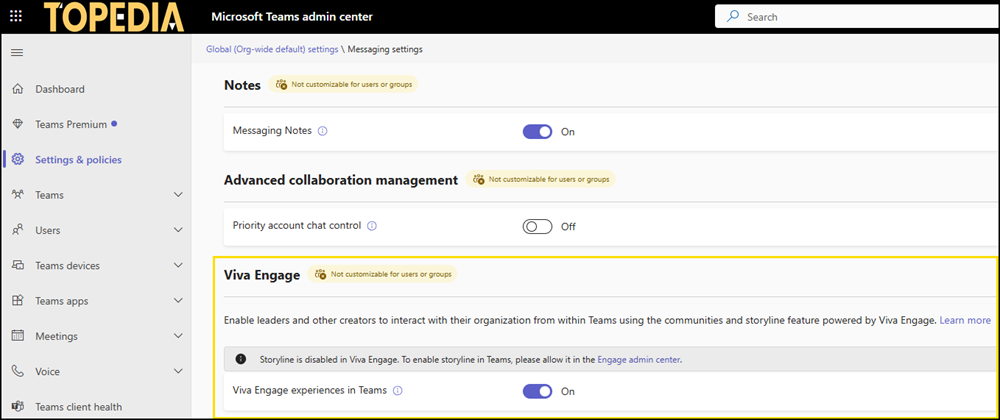
Take care when disabling this setting. The setting controls both Viva Engage communities in Teams and the Storyline feature in Teams chats. If you disable the setting, both features are hidden.
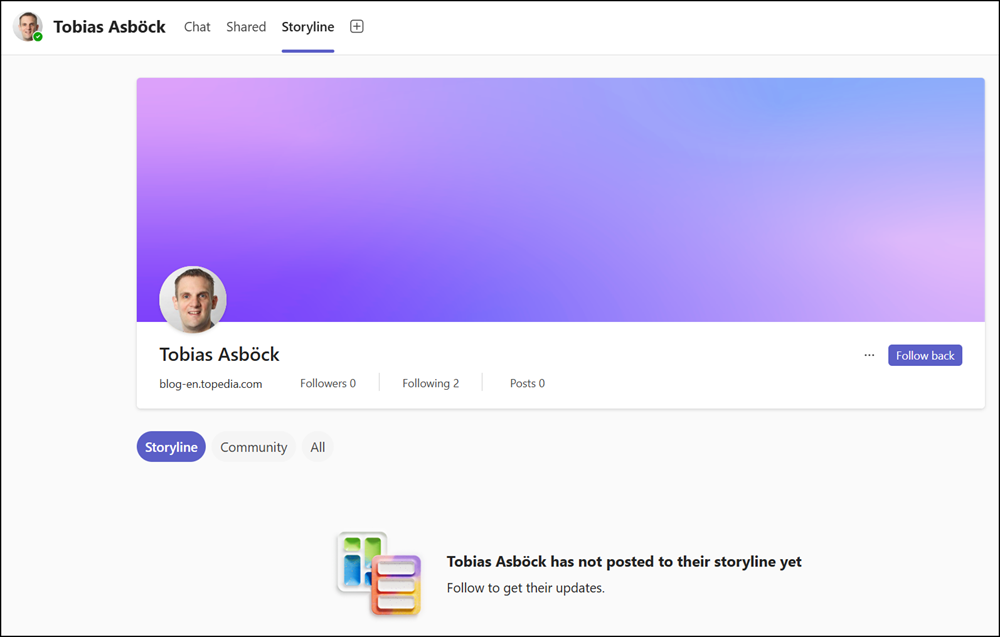
As Microsoft notes, you can disable Storyline while keeping Viva Engage communities active, but it is not possible to disable Viva Engage communities while leaving Storyline active.
