
Recently, a colleague contacted me because all documents in a Teams standard channel were missing. The files were still available in SharePoint, but did not show up in the Teams channel.
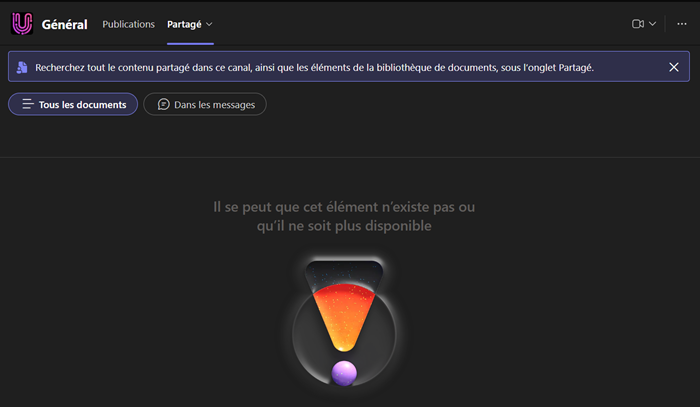
I verified the situation across multiple accounts and platforms. It appears the transition from the Files tab to the new Shared tab had failed for this channel. You can find a similar issue via a Google search.
A deeper analysis revealed the root cause.
In a normal case, the Shared tab in a Teams channel opens the document library of the connected SharePoint site. In my case, the Shared tab referenced the tenant’s root site. The channel could not display any documents or folders because the requested document library does not exist.
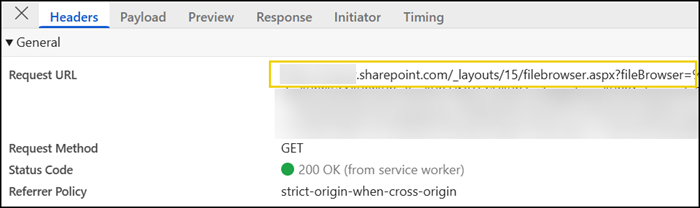
As a first step, I inspected the Teams channel via Microsoft Graph.
You can retrieve all tabs of a channel. I initially suspected an incorrect tab configuration (which you cannot modify, but it’s useful for a Microsoft Support case).
$M365GroupID = "<M365GroupID>"

Import-Module Microsoft.Graph.Authentication
Connect-MgGraph -Scopes Group.Read.All, TeamsTab.Read.All

# Get all channels in the team
$Url = "https://graph.microsoft.com/beta/teams/$M365GroupID/channels"
$TeamChannels = Invoke-MgGraphRequest -Method GET -Uri $Url
$GeneralChannel = $TeamChannels.value | ? { $_.displayName -eq "General" }

# Get all tabs in the General channel
$Url = "https://graph.microsoft.com/beta/teams/$M365GroupID/channels/$($GeneralChannel.id)/tabs"
$GeneralChannelTabs = Invoke-MgGraphRequest -Method GET -Uri $Url

# Get the configuration of the Files tab in the General channel
$GeneralChannelTabs.value.configuration | ? { $_.entityId -eq "FileBrowserTabApp" }
However, the format was correct.

I then verified whether the channel referenced the correct SharePoint site. The key property to check is filesFolderWebUrl, which indicates whether the path points to the team’s SharePoint site or to the tenant’s root site.

Next, I checked the Microsoft 365 Group via Exchange PowerShell (Get-UnifiedGroup). The unified group object contains a reference to the group’s default document library. This configuration was also correct.
I asked my colleague to create a new standard test channel to verify whether the issue is limited to a single channel. The new channel showed the same behaviour.
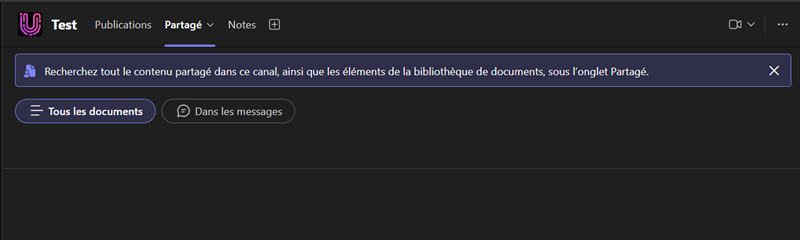
Interestingly, shortly after the test channel was created, an error message appeared in the channel. At the same time, the previously missing document library suddenly became available. The document library in the General channel was now also available.
It seems Teams had registered an incorrect reference and then forced a refresh to the correct SharePoint site. The browser logs now show the expected reference, which also matches the Microsoft Graph results.
If you encounter a similar issue, try creating one or more new standard channels and wait for a minute. When Teams displays an error, it should trigger a refresh that resolves the incorrect reference.

it works only when a Owner of the Team creates a new test channel. When a member creates a channel, Files are not accessible from the shared TAB
Thanks for the addition, Sanjay. Yes, in my case, the owner created the test channel.
Doesn’t work, confirmed.