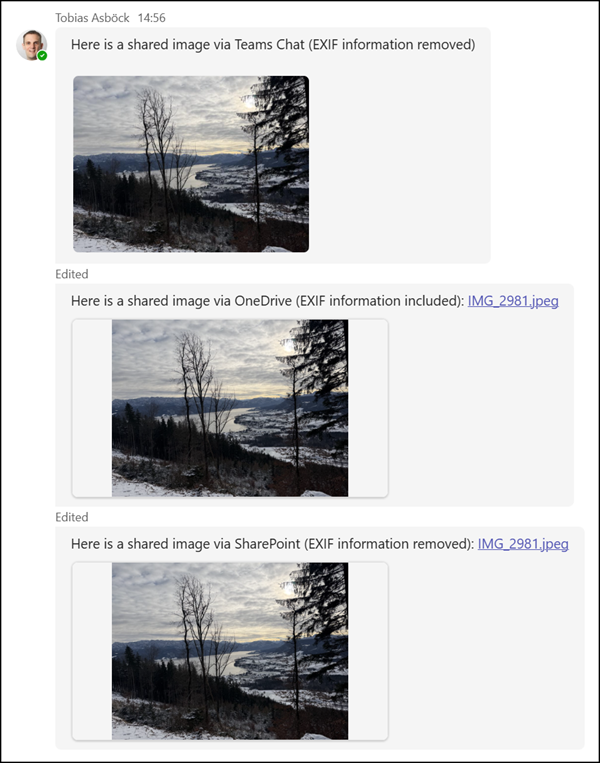
Microsoft Teams now automatically removes hidden image metadata (EXIF) from images shared in chats and channels. This reduces unintended exposure of sensitive details such as GPS location, device information, camera model, and manufacturer data.
This update applies to Teams for Windows, Teams for Mac, and Teams for the web.
Timeline
The rollout should be completed in March 2026.
How does this affect your users?
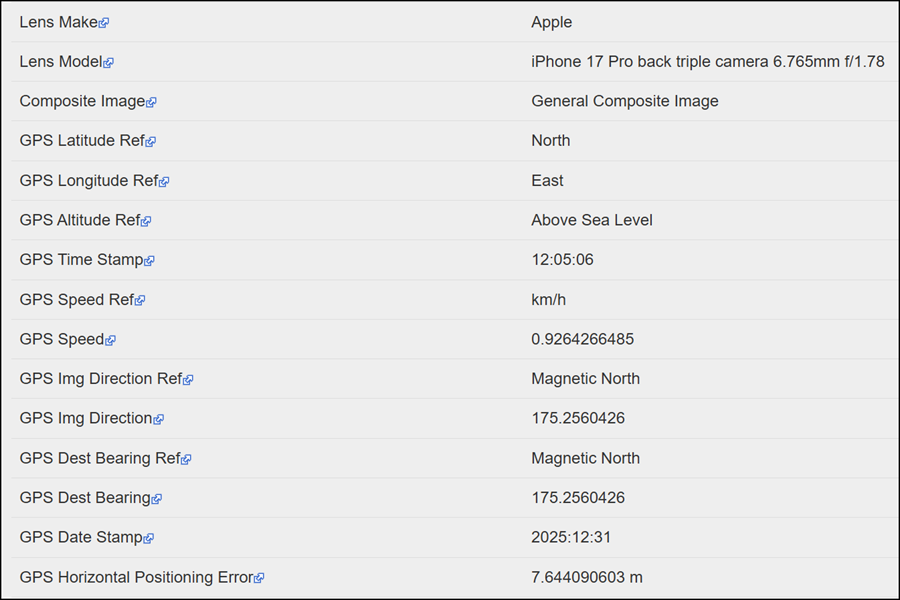
Previously, when someone shared an image in Teams, recipients could download the file and extract EXIF metadata, including GPS coordinates, camera model, manufacturer details, and additional technical information. You can review such metadata using free tools like EXIF File Metadata Viewer.
For example, some GPS coordinates from the image of my winter vacation are clearly visible in the metadata.
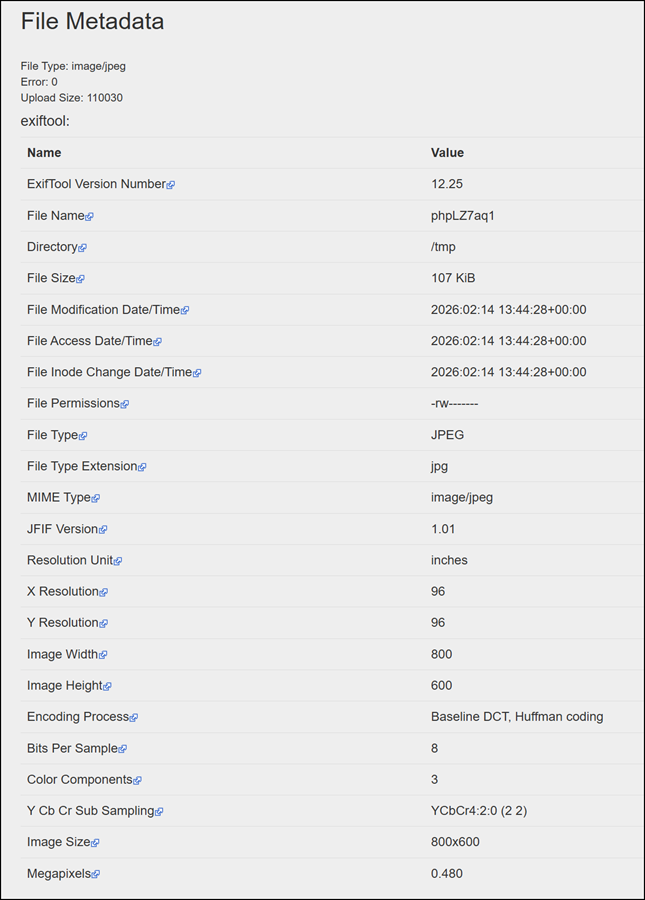
Once the update reaches your Teams client, this metadata is automatically removed for shared images.
In my current tests, Teams stripped GPS data, camera model, manufacturer details, and numerous additional metadata attributes from the image file. The visible image content remains unchanged, but the EXIF view now shows only minimal technical information.
Important notes:
- Metadata is not removed from the sender’s original image. The sender can still download the file and view the original EXIF data. Metadata is removed for recipients in Teams chat or channel conversations.
- Metadata is not removed for recipients when an image is stored in OneDrive and shared in Teams via a sharing link.
- When an image is stored in SharePoint and shared in Teams, Teams removes the EXIF metadata from the shared file. SharePoint still retains the original metadata. Downloading the file directly from the SharePoint document library preserves the EXIF data. Teams removes the metadata, not SharePoint.
- This feature is enabled by default and cannot be disabled by a Teams administrator.
I tested the behavior in four scenarios:
- Copy and paste an image into a Teams chat or channel conversation > EXIF metadata is removed.
- Upload an image to OneDrive and share it in Teams using a sharing link > EXIF metadata remains included.
- Upload an image to a SharePoint document library and share it in Teams using a sharing link > EXIF metadata is removed from the Teams-shared file.
- Download the image directly from the SharePoint document library > EXIF metadata remains included.