Microsoft Teams on the web received an updated device settings experience that makes it simpler for users to set up their audio and video equipment before or during meetings. Instead of navigating across multiple areas, users can now find all device controls in one consolidated panel under Settings, then Devices.
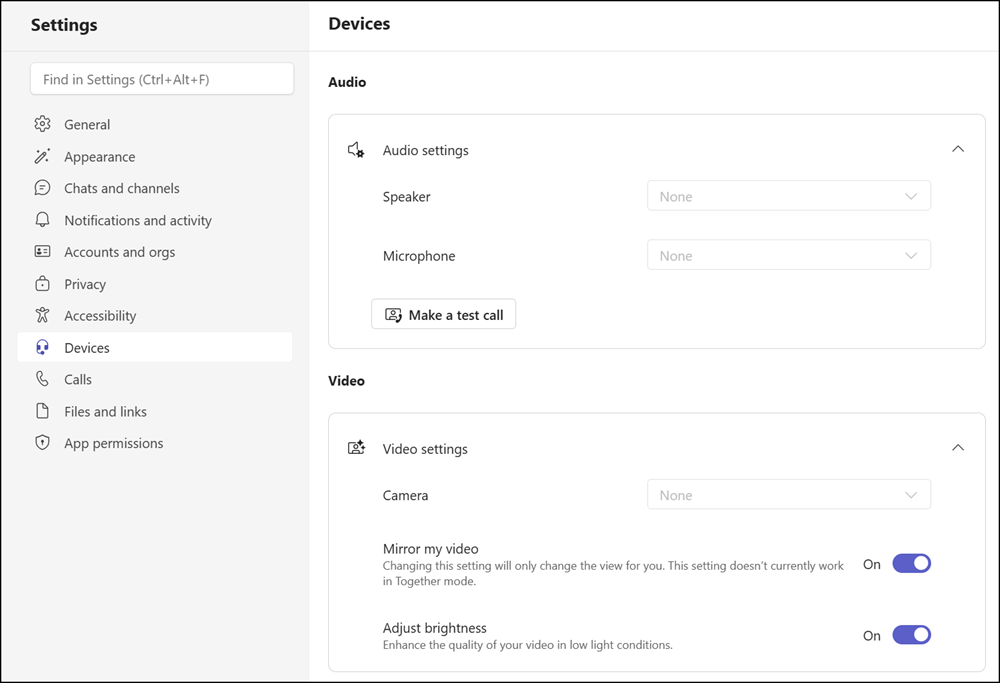
From this single location, users can choose their preferred speaker and microphone, run a test call to confirm their audio is working correctly, select a camera, and fine-tune video options such as mirroring their video image or adjusting brightness. Having everything in one place means less time spent searching for settings and more confidence that audio and video are configured correctly before a meeting begins.
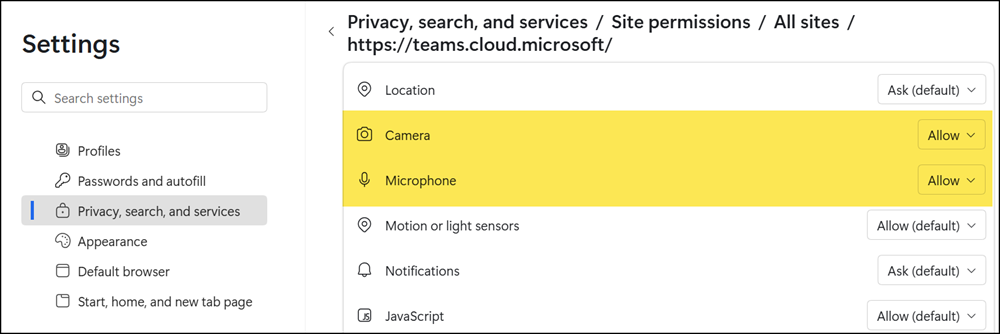
If audio or video options appear unavailable or grayed out (as in my screenshot), the browser has no permission to access the microphone or camera. Users need to (re)grant browser access to the microphone and camera for teams.cloud.microsoft (or for legacy reasons to teams.microsoft.com) through their browser settings before the device controls become available.
This update applies to all users accessing Microsoft Teams on the web.
The new experience is enabled by default, so users will simply notice the improved layout the next time they visit their device settings.