
Recently, I published a post about the new customizable consent notifications for Teams recording and transcription.
Microsoft guides you through how to configure these custom notifications for meetings via the Teams Admin Center. However, a Teams administrator can also configure them using PowerShell. These customized templates can also be assigned to a Teams calling policy.
First, you should verify the following three settings in your Teams meeting or calling policy:
- ExplicitRecordingConsent
- EnableRecordingAndTranscriptionCustomMessage
- RecordingAndTranscriptionCustomMessageIdentifier
Get-CsTeamsMeetingPolicy -Identity "<PolicyName>" | select ExplicitRecordingConsent,EnableRecordingAndTranscriptionCustomMessage,RecordingAndTranscriptionCustomMessageIdentifier | fl
The interesting setting here is RecordingAndTranscriptionCustomMessageIdentifier. This value references a predefined template. If you want to configure custom consent notifications via PowerShell, you need to prepare such a message template.
Microsoft has released five Teams PowerShell cmdlets to manage these message templates.
- Get-CsTeamsRecordingAndTranscriptionCustomMessage
- New-CsTeamsRecordingAndTranscriptionCustomMessage
- New-CsTeamsRecordingAndTranscriptionLocalizationCustomMessage
- Remove-CsTeamsRecordingAndTranscriptionCustomMessage
- Set-CsTeamsRecordingAndTranscriptionCustomMessage
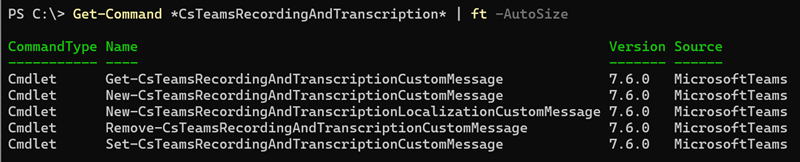
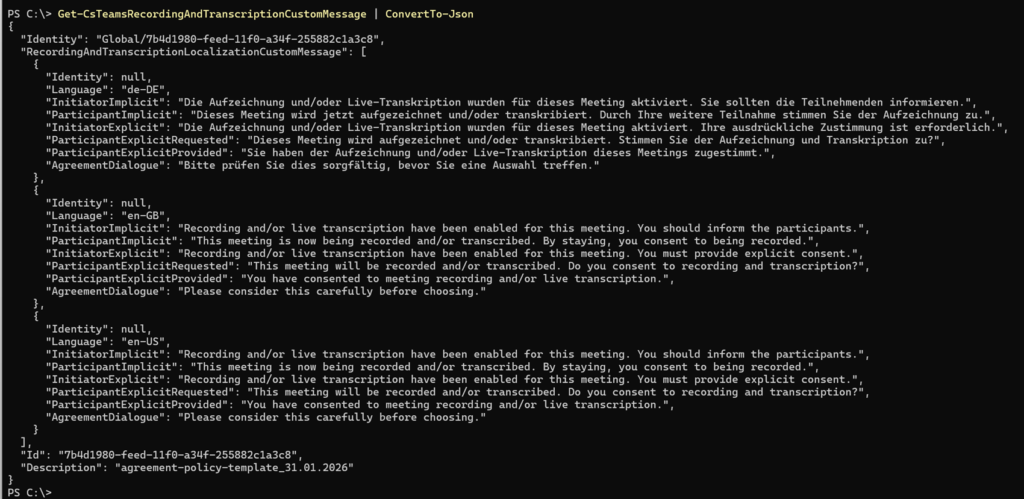
Let’s inspect the existing templates using Get-CsTeamsRecordingAndTranscriptionCustomMessage.
In my case, the Teams meeting policy references the GUID 7b4d1980-feed-11f0-a34f-255882c1a3c8.

This template includes all predefined translations I uploaded via CSV import. The CSV upload prepares the message template.
Next, let’s create your own message template.
Note: These five PowerShell cmdlets are new, the documentation is not yet fully complete.
- Define your message localizations using New-CsTeamsRecordingAndTranscriptionLocalizationCustomMessage. Store the localizations in a variable, as you will need them when creating the message template. Don’t use regional formats (such as de-CH, fr-CH, it-CH,…), the system will not accept them. Supported language codes are documented here.
Note: The message text was prepared and translated using AI.
# Create English localized message
$TeamsRTLocCustomMessage_EN = New-CsTeamsRecordingAndTranscriptionLocalizationCustomMessage `
    -Language "en-US" `
    -InitiatorImplicit "Recording and/or live transcription have been enabled for this meeting. You should inform the participants." `
    -ParticipantImplicit "This meeting is now being recorded and/or transcribed. By staying, you consent to being recorded." `
    -InitiatorExplicit "Recording and/or live transcription have been enabled for this meeting. Participants must provide explicit consent." `
    -ParticipantExplicitRequested "This meeting will be recorded and/or transcribed. Do you consent to recording and transcription?" `
    -ParticipantExplicitProvided "You have consented to meeting recording and/or live transcription." `
    -AgreementDialog "Please consider this carefully before choosing."

# Create German localized message
$TeamsRTLocCustomMessage_DE = New-CsTeamsRecordingAndTranscriptionLocalizationCustomMessage `
    -Language "de-DE" `
    -InitiatorImplicit "Aufzeichnung und/oder Live-Transkription wurden für diese Besprechung aktiviert. Sie sollten die Teilnehmer informieren." `
    -ParticipantImplicit "Diese Besprechung wird jetzt aufgezeichnet und/oder transkribiert. Durch Ihre Teilnahme stimmen Sie der Aufzeichnung zu." `
    -InitiatorExplicit "Aufzeichnung und/oder Live-Transkription wurden für diese Besprechung aktiviert. Teilnehmer müssen ausdrücklich zustimmen." `
    -ParticipantExplicitRequested "Diese Besprechung wird aufgezeichnet und/oder transkribiert. Stimmen Sie der Aufzeichnung und Transkription zu?" `
    -ParticipantExplicitProvided "Sie haben der Besprechungsaufzeichnung und/oder Live-Transkription zugestimmt." `
    -AgreementDialog "Bitte überlegen Sie sorgfältig, bevor Sie sich entscheiden."

# Create Italian localized message
$TeamsRTLocCustomMessage_IT = New-CsTeamsRecordingAndTranscriptionLocalizationCustomMessage `
    -Language "it-IT" `
    -InitiatorImplicit "La registrazione e/o la trascrizione in tempo reale sono state attivate per questa riunione. Si prega di informare i partecipanti." `
    -ParticipantImplicit "Questa riunione viene ora registrata e/o trascritta. Rimanendo, acconsenti alla registrazione." `
    -InitiatorExplicit "La registrazione e/o la trascrizione in tempo reale sono state attivate per questa riunione. I partecipanti devono fornire il consenso esplicito." `
    -ParticipantExplicitRequested "Questa riunione verrà registrata e/o trascritta. Acconsenti alla registrazione e alla trascrizione?" `
    -ParticipantExplicitProvided "Hai acconsentito alla registrazione della riunione e/o alla trascrizione in tempo reale." `
-AgreementDialog "Si prega di considerare attentamente prima di scegliere."- Create a new customized message template.
Each custom message template starts with “Global/[Guid]”. You cannot define a custom name, the system will return an error.
I recommend predefining the GUID. In the other case, the system will generate one automatically, as mentioned.
At the same time, when creating CsTeamsRecordingAndTranscriptionCustomMessage, it is not necessary to explicitly specify the ID; a GUID will be automatically generated and stored as the Id.
The challenge is that the New-CsTeamsRecordingAndTranscriptionCustomMessage cmdlet does not return the GUID. You must run Get-CsTeamsRecordingAndTranscriptionCustomMessage to identify the newly created template. If you predefine the GUID, you already know the new identity.
Let’s create a new message template. Add all your predefined localizations to the template.
$ConsentTemplateIdentity = "Global/$((New-Guid).Guid)"
New-CsTeamsRecordingAndTranscriptionCustomMessage `
    -Identity $ConsentTemplateIdentity `
    -Description "A new custom consent notification template" `
    -RecordingAndTranscriptionLocalizationCustomMessage @($TeamsRTLocCustomMessage_EN, $TeamsRTLocCustomMessage_DE, $TeamsRTLocCustomMessage_IT)

Get-CsTeamsRecordingAndTranscriptionCustomMessage -Identity $ConsentTemplateIdentity
Checking the newly created template confirms it exists and uses my predefined GUID.

- I then realized one language was missing.
You can update an existing template using Set-CsTeamsRecordingAndTranscriptionCustomMessage. This cmdlet does not replace existing languages, so you can simply add the missing one.
$TeamsRTLocCustomMessage_FR = New-CsTeamsRecordingAndTranscriptionLocalizationCustomMessage `
    -Language "fr-FR" `
    -InitiatorImplicit "L'enregistrement et/ou la transcription en direct ont été activés pour cette réunion. Veuillez en informer les participants." `
    -ParticipantImplicit "Cette réunion est maintenant enregistrée et/ou transcrite. En restant, vous consentez à être enregistré." `
    -InitiatorExplicit "L'enregistrement et/ou la transcription en direct ont été activés pour cette réunion. Les participants doivent fournir leur consentement explicite." `
    -ParticipantExplicitRequested "Cette réunion sera enregistrée et/ou transcrite. Consentez-vous à l'enregistrement et à la transcription ?" `
    -ParticipantExplicitProvided "Vous avez consenti à l'enregistrement de la réunion et/ou à la transcription en direct." `
    -AgreementDialog "Veuillez y réfléchir attentivement avant de choisir."

$TeamsRTCustomMessageTemplate = Get-CsTeamsRecordingAndTranscriptionCustomMessage -Identity $ConsentTemplateIdentity
Set-CsTeamsRecordingAndTranscriptionCustomMessage `
    -Id $TeamsRTCustomMessageTemplate.Id `
    -RecordingAndTranscriptionLocalizationCustomMessage $TeamsRTLocCustomMessage_FR
Unfortunately, with the current implementation, I found no option to modify or remove an existing custom language. The system responds that duplicate entries are not allowed, and you cannot clear the value to reconfigure it. In such cases, you must create a new template.

- In the final step, you should assign the newly created message template to your Teams meeting policy. You can also assign it to a calling policy, but Teams calls will not use the localized values in the current release state.
Set-CsTeamsMeetingPolicy `
    -Identity "<PolicyName>" `
    -EnableRecordingAndTranscriptionCustomMessage $true `
    -RecordingAndTranscriptionCustomMessageIdentifier $TeamsRTCustomMessageTemplate.Id
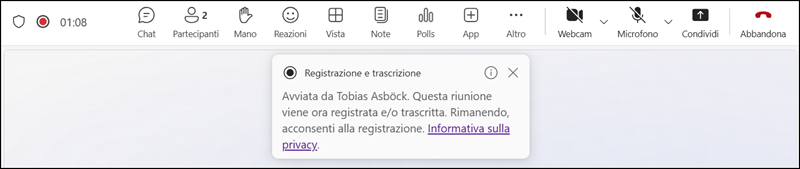
I tested the policy with Teams recording for users whose Teams client language is set to Italian. The configuration works as expected. The configuration is active after a few minutes.
- Deleting a custom message template.
Remove a message template with Remove-CsTeamsRecordingAndTranscriptionCustomMessage.
Remove-CsTeamsRecordingAndTranscriptionCustomMessage -Identity $TeamsRTCustomMessageTemplate.Id
You cannot delete a message template if the template is still assigned to a meeting or calling policy.

