
Microsoft is expanding the Interpreter Agent to include real-time speech-to-speech interpretation for Teams Calls (PSTN and VoIP), bringing parity with the existing meetings experience.
This update applies only to Teams for Windows.
Content
Timeline
The rollout should be completed in February 2026. Government clouds are excluded from this rollout.
Licensing
The Interpreter agent in Teams meetings and calls is a Copilot-only feature; a Microsoft 365 Copilot license is required to enable the Interpreter functionality. All participants need a license to enable Interpreter themselves; otherwise, only accounts with a Copilot license can enable and use Interpreter.
A Copilot license includes 20 hours per user per month for real-time translation with Interpreter. It is currently unclear (not defined by Microsoft) whether meetings and calls count toward the same quota, but I expect they do.
The costs for usage beyond 20 hours are still pending. I expect a Pay-as-you-go setup, billed through Copilot Control System.
As a reminder, Microsoft communicated last October:
- We’re increasing the amount of included interpretation hours from 2 hours to 20 hours per user per month with a Microsoft 365 Copilot license. Access beyond the included hours is subject to available capacity.
- To help teams adopt Interpreter seamlessly, we will provide IT admins with usage monitoring tools to help your teams plan and manage usage effectively. Usage monitoring tools will be available after March 31, 2026.
- You will not be charged based on usage at this point in time. In the future, we may implement an option to purchase additional hours at which point we’ll provide clear and advanced notice. If we offer an option to purchase additional hours in the future, past usage will not be billed retroactively.
How does this affect your Teams users?
The Interpreter agent uses AI-driven speech-to-speech translation and voice simulation to process real-time audio from Teams meetings. This agent is now also available in Teams Calls (for PSTN and VoIP).
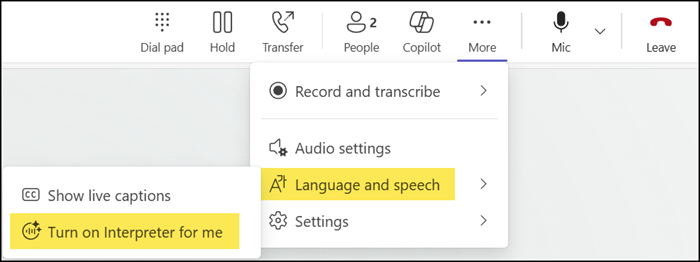
Users with a Microsoft 365 Copilot license can find the Interpreter agent in all calls via the “Language and speech” menu.
Important for PSTN calls (for example, calls to a landline or mobile number):
Other parties are not notified when you enable Interpreter in a PSTN call. In VoIP calls to other Teams users, participants receive a notification when Interpreter is active in the call.
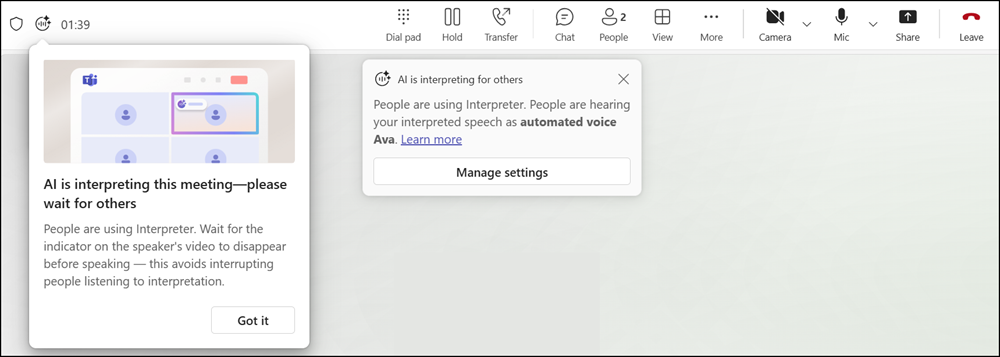
Interpreter always has a small delay to real-time translate (or a longer delay if several people are speaking). You should therefore inform other participants that your responses may be delayed while waiting for Interpreter output.
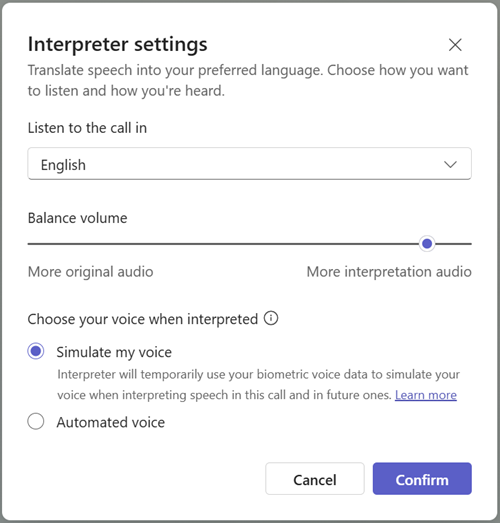
Users can select the interpreting language, adjust the interpretation audio balance, and choose an interpreting voice or voice simulation.
How does this affect your Teams administrators?
Interpreter in Teams Calls is available by default for users with a Microsoft 365 Copilot license. If you have restricted Interpreter for meetings, this configuration does not apply to Teams calls.
A Teams administrator has two settings in a Teams Calling policy to control Interpreter (the same settings as in a meeting policy): AIInterpreter and VoiceSimulationInInterpreter
AIInterpreter
Enables the user to use AI Interpreter-related features.
Possible values:
- Disabled
- Enabled (this is the default value)
VoiceSimulationInInterpreter
Enables the user to use the voice simulation feature while being AI interpreted.
Possible values:
- Disabled (this is the default value for Teams calls)
- Enabled

Microsoft describes VoiceSimulationInInterpreter here.
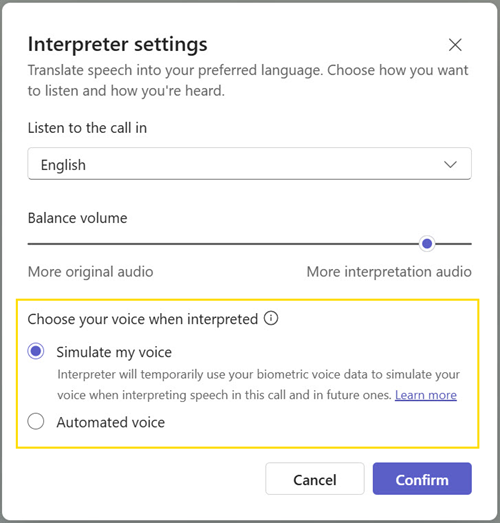
- Enabled: Sets the default value for Choose your voice when interpreted to Simulate my voice. When users with a Microsoft 365 Copilot license turn on Interpreter, it automatically simulates their voices when translating to others in meetings. All participants in an Interpreter-enabled meeting can also select an automated voice.
- Disabled: Sets the default value for Choose your voice when interpreted to Automated voice. When users with a Microsoft 365 Copilot license turn on Interpreter, Ava (female) option is selected by default among the automated voices. All participants in an Interpreter-enabled meeting can select another automated voice or choose to have Interpreter simulate their own voice.
Example to disable Interpreter in your global calling policy. This change takes effect within a minute for new calls. A restart of the Teams client is not necessary.
Connect-MicrosoftTeams
Set-CsTeamsCallingPolicy -Identity Global -AIInterpreter Disabled -VoiceSimulationInInterpreter Disabled
Voice simulation in Teams meetings and calls
Voice simulation is a setting within the Interpreter configuration. All participants in a meeting or VoIP call can change this setting once a user with a Copilot license enables Interpreter (not in PSTN calls!), even if other participants do not have a Copilot license. The default setting can be important for your participants.
As Microsoft describes it:
Voice simulation generates translated speech in your user’s voice, allowing other participants to hear translations as if they’re speaking their language directly. When a user turns on this feature in Interpreter, the system briefly analyzes short segments of their speech on the fly (in real-time) to simulate their unique tone, style, and voice characteristics. Voice samples or biometric data are never stored. AI instantly creates a natural-sounding voice in the selected language, preserving their authentic tone, pitch, and speaking style without exaggerating emotions. This ensures a familiar and seamless multilingual conversation experience.
Users can choose between three voices if “Automated voice” is selected. Ava is the default voice. Other participants with Interpreter enabled will hear the selected voice instead of the simulated voice. It’s not possible to completely disable the simulation option.
It is important to verify the default value of VoiceSimulationInInterpreter in your Teams policy.
VoiceSimulationInInterpreter defines the preselected option in the voice simulation section for the first interaction with a new contact. Once the other user changes the preselected value, Teams saves the preference and automatically applies it to subsequent calls. The user can change the setting at any time while Interpreter is active in a call. Teams will then use the updated value.
This behaviour can be misleading when testing with predefined test accounts or existing users. For accurate testing, use a Teams user account that has never modified this setting before (or try to clear the Teams client cache).
