
Microsoft is expanding Explicit Recording Consent in Teams to 1:1 calls made via the Public Switched Telephone Network (PSTN) and Teams Voice over IP (VoIP). Previously, this setting was available for meetings and Audio Conferencing.
When enabled by an administrator, participants must provide explicit consent before their media (audio, video, and content sharing) is included in any recording or transcription initiated by another user.
When the recording agreement policy is turned on, in meetings that aren’t set to auto-record, once a user either starts the meeting recording, transcription, or both, all other participants are muted, with their cameras and content-share off. The user who initiates recording or transcription is considered to have given consent and remains unmuted.
In auto-recorded meetings, everyone who joins is muted with their cameras off. When a participant decides to un-mute, turn on their camera, or share content, they’re asked to respond ‘Yes’ or ‘No’ to consent to be included in the meeting recording and transcription.
Note:
Microsoft also mentions explicit recording consent for PSTN calls, but this is not entirely accurate. PSTN calls use auto-consent, which is not “explicit” as Microsoft describes it (see my report below).
This update applies to Teams for Windows and macOS. Explicit recording consent is not supported for calls started via Teams on the web or Teams mobile apps.
Timeline
The rollout should be completed in February 2026. Explicit recording consent for Teams calls is disabled by default.
Updated 21 March 2026:
The rollout should be completed in April 2026. Explicit recording consent for Teams calls is disabled by default.
How does this affect your organization?
This change primarily affects users participating in Teams VoIP calls where recording or transcription is initiated. When the feature is enabled, the user who initiates recording or transcription is informed explicit consent is required from all participants. The other participant in the call receives a consent prompt.
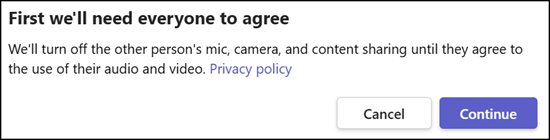
Until the participant grants consent, audio, video, and screen or content sharing are disabled and excluded from the recording or transcription.
Note for PSTN calls (for example, calls to landline or mobile numbers):
According to Microsoft, PSTN calls do not yet support explicit user consent. The other party receives a notification the call is being recorded, but cannot accept or decline consent on their phone.
PSTN users will be auto-consented.
For example, in a Teams VoIP call to another user, the participant is informed consent is required. As in meetings, a participant is muted until consent is granted.

A Teams administrator can control this setting via a Teams Calling policy.
The property is ExplicitRecordingConsent. This property is disabled by default, meaning explicit recording consent is not required.
ExplicitRecordingConsent
This setting controls whether users must provide or obtain explicit consent before recording a 1:1 PSTN or Teams call. When enabled, both parties will receive a notification, and consent must be given before recording starts.
Possible values:
- Enabled: Requires users to give and obtain explicit consent before starting a call recording.
- Disabled: Users are not required to obtain explicit consent before recording starts. This is the default value.

Example to enable explicit recording consent in a Teams Calling policy.
Connect-MicrosoftTeams
Set-CsTeamsCallingPolicy -Identity "<PolicyName" -ExplicitRecordingConsent Enabled
Purview Audit Logs to get the consent state
Consent-related data is logged in Purview Audit Logs.
You will find auto-consent information for PSTN calls, compared to VoIP calls, where the state is Yes or No.
Note, consent-related events may take up to four hours to be generated in Purview.

Below is my sample query to retrieve consent-related results from a Log Analytics Workspace.
If you are using the Audit Log search or PowerShell, filter for the RecordType MicrosoftTeams and Operation MeetingParticipantDetail to reduce the results.
OfficeActivity
| where RecordType == "MicrosoftTeams"
| where Operation == "MeetingParticipantDetail"
| extend ExplicitConsentLog = parse_json(
    tostring(
        parse_json(tostring(Attendees[0].ExplicitConsentInfo)).ExplicitConsentLog
    )
)
| where isnotempty(ExplicitConsentLog)
| mv-expand ExplicitConsentLog
| extend
    ExplicitConsentLog = tostring(ExplicitConsentLog),
    ConsentStatus      = tostring(ExplicitConsentLog.ConsentStatus),
    ConsentTime        = todatetime(ExplicitConsentLog.ConsentTime),
    ConsentType        = tostring(ExplicitConsentLog.ConsentType)
| project
    ConsentTime,
    AttendeeDisplayName = tostring(Attendees[0].DisplayName),
    ConsentStatus,
    ConsentType
| order by ConsentTime desc