Microsoft is rolling out the new sharing experience for SharePoint, OneDrive, and Microsoft 365 file sharing. Every file and folder gets a single primary sharing link, the Hero Link, which can be updated after it has been shared.
Timeline
The rollout should be completed by November 2026. Some users may see the Hero Link before others.
How does this affect your users?
Microsoft announced the Hero Links in May 2025 and introduced them in a video back in March 2026. Watching the video is recommended.
Microsoft is now rolling out these Hero Links in OneDrive and SharePoint.
If the rollout has reached your users, they will see a message the sharing experience has changed, along with a short tutorial (users can also restart the tutorial if they closed it, since this information often appears at an inconvenient time).
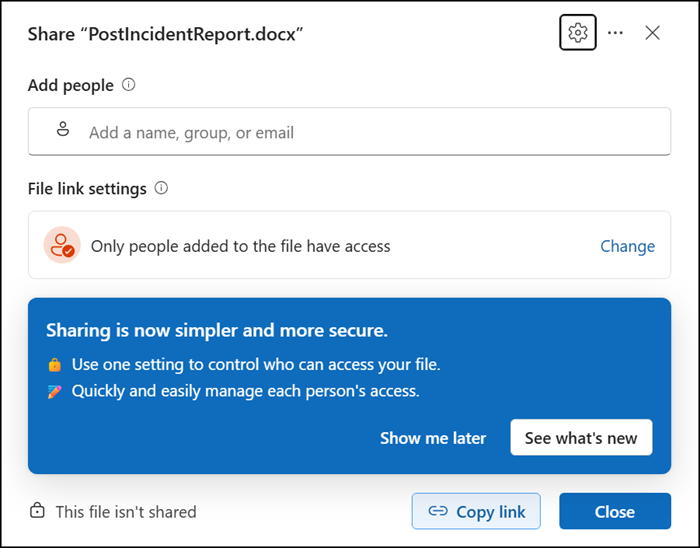
With Hero Links, copying a link, sharing through email, and using the browser URL now lead to the same sharing dialog and the same Hero Link. Compared to before, it no longer matters which link users copy and paste, even if it is the full browser URL. A Hero Link has just one link (until the owner resets the link). Some users were confused about why access was denied when they pasted the browser URL. Access is still controlled via the sharing permissions.
Sharing is a bit different now.
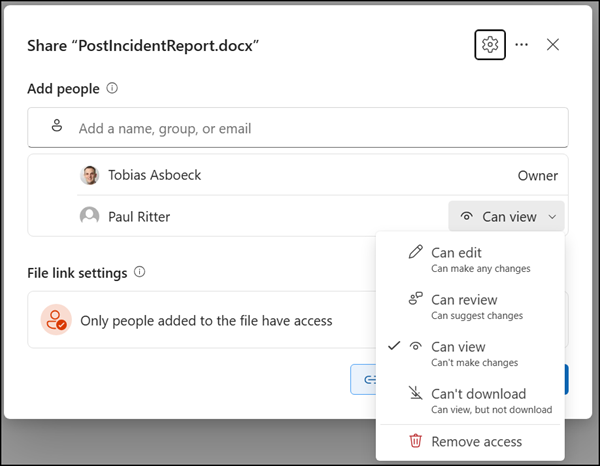
Users can now add permissions to a file. Adding people directly to a file or folder is still the simplest way to share content. By default, the Hero Link is set to “Only people added” to the file, so the link itself does not grant access to anyone.
The default sharing “Only people added” is defined at the site collection level (for both OneDrive and SharePoint sites) with the setting DefaultMainLinkScope. Currently, Microsoft offers no tenant-wide setting.
DefaultMainLinkScope
The default audience for main links used in sharing. Applies to all items at the root of the document library. Only audience scope is set by this parameter. The default effective value is OnlyPeopleAdded.
The valid values are:
- OnlyPeopleAdded
- Organization
- Anyone
Anyone is only available if anonymous links are allowed at the tenant level. If Anyone is selected but the site has Anyone links disabled, the effective default falls back to the next most restrictive value.

The big difference from the previous sharing experience is that changing the Hero Link audience updates the existing link instead of creating a new one.
For example, users can add permissions for everyone in the organization. Previously, this created a new sharing link, specific to that audience. The Hero Link just updates permissions for the existing link. If a recipient could not open a previously shared file, the recipient can now open the same link without a new URL.
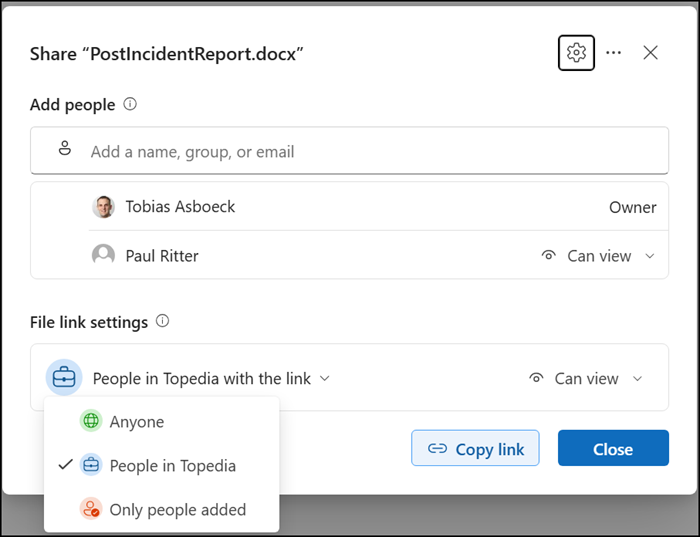
- A Hero Link respects the tenant-wide sharing configuration. If Anyone sharing is disabled, users will not see this option.
- Existing sharing links continue to work and appear under “Other sharing links” in the sharing dialog.
In that case, users may now have two types of sharing links: the previous one and a new Hero Link. Users can stop the previous sharing to create a new Hero Link, but they have to do it manually.
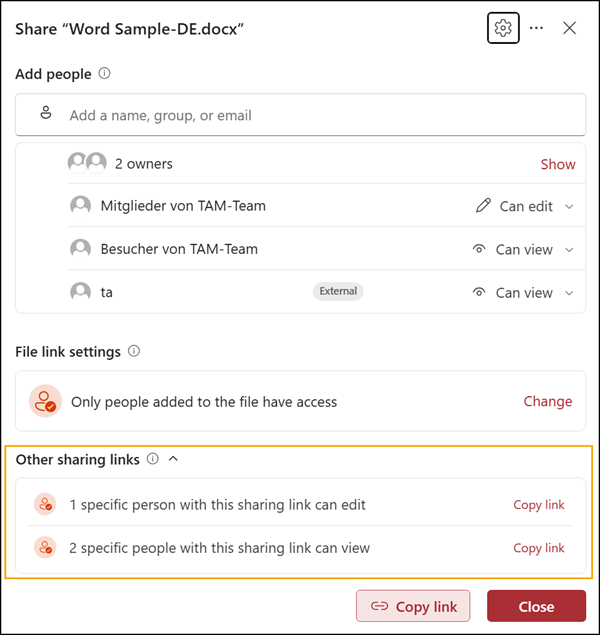
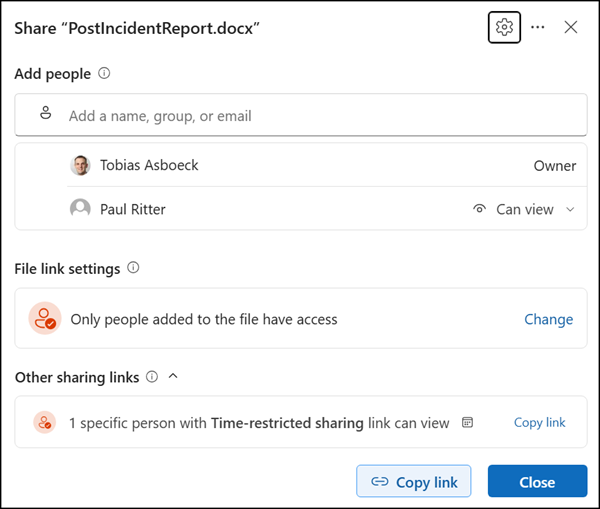
Some sharing links do not yet support Hero Links, such as links to share a file for a specific time or with different access.
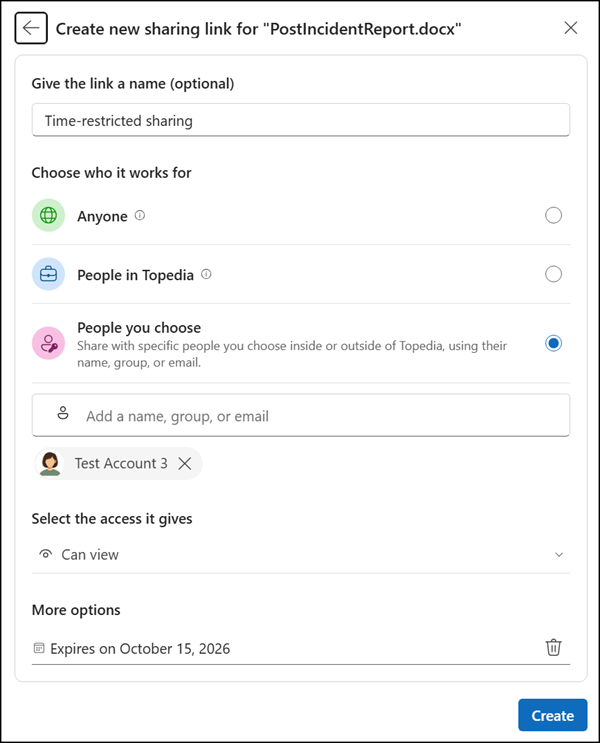
Such a link is classified as an “Other sharing link”, so it is a legacy link.
Users can now adjust a Hero Link instantly with the following settings:
- Only people added to the file: The link grants no access by itself. This is the default, configured by site collection.
- People in your organization: Anyone in the organization with the link can access the item.
- Anyone with the link: Anyone with the link can access the item. Available only where organizational policy permits.
- Can view: Recipients can open the item but not change it.
- Can edit: Recipients can open and change the item.
- Can view without downloading: Recipients can open the item but not download it, depending on available permissions.
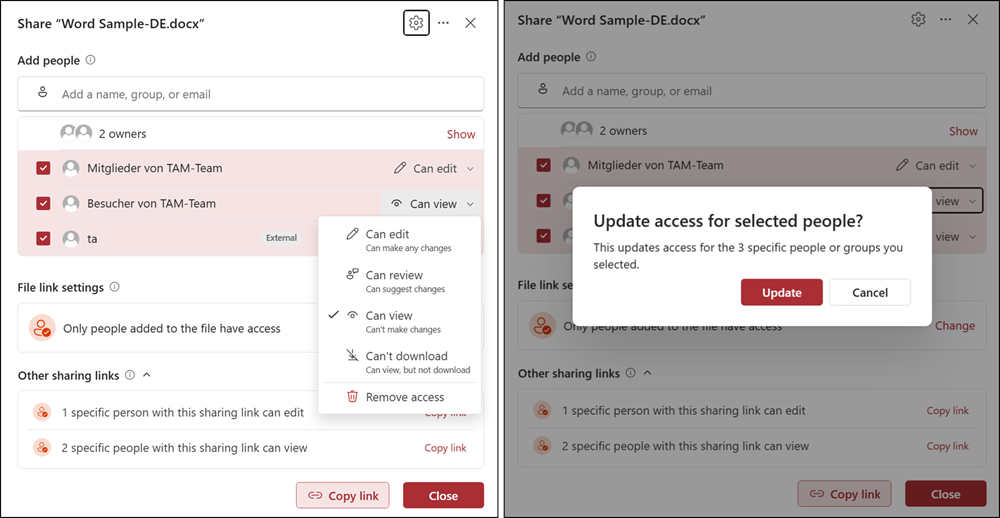
Note that the first Hero Link breaks the file/folder permission inheritance in the document library. Users still have access to the advanced (classic) SharePoint interface to view the permissions.
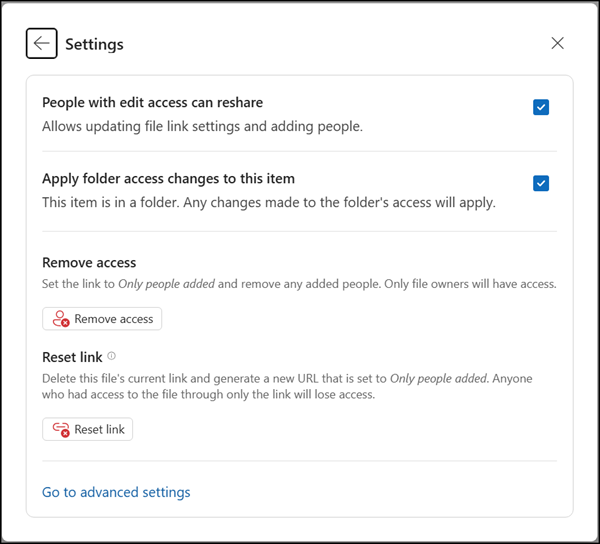
Each Hero Link also includes some advanced options.
- Remove access
Removes all permissions except the owner. This option does not restore the permission inheritance for the file or folder. The inheritance remains broken. - Reset link
Resets the unique sharing URL if the URL was misused. Users with general organization permissions will lose access, and specific users must use the new URL or lose access.