
Microsoft has added a new “Sponsored Guests” page to the My Account overview. Sponsored Guests should give users an overview of the B2B guest accounts they are responsible for. The sponsored account information is sometimes added automatically or can be updated manually via Microsoft Entra or Microsoft Graph. The User Administrator role is required to update a sponsor in Entra ID.
Unlike a Manager, a sponsor can include multiple internal users or Entra ID groups and is not shown in the org chart on the Microsoft 365 profile card. If a group is defined as a sponsor, all of the members are sponsors.
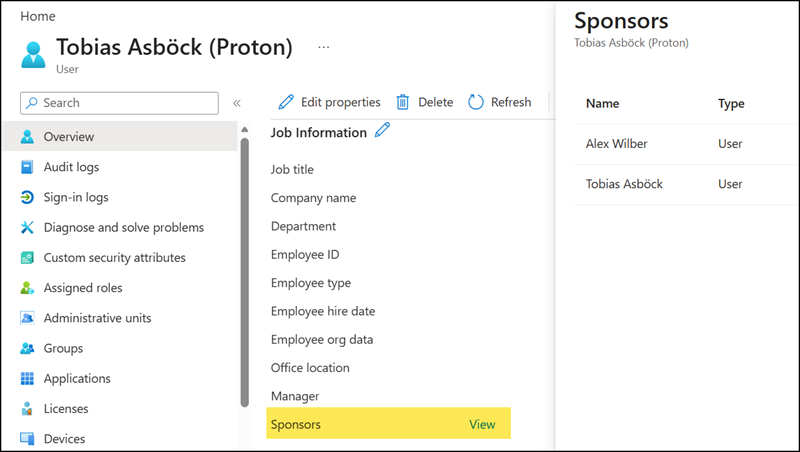
Users who act as sponsors for external guests can now review and manage those guests directly in My Account. This capability is currently in public preview and may be limited or may not always work as expected.
Until now, tracking guest accounts was not easy for users unless the organization used third-party tools to support guest management. The new Sponsored Guests page should give users one place to see guests they are responsible for and act on them.
The Sponsored Guests page lists the user’s sponsored guests, including details such as name, email address, attestation status, and more. Users can search by display name or email address to find a specific guest.
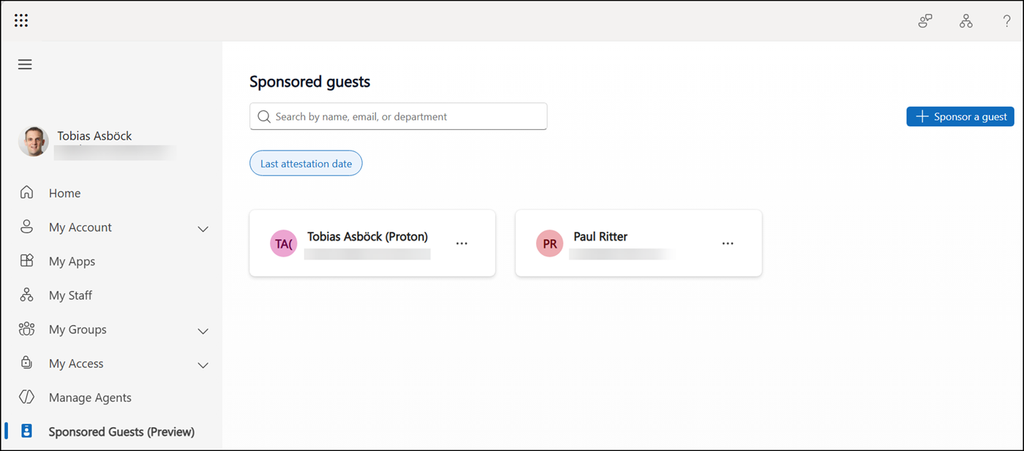
To view a guest in more detail, open the guest’s menu and select View details. This shows information such as the date the guest was invited, the current sponsors, any access packages assigned to the guest, and more. These signals should help sponsors decide whether the guest still needs access.
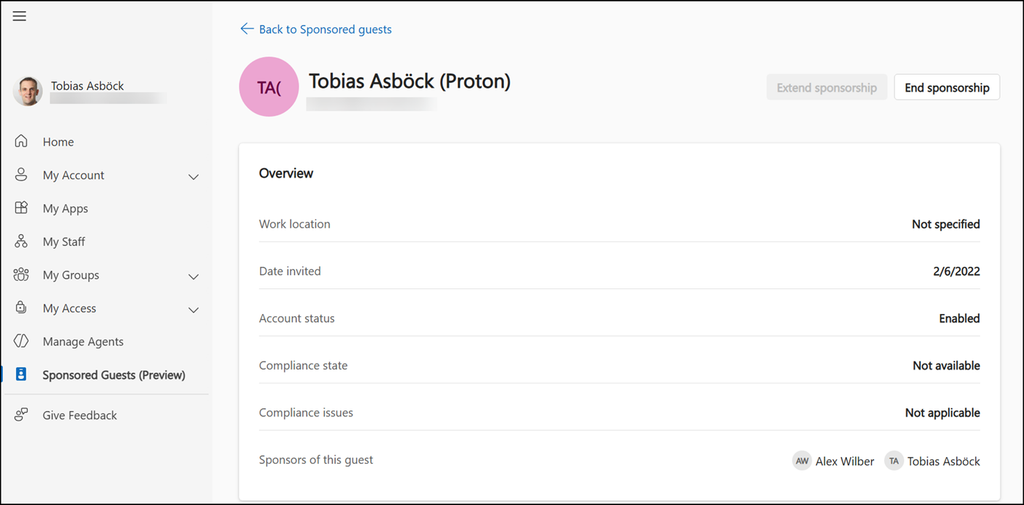
When a guest still has an ongoing business relationship with the organization, sponsors can choose Extend sponsorship. This records their confirmation that access is still needed, and My Account then shows the updated status or date.
If the option is not shown, the guest may not need an extension yet, or their current state may not allow it. In that case, users can check the guest’s details or contact their organization’s support team.
Sponsors who can no longer confirm a guest needs access, or who are no longer responsible for the relationship, can choose End sponsorship. This removes only their own role as sponsor. The guest and their access are not removed immediately, and any other sponsors stay in place.
However, if a guest is left with fewer sponsors than the organization requires through guest lifecycle policies (also in preview), the organization’s rules may eventually disable or delete the guest account. Users who are the only sponsor of a guest are encouraged to arrange for a colleague to take over before ending their sponsorship.
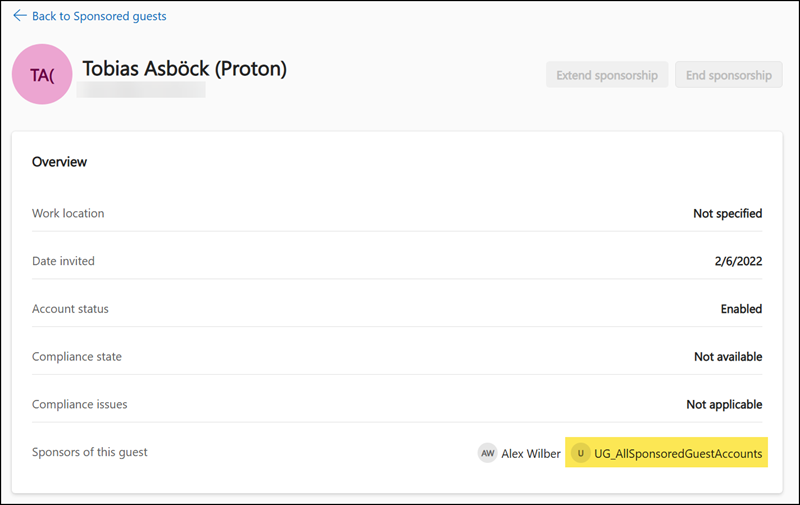
Note:
Users cannot end their sponsorship if they were assigned as a sponsor through an Entra ID group. In that case, the End sponsorship option is disabled.
Users can also take on sponsorship for a guest who currently has no sponsor. They select Sponsor a guest, search by name or email address, pick the right person from the results, and select Sponsor. The guest then appears in their list. Only guests that the organization allows them to find and sponsor appear in the search, controlled via guest lifecycle policies.
Guest lifecycle policies require a Microsoft Entra ID Governance license.
More information
- Manage sponsored guests in My Account – Microsoft Entra ID Governance | Microsoft Learn
- Guest lifecycle policies in Lifecycle Workflows – Microsoft Entra ID Governance | Microsoft Learn
- Microsoft Entra ID Governance licensing fundamentals – Microsoft Entra ID Governance | Microsoft Learn
- Microsoft Entra Identity Governance | Microsoft Security
