I use GitHub Actions for my PowerShell automation, federated with a Microsoft Entra app registration as described in Create a trust relationship between an app and an external identity provider. With the federation, my GitHub Actions workflows can connect to an Azure KeyVault to receive their secrets.
Content
What is changing?
Recently, Microsoft published MC1447671 with information that organizations using GitHub Actions OpenID Connect (OIDC) authentication should plan to migrate to an immutable subject format.
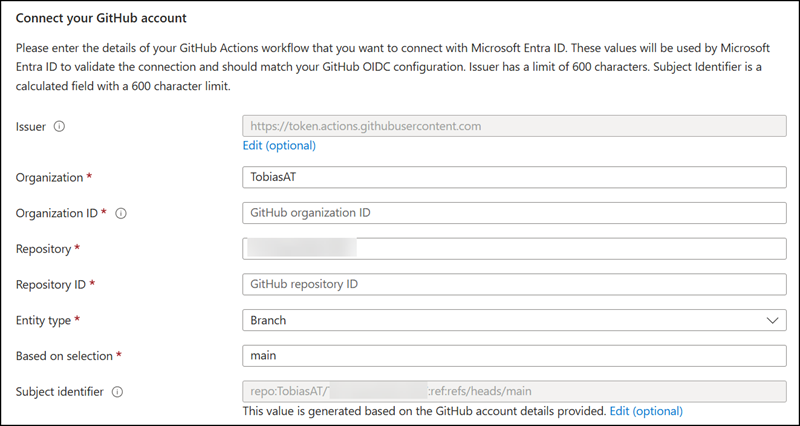
As seen in the screenshot above, the existing name-based subject format ties trust to the repository and owner names, which can be reused if my repository or account is renamed or deleted. This creates a subject recycling risk, where a new, unrelated resource could inherit the same subject and potentially obtain unauthorized tokens.
The immutable format addresses this by appending the immutable owner ID and repository ID to their corresponding names using the @ delimiter, changing the subject identifier…
- from the previous name-based subject format repo:<owner>/<repo>:ref:refs/heads/main
- to the recommended immutable subject format repo:<owner>@<owner_id>/<repo>@<repo_id>:ref:refs/heads/main.
Because these IDs remain permanently associated with the original resources and are never reused, the trust relationship stays bound to the intended repository even if names change later.
This migration affects organizations that use GitHub Actions OIDC authentication with Microsoft Entra federated identity credentials, and administrators managing Microsoft Entra app registrations.
GitHub also informs about this immutable update.
- Repositories created after July 15, 2026 now use an immutable default subject format that includes both the owner ID and repository ID. This rollout does not include GitHub Enterprise Server.
- Repositories created before July 15, 2026 keep the previous format unless you opt in to immutable subject claims. You can opt in at the organization or repository level by using the OIDC settings UI or REST API.
- Repository renames and transfers after July 15, 2026 also move to the immutable subject format.
Existing name-based federated identity credentials continue working as long as the repository retains its current name and subject format, so nothing breaks immediately.
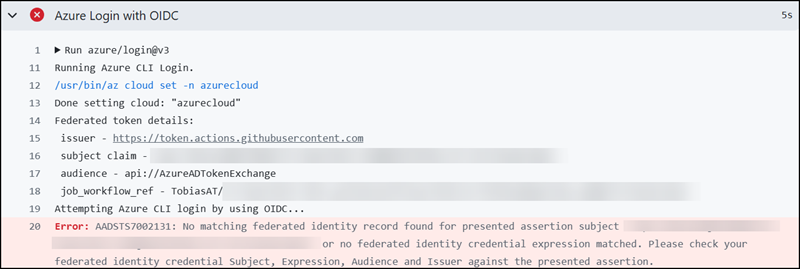
However, any credential configured to trust only a previous name-based subject will not match tokens once a repository has moved to the immutable format, which could cause affected GitHub Actions workflows to fail to obtain Microsoft Entra tokens until the corresponding credential is updated.
Below is a simulation of such a failure:
What should administrators do?
Administrators should migrate name-based subject format credentials to immutable subject format credentials.
Complete the following steps if your app registration uses these federated credentials with GitHub Actions:
- Get the immutable IDs from your GitHub repository. Both the repo ID and the user or org ID are needed (depending on whether it’s a GitHub personal or org account).
Below is a PowerShell sample showing how to build the required immutable subject via the GitHub API. You need to get the API access token first.
$GitHubAuthHeader = @{
            "Authorization"         = "Bearer <your-token>"
            "Accept"                = "application/vnd.github+json"
            "X-GitHub-Api-Version"  = "2026-03-10"
        }

$Owner = "<Owner>" # This can be a user or organization name.
$RepoName = "<RepoName>"
$Branch = "main"

$GitHub_Repo = Invoke-RestMethod -Uri "https://api.github.com/repos/$Owner/$RepoName" -Headers $GitHubAuthHeader

# For personal repositories, the owner is the user...
$GitHub_Owner = Invoke-RestMethod -Uri "https://api.github.com/users/$Owner" -Headers $GitHubAuthHeader

# OR for organization repositories, the owner is the organization.
$GitHub_Owner = Invoke-RestMethod -Uri "https://api.github.com/orgs/$Owner" -Headers $GitHubAuthHeader

$ImmutableSubjectName = "repo:$Owner@$($GitHub_Owner.id)/$RepoName@$($GitHub_Repo.id):ref:refs/heads/$Branch"
Write-Host "Immutable Subject Name: $ImmutableSubjectName"- Create a second federated credential on the same app registration, alongside the existing one. Nothing should be deleted yet.
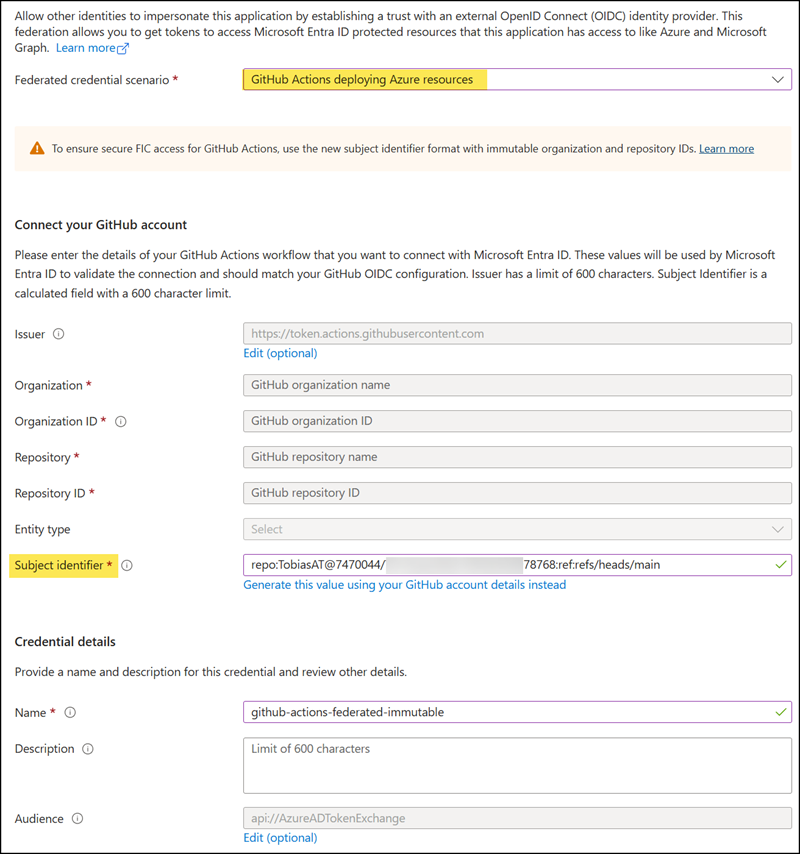
- Select “GitHub Actions deploying Azure resources”.
- Edit the subject identifier so that the immutable subject from step one can be pasted directly.
- Define a name, for example: github-actions-federated-immutable
- Save the second federated credential.
Alternative with PowerShell:
# Add a new federated identity credential to the application via Microsoft Graph.
Import-Module Microsoft.Graph.Authentication
Connect-MgGraph -Scopes "Application.ReadWrite.All"

$AppObjectId = "<AppObjectId>"
$Body = @{
    name        = "github-actions-federated-immutable"
    issuer      = "https://token.actions.githubusercontent.com"
    subject     = $ImmutableSubjectName
    description = "Migrated to immutable subject format (replaces name-based credential)"
    audiences   = @("api://AzureADTokenExchange")
} | ConvertTo-Json

$FederatedCredential = Invoke-MgGraphRequest -Method POST `
    -Uri "https://graph.microsoft.com/v1.0/applications/$AppObjectId/federatedIdentityCredentials" `
    -Body $Body `
    -ContentType "application/json"

$FederatedCredential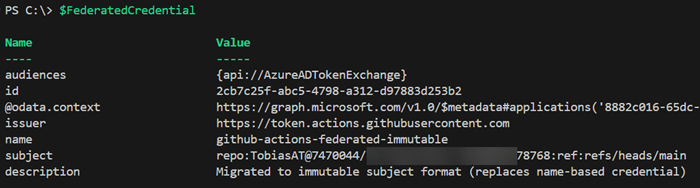
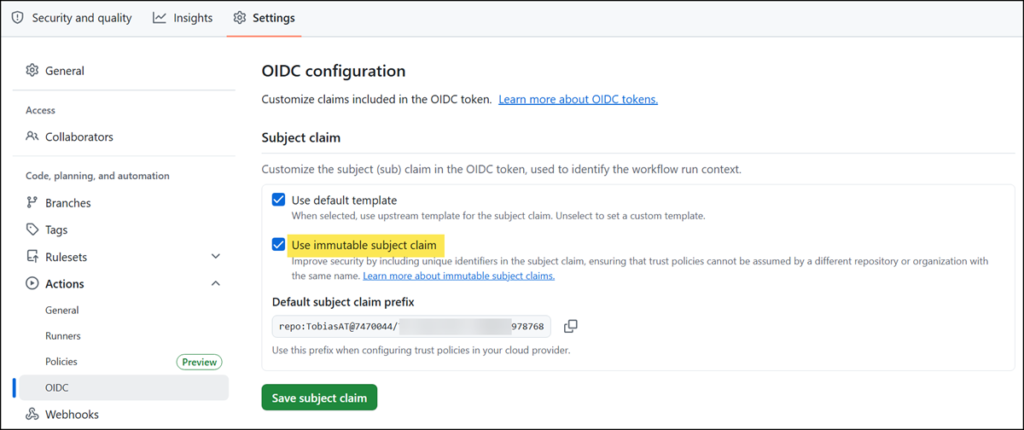
- Opt in to the immutable subject format through OIDC settings in the GitHub repository.
The subject claim prefix will be updated. A good time to verify the claim against the claim from step one.
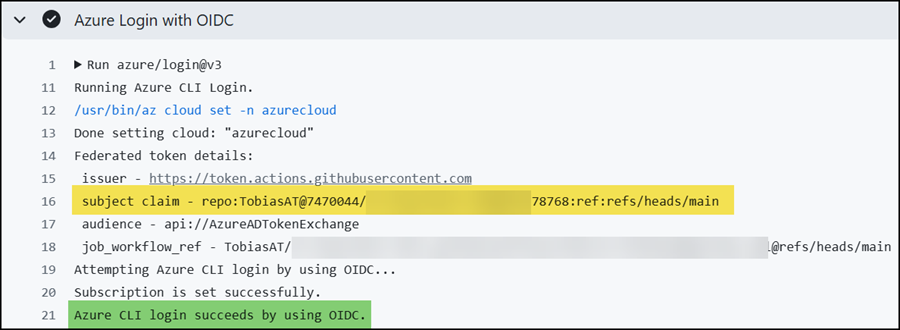
- Test the GitHub Actions workflows.
Review the step for the OIDC login. The step should (1) use the new claim and (2) the login should succeed.
- Delete the old name-based credential in the app registration once the GitHub Actions workflows have been validated.
Preview – Using Flexible Federated Identity Credentials (FFIC)
Microsoft also mentions using Flexible Federated Identity Credentials (FFIC, for additional protection, currently in preview), which can validate immutable GitHub claims such as repository_id and repository_owner_id alongside the sub claim.
I configured FFIC for testing purposes.
- Build the FFIC claim using the same information from the previous steps.
# Build the FFIC subject name based on the previous repository and branch information.
$FFICSubjectName = ("claims['sub'] eq 'repo:$Owner@$($GitHub_Owner.id)/$RepoName@$($GitHub_Repo.id):ref:refs/heads/$Branch' and claims['repository_id'] eq '$($GitHub_Repo.id)'")
Write-Host "FFIC Subject Name: $FFICSubjectName"- Create a new federated credential on the same app registration, alongside the existing one.
Select “Other issuer” and use the FFIC claim from the previous step as the claim value.
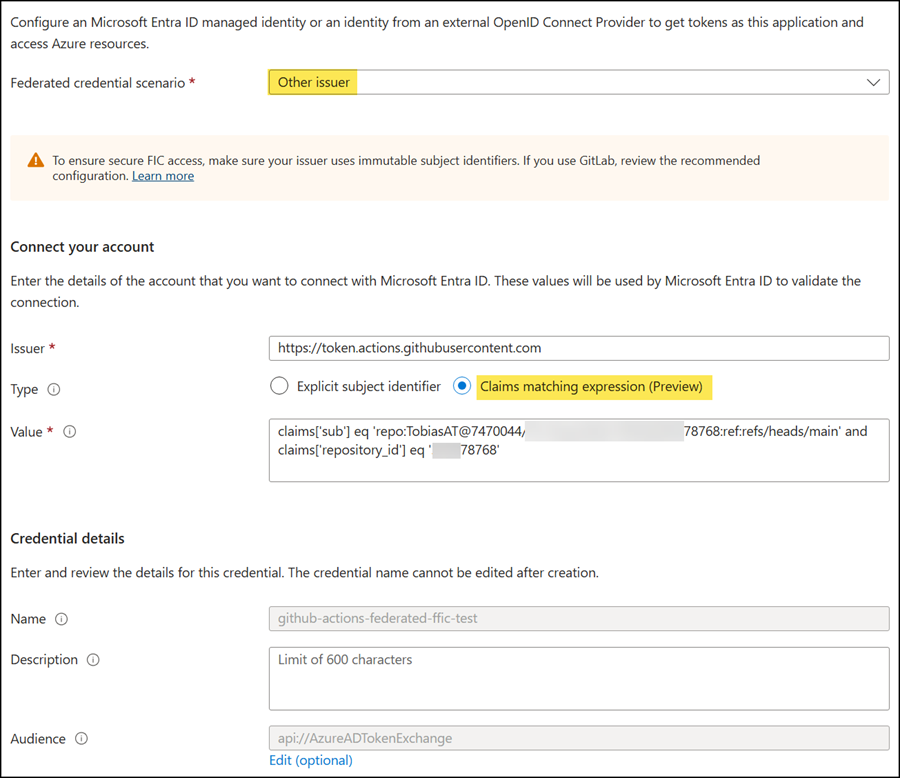
- Run a GitHub Actions workflow and verify that the OIDC login is successful.
- Delete the previously created immutable subject credential and run the workflow again. The workflow should still be able to authenticate using the FFIC credential. ✅
Verifying which federated credential was used
You can use the Entra ID sign-in logs to verify which federated credential was used for a sign-in. Each federated credential has its own ID. Entra logs this ID (FederatedCredentialId) with every sign-in event. In my case, I used my Sentinel Logs to filter the sign-ins and return that ID.
AADServicePrincipalSignInLogs
| where TimeGenerated > ago(5h)
| where ClientCredentialType == "federatedIdentityCredential"
| project TimeGenerated, ServicePrincipalName, ClientCredentialType, FederatedCredentialId, ResultType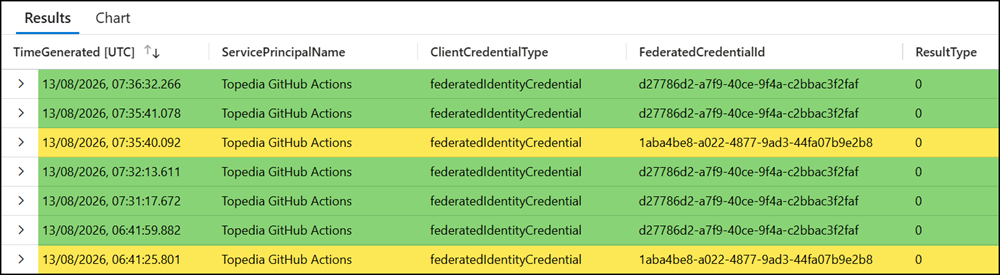
Next, I used a Microsoft Graph request to look up the ID against the federated credentials configured on my app registration.
# Return all federated identity credentials for the application via Microsoft Graph.
Import-Module Microsoft.Graph.Authentication
Connect-MgGraph -Scopes "Application.Read.All"

$AppObjectId = "<AppObjectId>"
$Result = Invoke-MgGraphRequest -Method GET -Uri "https://graph.microsoft.com/v1.0/applications/$AppObjectId/federatedIdentityCredentials"
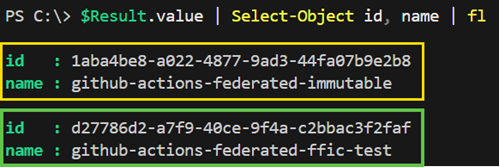
$Result.value | Select-Object id, name | fl
The response confirmed the sign-in highlighted in green was authenticated using the FFIC credential. The sign-in highlighted in yellow matched a newly created immutable subject credential, not the FFIC one.