
Microsoft Purview Data Loss Prevention (DLP) now supports blocking or allowing access to sensitive SharePoint and OneDrive for Business files based on an external user’s domain or specific email address. This feature has been in Public Preview since April and should be generally available in July 2026.
Timeline
General availability is scheduled for July 2026.
How does this affect your organization?
In a Microsoft Purview DLP policy for SharePoint, OneDrive for Business, or both, compliance administrators can configure the action “Block access for specific external domains and users“…
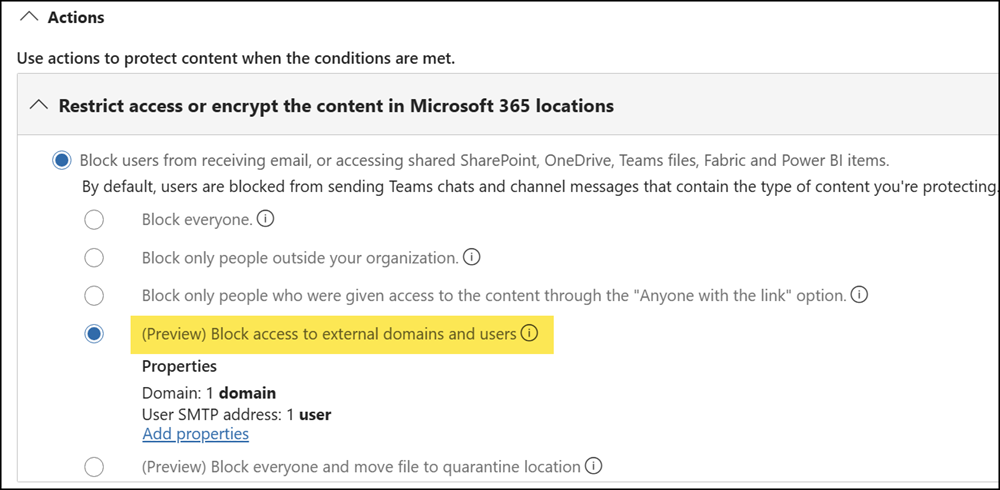
…to block OR allow access from specific external domains or individual external email addresses to SharePoint and/or OneDrive files.
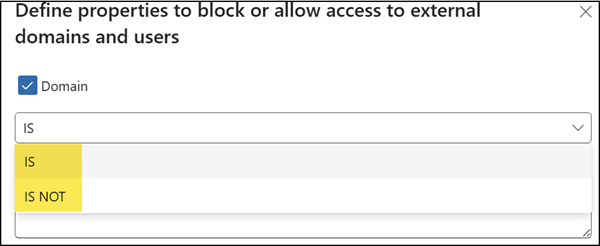
- The conditions Domain IS and User IS will block access.
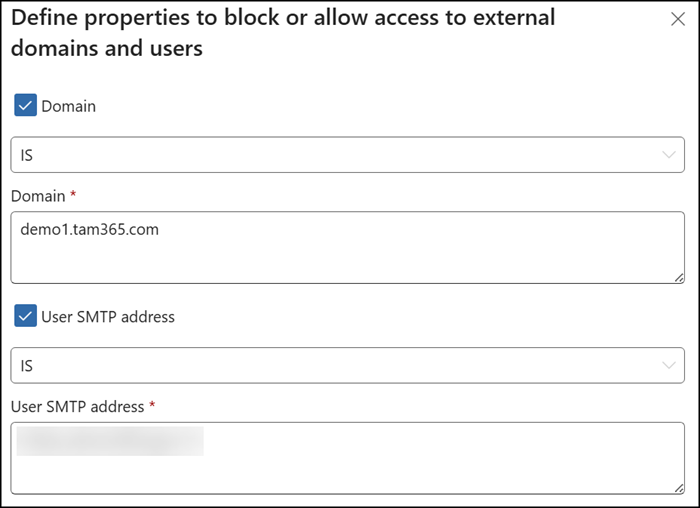
- The conditions Domain IS NOT and User IS NOT will allow access.
As Microsoft notes:
When you use Block access for specific external domains or users: if a user or domain appears in both allow and block lists, the block takes effect (most restrictive wins). If a file matches both an allow rule and a block rule, evaluation is per rule — allowed users and domains are permitted, blocked users and domains are denied, and users in neither list are blocked by default.
If the DLP policy is active and matches one of the rule conditions, blocked external users will see an access denied message and be unable to open or download the file. User notifications and user overrides are not available for this DLP action.
The message referencing “this site” can be misleading, since the block applies to the file, not the site. Purview DLP redirects the blocked user to a generic SharePoint site page.
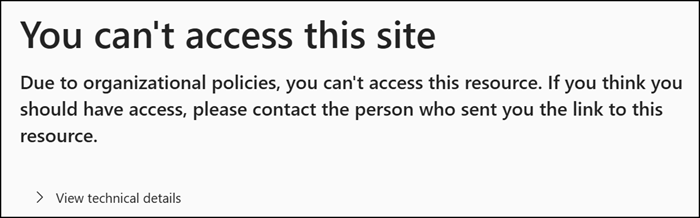
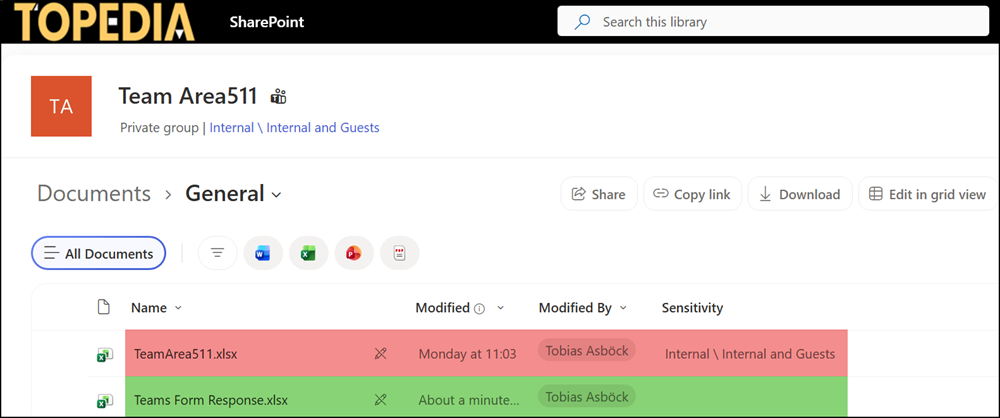
In my case, the guest can still access the General folder and the contents (for example, the Teams Forms Excel file), but the DLP policy blocks access to the Area511 file due to my rule.
These activities are recorded in Purview Audit Logs / Sentinel.

Note:
The license requirements for this feature are not yet clearly documented. They may be the same as those for Data Loss Prevention (DLP) for Exchange Online, SharePoint Online, and OneDrive for Business.
- Microsoft 365 E7/E5/A5/G5/E3/A3/G3, Microsoft 365 Business Premium, SharePoint Plan 2, OneDrive for Business (Plan 2), Exchange Online Plan 2
- Office 365 E5/A5/G5/E3/A3/G3
- Microsoft Purview Suite/EDU/GOV/FLW and Microsoft Defender + Purview Suite FLW
