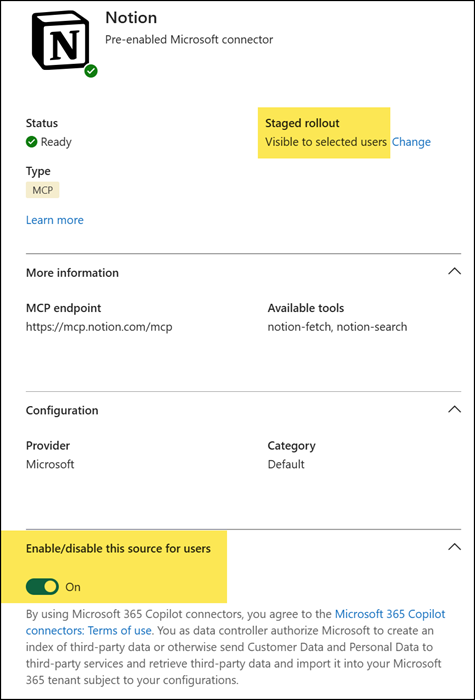
As posted, Federated Copilot Connectors have been generally available since April. All connectors are enabled by default for Copilot-licensed users, including any future connectors.
**************
Updated 17 August 2026:
The Set-FederatedConnectorToggle cmdlet will be deprecated on 25 August 2026.
From 5 October 2026, federated connector and agent access controls will both be governed from a single location through the Allowed agent types tenant setting in Agent 365.
**************
In March, Microsoft informed administrators should be able to change the setting for federated Copilot connectors, so the default setting is Disabled. This configuration is now available and must be configured via PowerShell.
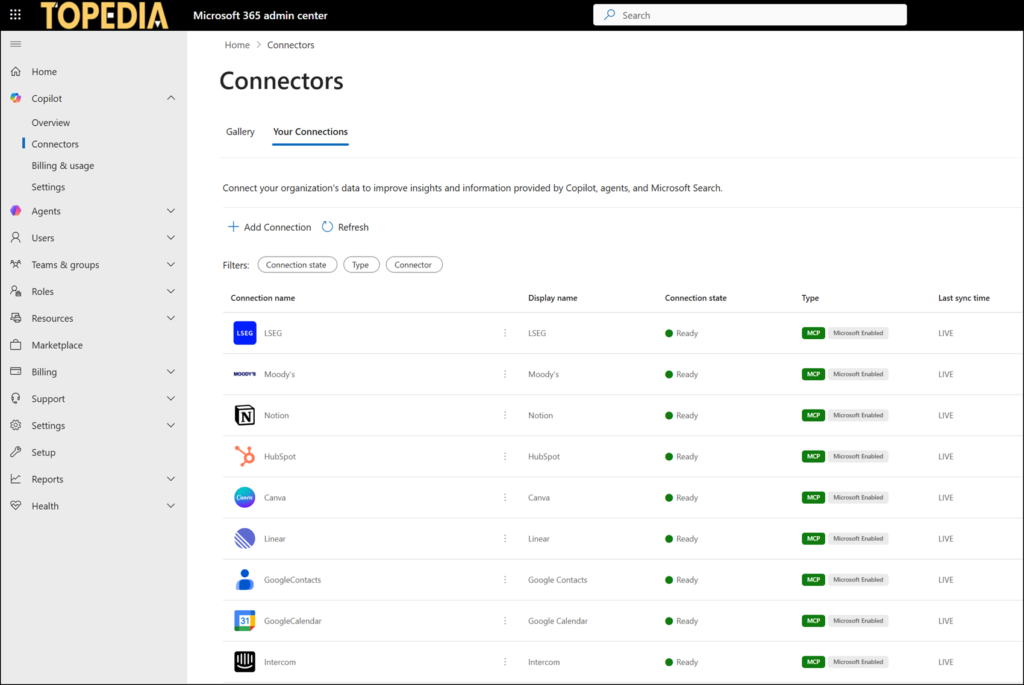
I prefer to disable such Copilot configurations first and enable them only when needed for a specific user group or pilot use case, especially with federated connectors accessing external data.
Data from federated Copilot connectors does not fall under the Microsoft Products and Services Data Protection Addendum (DPA), as these connectors do not store or index customer data in Microsoft services and access data in real time using the user’s identity. Review third-party provider agreements, including data residency and licensing terms, before enabling federated Copilot connectors.
- The account requires the AI Administrator or Global Administrator role.
- The Connector.cmd module, at least version 2.1, is required.
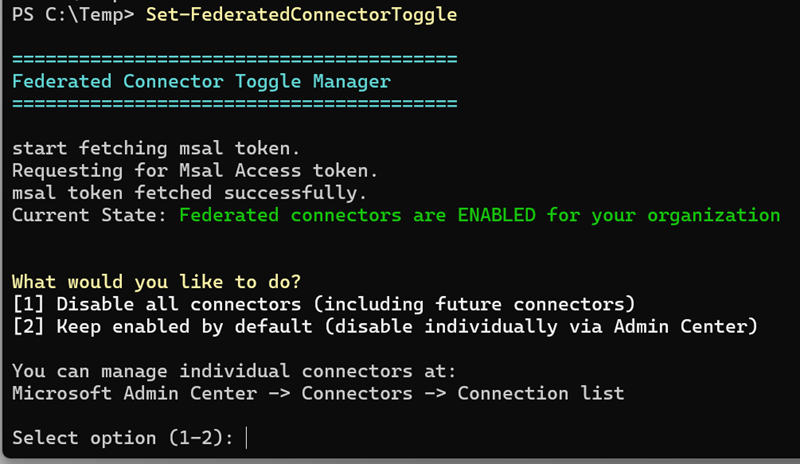
- Import the Connector.Cmd module and run Set-FederatedConnectorToggle.
Install-Module Connector.Cmd -Force
Import-Module Connector.Cmd
Set-FederatedConnectorToggle- Sign in with the administrator account.
- If the connectors are still enabled, select option 1 to disable all federated connectors by default.
All existing federated connectors in the Microsoft 365 admin center will be disabled within the next 10 minutes, and for Copilot-licensed users within a few hours.
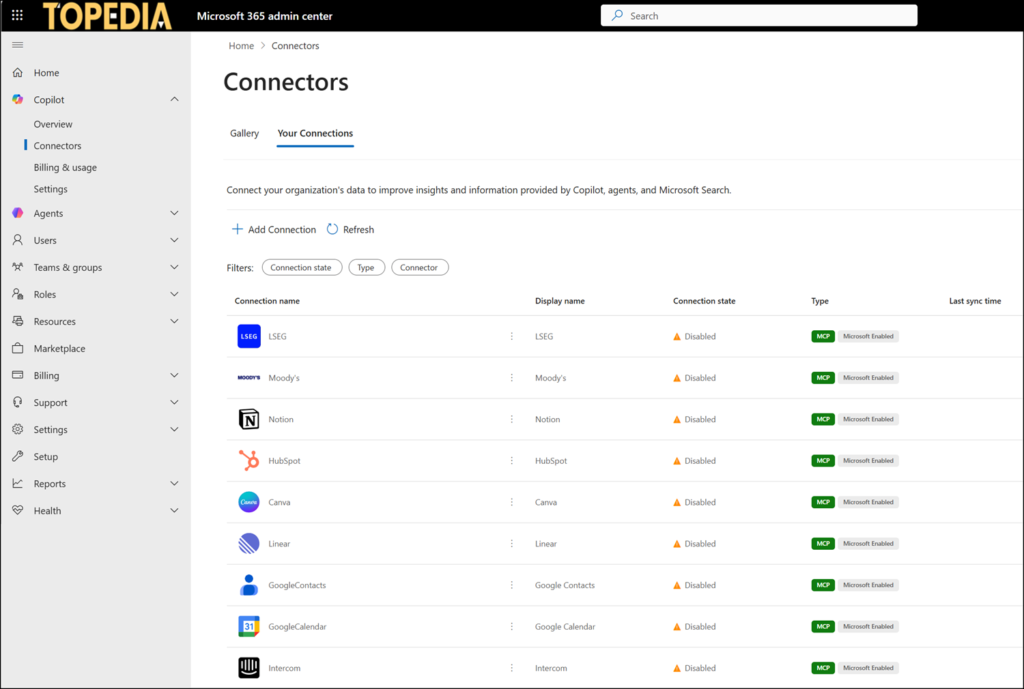
Specific connectors can then be re-enabled and assigned to selected users and groups.